56
Note
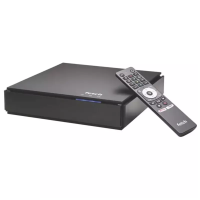
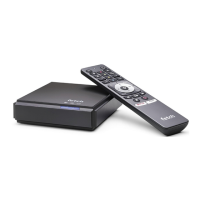
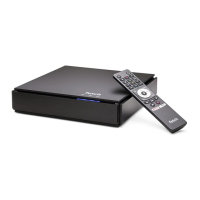
The included remote varies depending on where you got your
Fetch Mighty. If your remote looks different to the ones shown,
you can refer to the remote instructions at fetch.com.au/remote
or go to Menu > > Remote Control. The Voice Remote is
available for purchase at fetch.com.au/voice.
Tips
To set up this universal remote, see “Fetch Remote 5” user
guide.
Pair the remote to enable voice control and voice search.
To pair, hold down and point the remote at your Fetch Mighty.
For voice control, hold down and speak into the microphone
at the top of the remote (Page 6).
It may take a few button presses to re-connect to your Fetch
Mighty.
Once universal remote is set up, to set Fetch remote to control
the volume on your TV, go to Menu >
> Remote Control and
choose Set to TV. To set Fetch remote to control the volume on
your Fetch Box, choose Set to Fetch.
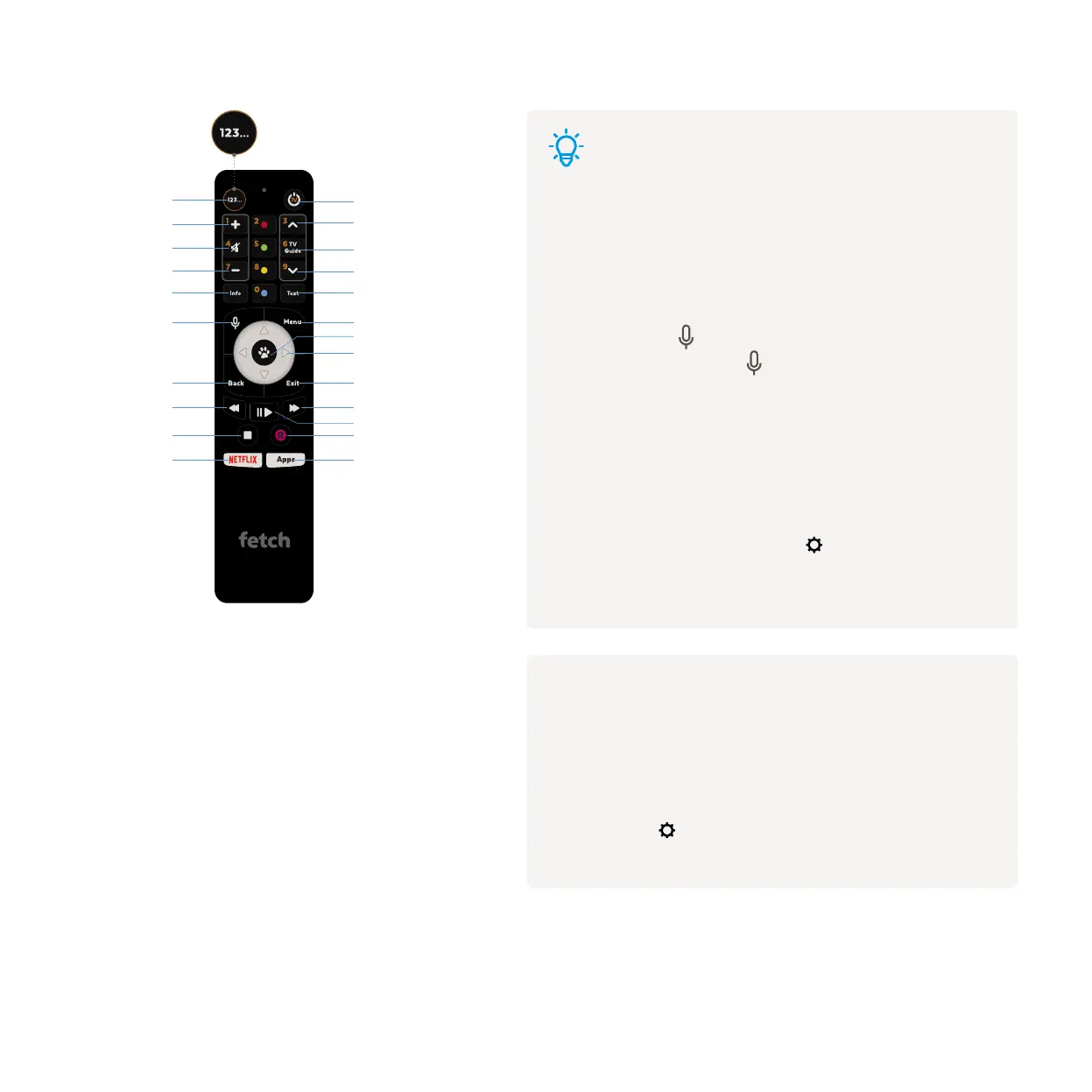
Press this button to turn the function keys into
numbers. Orange numbers will appear for you
to make your selection
Set top box power on/off
Channels Up
Channels Down
AvClear
TV Guide
Closed Captions
Main Menu
Fast Forward
Pause/Play
Record
Directional Arrow keys
Enter/Select
Exit
Exit from screen
Numeric Mode
Volume Up
Volume Down
Mute
Information Bar
Rewind
Opens Netflix
Stop
Back
Takes you up a level
Voice
Opens Apps
e.g Youtube


 To Next Page