57
Set up for Universal Remote
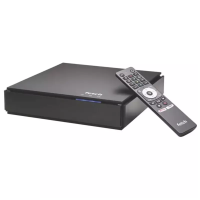
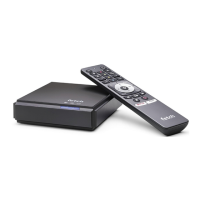
You can use this remote control to operate your TV as well as your Fetch Mighty.
Fetch will try to set up your remote for you when you first set up your box but if that didn’t work follow the
steps below.
Remote 5 (Voice Remote)
Remote 4
Using a different Fetch remote?
If your Fetch remote control has different buttons to the one shown above or if your TV brand is not listed on
screen when you follow the steps above, you will need to refer to the Universal Remote Set Up Guide on
fetch.com.au or go to Menu > > Remote Control.
Press and hold for 3 seconds until remote LED flashes twice. Your TV will now show a table of brands.
Press and hold the matching number on the remote control for your brand of TV.
As soon as TV turns off, stop pressing the remote. LED will blink twice. Your TV is now set up!
Go to Menu > > Remote Control and choose Universal Setup.
If your remote isn’t paired yet, choose Pair Remote and wait for the TV to confirm the remote is paired.
Repeat step 1.
Follow on screen to see what to do next.
If needed your TV will show a table of brands to choose from.
Your TV will ask you to test the volume buttons operate your TV volume too. Follow on screen by pressing
the corresponding button on your remote.
If this works, confirm by pressing . Fetch may ask you to test other buttons too such as the Vol-,
AV/Source, and TV Power, depending on your TV.
You’ll see a confirmation on screen when your TV is set up.
1
1
2
2
3
3


 To Next Page