14
Tips: (Applicable for MAC and Windows)
1. If computer prompts that it’s unable to identify USB devices, please restart
computer and replug the microphone into rear back USB port of your computer.
2. If the mic is recognize but no sound coming out, please check whether System
Sound is muted and make sur the RGB lighting is on (means the mic is active).
3. If the mic is recognized but no sound comes out, and your PC is running on
Windows 10, please go to settings > privacy > microphone and click the “Allow
apps to access the microphone” to ON, then restart your PC.
4. If the sound of your mic is inconsistent or the volume randomly changes, please
disable the sound activated recording function of the application (like
“Automatically adjust volume” of Zoom). And if you’re using Windows computer,
please go to Settings-Privacy- Microphone, disable XBOX Console Companion and
XBOX Game Bar under it.
Recording software settings
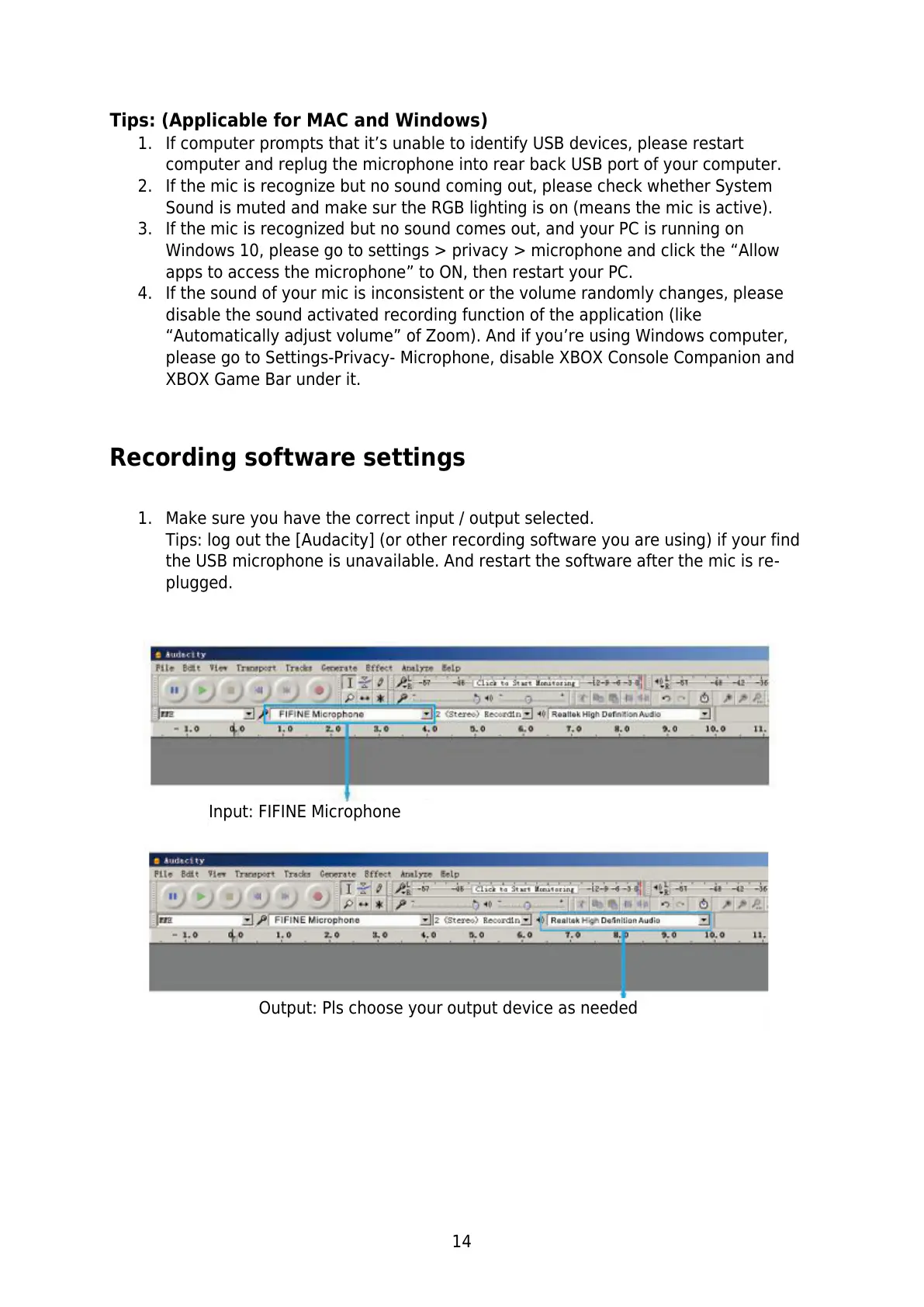
1. Make sure you have the correct input / output selected.
Tips: log out the [Audacity] (or other recording software you are using) if your find
the USB microphone is unavailable. And restart the software after the mic is re-
plugged.
Output: Pls choose your output device as needed



 To Next Page