22
Important Notice
Choose your output setting
When you plug the mic to your PC, it cancels the audio from any other audio file played or
no sound on the playback, you need to manually select “speaker (Realtek High-Definition
Audio)” as the default playback device, if you want to output computer audio via the
computer built-in speaker.
Setting your software levels
Ideally, the mic level should be as high as possible without overloading the input of your
computer. If you hear distortion, or your recording program shows levels that are
consistently overloaded (at peak levels), turn the mic volume (or level) down through the
gain control on the mic. If your recording program shows insufficient level, you can
increase the mic gain through the gain control on the mic.
Selecting software
Many recording software can be chosen. Audacity, available for free online is a widely
used software. If you plug the mic AFTER you load Audacity, it may not recognize the mic
while it may still record, the results will be unsatisfactory. If that happens, restart Audacity
AFTER plugging the USB into your computer and click on fifine Microphone option.
Positioning the microphone
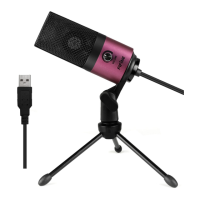
To achieve the best frequency response, it is important to have the mic capsule (the side
with pop filter) pointed as the user’s mouth, instrument or any other sound source. For
speaking/singing applications, the ideal position of the microphone is directly in front of
the speaker. The same position is optimal when miking an instrument. Test the mic
different distances to find the best sound for your particular setup.
Protecting your microphone
Avoid leaving your microphone in the open air or in areas where temperatures exceed
110°F (43°C) for extended periods. Extremely high humidity should also be avoided.
Specification


 To Next Page