Duonet Control Panel User Guide
9
Fire Alarm Controls
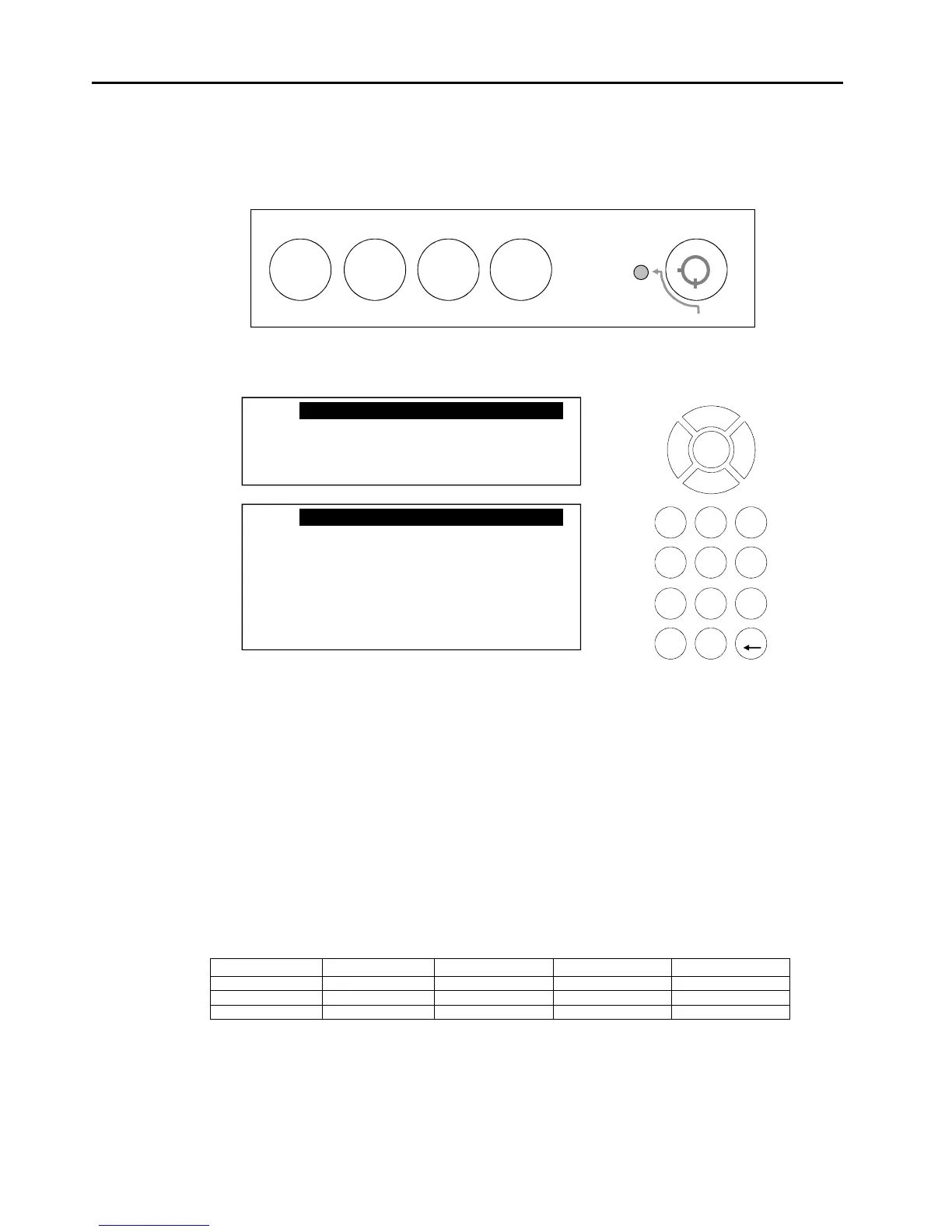
The main Fire Alarm Controls may be enabled by turning the key switch to the controls enabled
position, or by entering a valid Access code.
System Controls
User
Supervisor
A context-driven highlighted-selection menu system is used to navigate the menu system,
automatically prompting you with the relevant options for your Access Level and system status. Menu
examples shown below are for the V3 control panel. Menus in some earlier panel versions may differ.
The menus may be navigated in one of two ways as required:
1. Use the UP / DOWN keys to move the highlighted selection and press ENTER to select
the chosen one.
2. Enter the desired option number and press ENTER to select it.
Press the Esc key to exit to the previous menu.
Access Levels and Codes
The menu system is divided into four access levels in order to restrict access to those who require it.
For simple indication the status of the Controls Enabled light will show the level selected as follows;
1 – NORM Normal OFF YES N/A
2A – USER User ON YES 8737
2B – SUPR Supervisor SLOW FLASH NO 7877
The fourth level (Engineer) is not shown above. Access to the menu system requires either the
operation of the enable controls key for access to Access Level 2A (User), or the correct entry of the
relevant code for access to all other levels, in order to protect against unauthorised access to the
system.
fire alarm controls – turn key to enable controls
silence
alarms



 To Next Page