English - 31 -
Customer Helpline 0845 459 5282
PC Picture Settings
For adjusting PC picture items, do the following:
Press “
” or “ ” button to select Picture icon. Picture
menu appears on the screen.
Contrast, Brightness, Colour, Colour Temp and
Picture Zoom and other settings in this menu are
identical to settings defi ned in TV picture menu under
“Main Menu System”.
Sound, Settings and Source settings are identical to
the settings explained in main menu system.
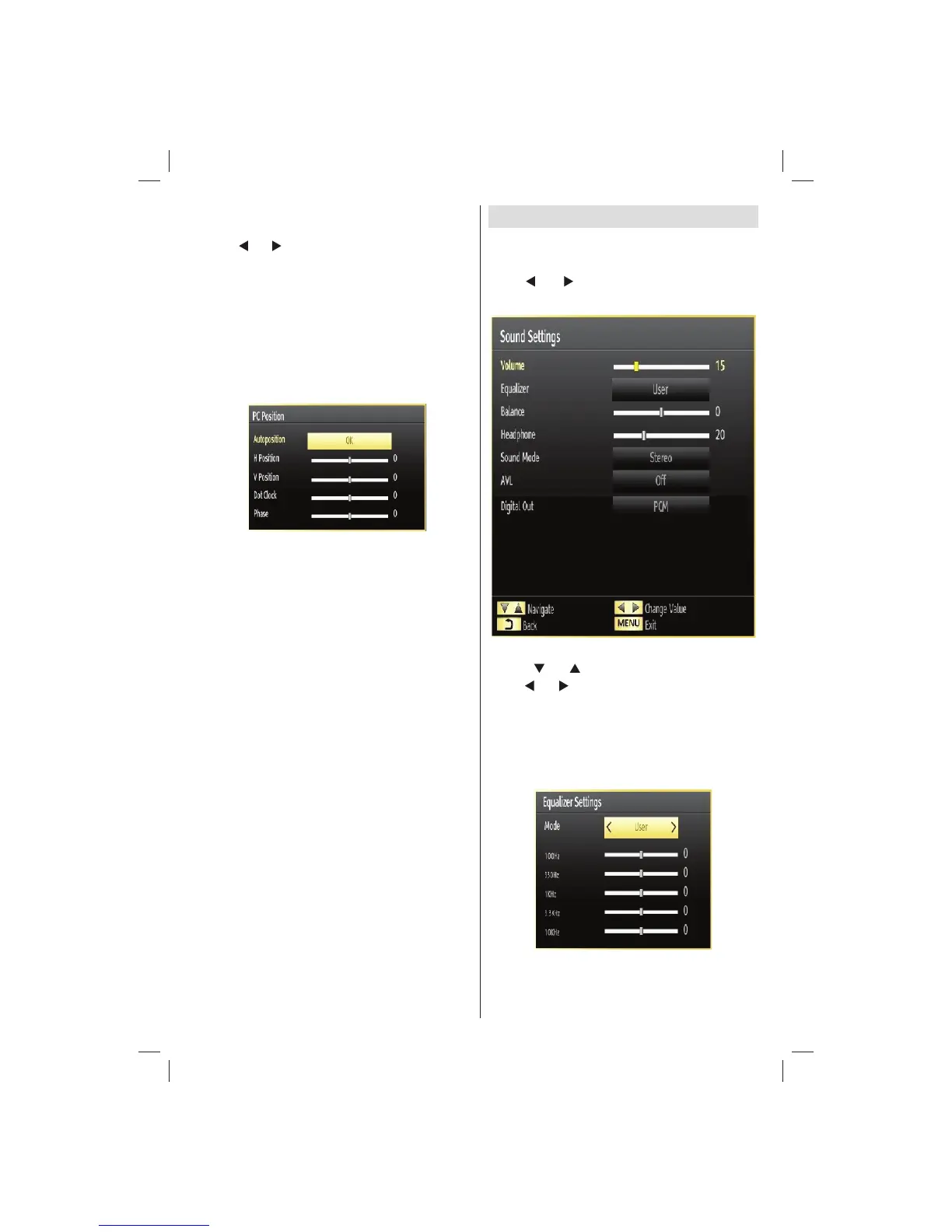
PC Position: Select this to display PC position menu
items.
Autoposition: Automatically optimizes the display.
Press OK to optimize.
H Position: This item shifts the image horizontally to
right hand side or left hand side of the screen.
V Position: This item shifts the image vertically
towards the top or bottom of the screen.
Dot Clock: Dot Clock adjustments correct the
interference that appear as vertical banding in
dot intensive presentations like spreadsheets or
paragraphs or text in smaller fonts.
Phase: Depending on the resolution and scan
frequency that you input to the TV set, you may see
a hazy or noisy picture on the screen. In such a case
you can use this item to get a clear picture by trial
and error method.
Confi guring Sound Settings
Sound settings can be confi gured according to your
personal preferences.
Press “MENU” button and select the Sound icon by
using “
” or “ ” button. Press OK button to view
Sound Settings menu.
Operating Sound Settings Menu Items
Press “• ” or “ ” button to highlight a menu item.
Use “•
” or “ ” button to set an item.
Press “• MENU” button to exit.
Sound Settings Menu Items
Volume: Adjusts volume level.
Equalizer: Press OK button to view equalizer sub-
menu.
In Equalizer menu, the preset can be changed to
Music, Movie, Speech, Flat, Classic and User.
Press the “MENU” button to return to the previous
menu.
01_[GB]_MB70_5112UK_IDTV_T_DLNA_MMH_IPLAYER_32965LED_GOLD11_10077102_50209143.indd 3101_[GB]_MB70_5112UK_IDTV_T_DLNA_MMH_IPLAYER_32965LED_GOLD11_10077102_50209143.indd 31 06.01.2012 10:57:3006.01.2012 10:57:30





 To Next Page