English - 37 -
Customer Helpline 0845 459 5282
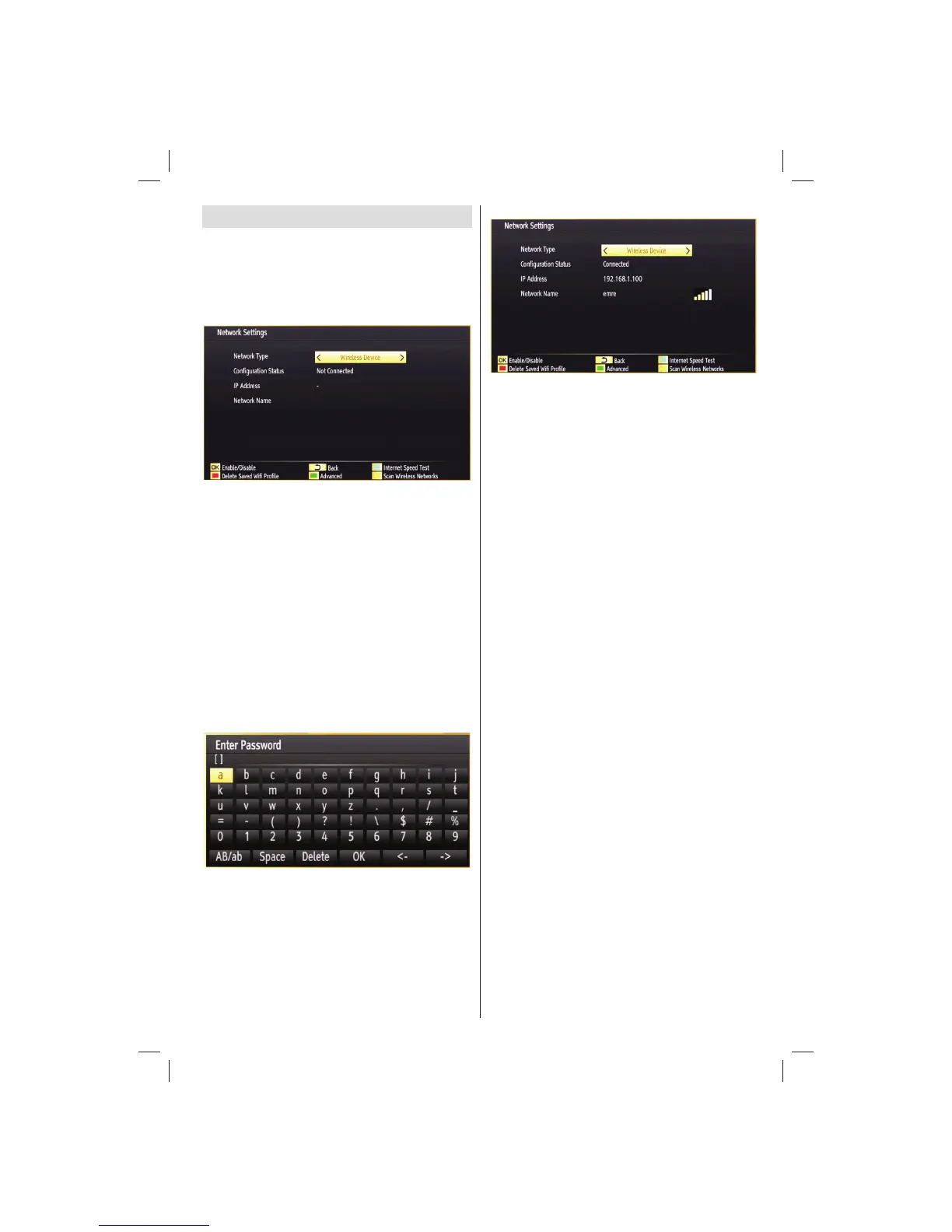
Wi-Fi Settings (Optional)
Wi-Fi feature can be used for a wireless network
connection (optional). The feature is used for
infrastructure purposes only, such as connecting to
the web, hbb sites and connecting with DLNA servers
(optional). Select Wireless Device option to switch to
Wireless Settings from Network Settings window.
Press GREEN button to switch to advanced mode
and then press OK button to edit settings.
To enable Wi-Fi feature, profi les should be confi gured
properly. Please plug in the Wi-Fi dongle to one of the
USB ports (IMPORTANT: “Veezy 100” USB dongle is
required to use wireless network feature. To use your
TV with your wireless network, you need a “Veezy
100” Wireless USB dongle.).
Press YELLOW button to scan wireless network
from network settings menu. Afterwards available
network list will be displayed. Please select your
desired network from the list. If the selected network
is protected with a password, please enter the correct
key by using the virtual keyboard. You can use this
keyboard via navigation buttons (Left/Right/Up/Down)
and OK button on the remote control. Wait until the
IP the address is shown on the screen.
This means that the connection is now established.
To disconnect from a wireless network, you should
highlight Confi guration Status and press OK.
You can navigate between menu tabs by pressing left/
right buttons. The help bar on the bottom of the dialog
shows features that you may use. Press BLUE button
to check your internet connection speed.
You can check the signal strenght by using the network
settings menu for the wireless device mode.
Information
Configuration Status: Displays wi-fi status as
connected or not connected.
IP Address: Displays the current IP address.
Network Name: Connected networks’ name will be
displayed.
Delete Saved Wifi Profi les
Saved profi les will be deleted if you press red button
while wireless device selection osd is on the screen.
Connecting to your Cell Phone via WiFi
(Optional)
If your cell phone has WiFi feature, you can connect •
your cell phone to your TV by using WiFi connection
via a router, in order to play content from your phone.
For this, your cell phone must have an appropriate
sharing software.
Connect to your router following the steps stated •
above in the Wireless Connection section.
Afterwards, engage your cell phone with the router •
and then activate sharing software on your cell
phone. Then, select fi les that you would like to share
with your TV.
If the connection is established correctly, you should •
now access the shared fi les of your cell phone via
the Media Browser of your TV.
Enter Media Browser menu and playback device •
selection OSD will be displayed. Select your cell
phone’s ident and press OK to continue.
Note: This feature may not be supported by some
cell phones.
01_[GB]_MB70_5112UK_IDTV_T_DLNA_MMH_IPLAYER_32965LED_GOLD11_10077102_50209143.indd 3701_[GB]_MB70_5112UK_IDTV_T_DLNA_MMH_IPLAYER_32965LED_GOLD11_10077102_50209143.indd 37 06.01.2012 10:57:3206.01.2012 10:57:32




 To Next Page