English - 36 -
Customer Helpline 0845 459 5282
Use “• ” or “ ” buttons to highlight Date/Time.
Date, Time, Time Settings Mode and Time Zone
Setting will be available.
Use “
” or “ ” buttons to highlight the Time Settings
Mode. Time Settings Mode is set using “ ” or “ ”
buttons. It can be set to AUTO or MANUAL.
When AUTO is selected, Date/Time and Time Zone
options will not be available to be set. If MANUAL
option is selected as the Time Zone can be altered:
• By pressing “
” or “ ” buttons select Time Zone.
Use “
” or “ ” buttons to change the Time Zone
between GMT-12 or GMT+12. Date/Time on the top
of the menu list will then change according to the
selected Time Zone.
Changes are automatically stored. Press “• MENU”
to exit.
Confi guring Source Settings
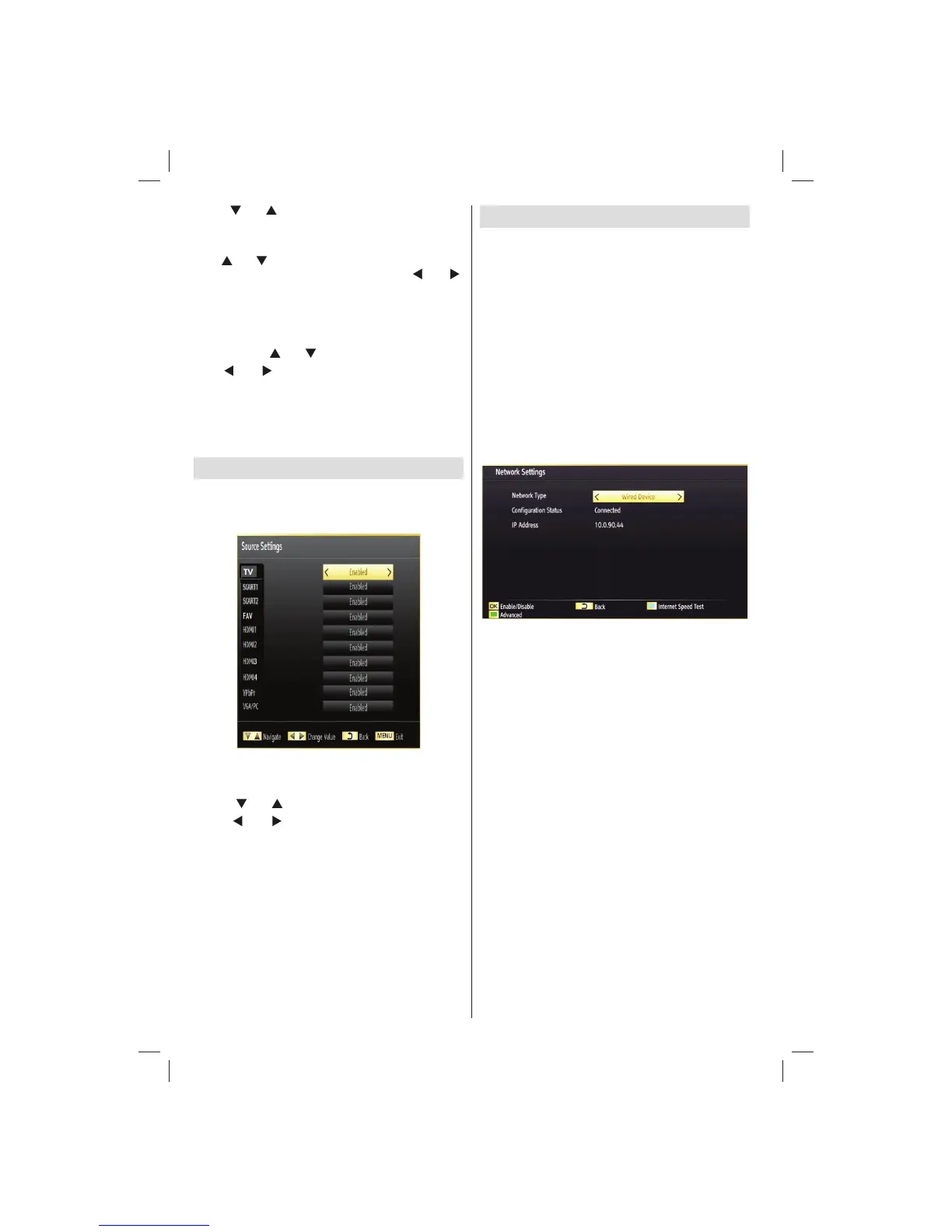
You can enable or disable selected source options.
The TV will not switch to the disabled source options
when “SOURCE” button is pressed.
Select • Sources in the Settings menu and press
OK button.
Press“•
” or “ ” buttons to select a source.
Use “•
” or “ ” button to enable or disable the
selected source. Changes are automatically
stored.
Confi guring Network Settings
Note: Your TV’s Network Settings include Wired
and Wireless Connection options. However, if your
TV does not have USB Wi-Fi dongle, you should
use Wired Connection type. If you try to connect via
Wireless Connection when your TV does not have a
USB Wi-Fi dongle, a warning screen will appear and
the TV will not get an IP address. Try connecting the
LAN cable after this and then the TV will be able to
get an IP address.
Confi guring Wired Device Settings
On • Network Settings window you can set network
type of the TV set, which connects the TV to
the Internet. If you are connecting the TV via
ETHERNET INPUT, select Network Type as Wired
Device to confi gure.
Setting Network Type
Network type can be selected as • Wired or Wireless
device, in accordance with the active connection
to the TV set. Select this as Wired if you have
connected to the TV a LAN cable. Select as Wireless
if you connect via the wireless USB dongle.
Setting Confi guration Status
This section displays the status of the connection. •
Select Connected if you want to activate Wired or
Wireless connection. Select as Not Connected to
quit an active connection.
IP Address
If an active connection is available, the IP address •
will be displayed on this section. If you want to
confi gure IP address preferences, press GREEN
button and switch to the advanced mode.
Confi guring Wired Network Settings in
Advanced Mode
After pressing GREEN button, Advanced mode will
be available. While in Advanced Mode, press RED
button to edit settings. When fi nished, press OK to
save, Press RETURN/BACK to cancel.
01_[GB]_MB70_5112UK_IDTV_T_DLNA_MMH_IPLAYER_32965LED_GOLD11_10077102_50209143.indd 3601_[GB]_MB70_5112UK_IDTV_T_DLNA_MMH_IPLAYER_32965LED_GOLD11_10077102_50209143.indd 36 06.01.2012 10:57:3206.01.2012 10:57:32




 To Next Page