English - 48 -
Customer Helpline 0845 459 5282
Use Typical installation and click the Next 7.
button.
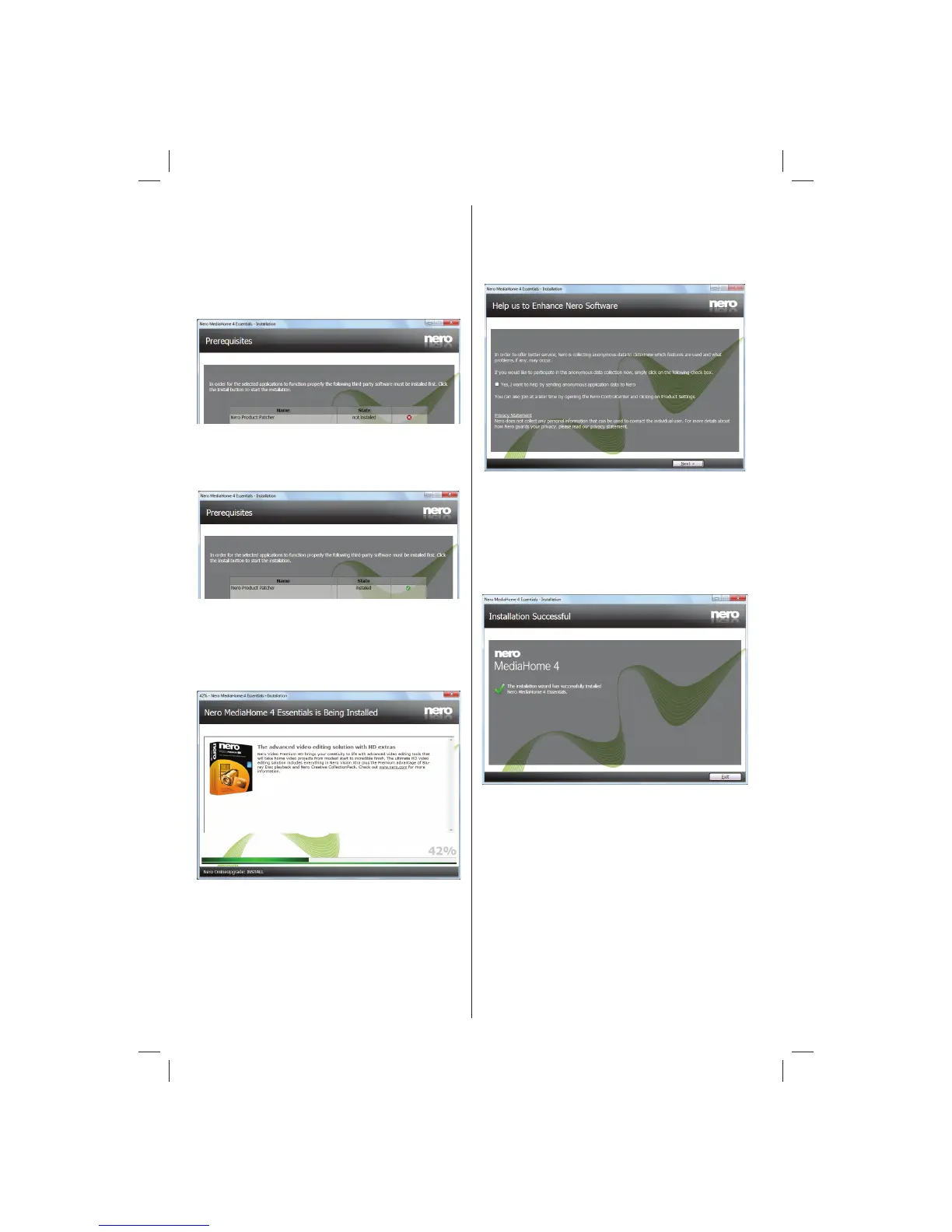
The Prerequisites screen is displayed.•
The Nero MediaHome installation wizard checks the
availability of required third-party software on your PC.
If applications are missing they are listed and must be
installed before continuing installation.
Click the Install button.8.
As soon as all prerequisites are installed, the Install •
button will change to a Next button.
Click the Next button.9.
The Ready to Start Installation Process screen •
is displayed, installation begins and finishes
automatically. A progress bar informs you of the
progress of the installation process.
Installation fi nishes.10.
The Help us to Enhance Nero Software screen is
displayed. In order to offer a better service, Nero
is collecting anonymous data to determine which
features are used and what problems, if any, occur.
If you would like to help by participating in the 11.
anonymous collection of usage data, select the
check box and click the Next button.
The final screen of the installation wizard is •
displayed.
Click the Exit button.12.
A shortcut called Nero MediaHome 4 is now 13.
placed on your desktop
Congratulations! You successfully installed Nero
MediaHome 4 on your PC.
01_[GB]_MB70_5112UK_IDTV_T_DLNA_MMH_IPLAYER_32965LED_GOLD11_10077102_50209143.indd 4801_[GB]_MB70_5112UK_IDTV_T_DLNA_MMH_IPLAYER_32965LED_GOLD11_10077102_50209143.indd 48 06.01.2012 10:57:3706.01.2012 10:57:37




 To Next Page