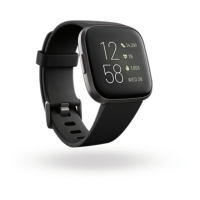
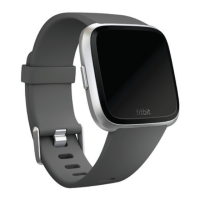
5.
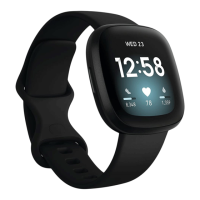
On Versa, open the Music app ( )and then tap Transfer Music. Note that
you may need to scroll down to see the transfer button.
6. Wait a few moments for Versa to connect. Note it can sometimes take a
minute or two to connect.
7. When prompted, follow the on-screen instructions on your computer to
choose the playlists you want to download to your watch. After you choose a
playlist, the download starts automatically.
8. Note that if you take several minutes to pick your first playlist, Wi-Fi may
disconnect to preserve your battery. Tap the Transfer Music button again to
reconnect and continue choosing your playlists.
9. After the download is complete, pair Bluetooth headphones or a speaker to
Versa and open the Music app ( ) to listen to your playlists. Your phone and
computer don’t need to be nearby in order to listen to music from the Music
app.
For more information and troubleshooting steps, see help.fitbit.com.
Add music and podcasts with your Mac
Download playlists of your personal music and podcasts from your iTunesLibrary to
Versa.
Create a playlist
Within iTunes, create at least 1 playlist of songs or podcasts to download to your
watch.
Make sure you approve the iTunes app to share your playlists with your watch:
56



 To Next Page