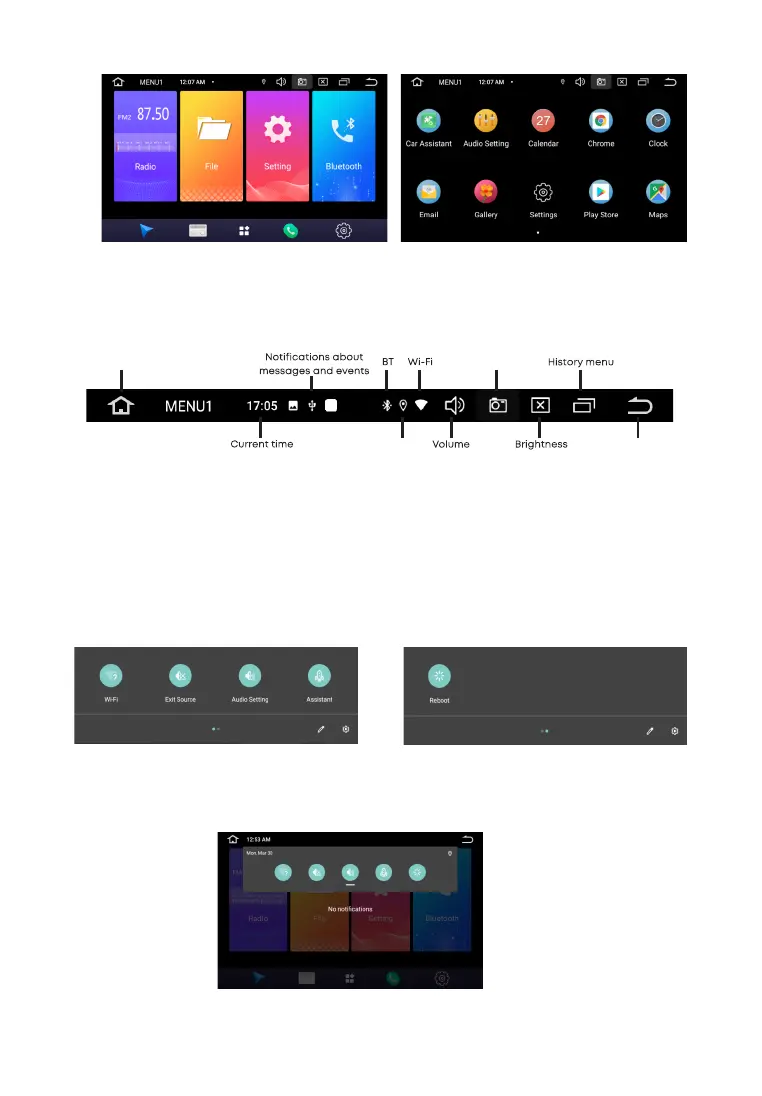
To create a link on the main screen, touch the icon, and hold, drag to an empty space on the
home screen. In app mode to change pages touch the display and slide your finger across the
display left or right to select desired mode.
Top panel (status bar)
Icons at the top left of the screen - notifications about messages, events.
The icons at the top right are device status indicators.
When a message arrives or a new event will be displayed on the top bar on the left, tap and
swipe down from the status bar. Then you can choose message or event and view its content.
Quick settings and notifications panel
Pull down from the top edge of the display to open the panel.
On the main working surface of the panel, the user has two "quick"settings windows and
access to the main settings of the device.
9
MAIN page
Back
GPS


 To Next Page