EasyManua.ls Logo

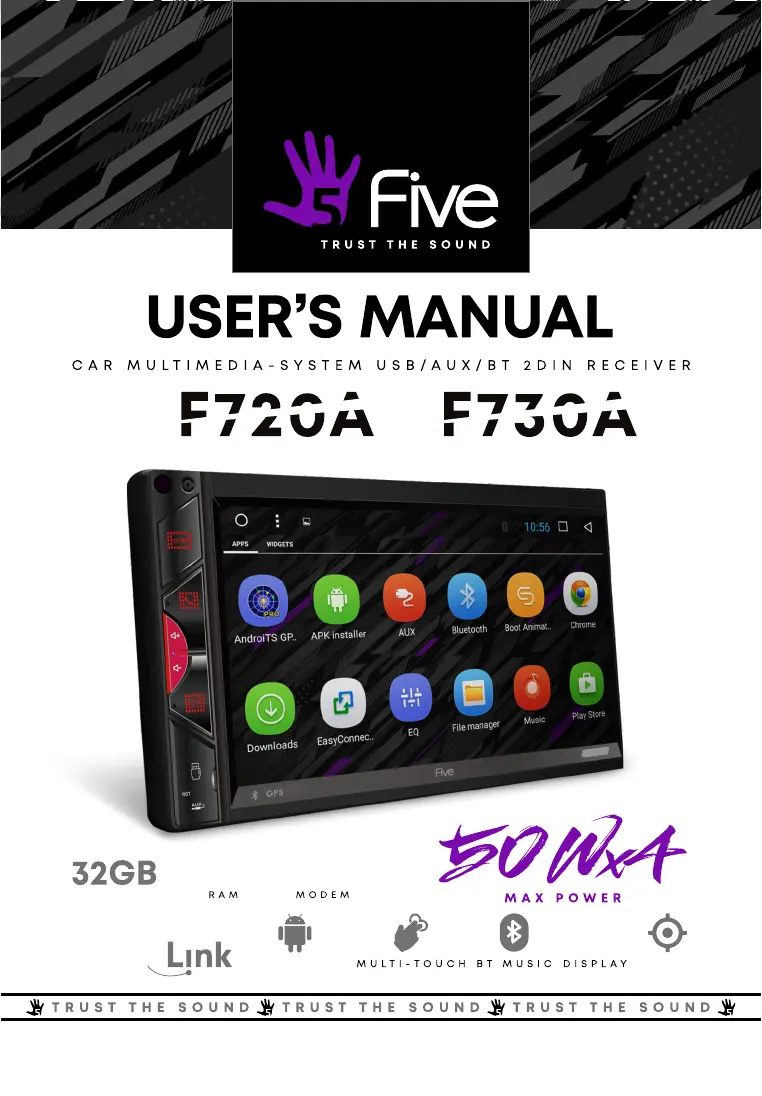
Five F720A - User Manual

Five F720A
32 pages
Print Icon
To Next Page IconTo Next Page
Loading...
A N D R O I D 9 . 0
6.9"
G P S
2GB
R O M
4G
Phone
F73
0A

Questions and Answers

  • L
    lewiscarrieSep 4, 2025
    What to do if no function when pressing the buttons on Five Car Video System?
    • A
      anthony16Sep 4, 2025
      If no function is working when pressing the buttons or TFT screen on your Five Car Video System, press the RESET button to reset the unit to its default stage.
  • T
    tevansSep 18, 2025
    What to do if the remote handset does not work with my Five Car Video System?
    • D
      diana63Sep 18, 2025
      If the remote handset of your Five Car Video System does not work, replace the battery of the remote handset with a new one. Also, point the remote handset directly at the remote sensor of the main unit, and clean the surface of the remote sensor.
  • H
    Heather HendersonSep 16, 2025
    What to do if Bluetooth is not operating on Five Car Video System?
    • J
      Jennifer StevensonSep 16, 2025
      If your Five Car Video System's Bluetooth is not operating, check the devices are linked up correctly.
  • M
    matthew73Sep 14, 2025
    Why did positioning and navigation fail upon power on of Five Car Video System?
    • C
      cheryl10Sep 14, 2025
      If positioning and navigation failed upon power on your Five Car Video System, this could be due to a blind spot on the navigation map. Some remote areas or routes may not be covered in the map. Please contact customer service to update the map.
  • J
    Joseph WilliamsSep 13, 2025
    Why are the navigation routes so far on my Five Car Video System?
    • C
      Carol GreeneSep 13, 2025
      If the navigation routes on your Five Car Video System are far, it is because the navigation system sets a route to your destination by applying certain built-in rules to the map data, taking into consideration road grade, traffic rules, flyovers, highways, main roads, and other factors to ensure the driver reaches the destination as soon as possible.
  • J
    Joel SmithSep 12, 2025
    How to fix stereo reception on Five Car Video System under radio mode?
    • J
      Joshua GarciaSep 12, 2025
      If the stereo cannot be received under radio mode on your Five Car Video System, try to accurately tune the radio frequency. If the broadcasting signal is too weak, set the mode to MONO.
  • Y
    youngrichardSep 9, 2025
    Why does rear view appear when reversing with my Five Car Video System?
    • M
      Michelle AllisonSep 9, 2025
      If your Five Car Video System shows rear view during reverse position even when the system is not booted, this is a safety feature. Power on to boot the system after resuming from the reverse position to normal.
  • S
    Sheryl MunozSep 7, 2025
    What to do if there is no picture on my Five Car Video System?
    • G
      gabriel36Sep 8, 2025
      If there is no picture on your Five Car Video System, check whether the video wire is connected to the video device.
  • N
    Nathan MontgomerySep 6, 2025
    Why is there no sound from my Five Car Video System?
    • L
      Lori BrownSep 6, 2025
      If there is no sound coming from your Five Car Video System, check and make sure the speaker wires are connected correctly.
  • C
    cathynunezAug 21, 2025
    How to fix a Five Car Video System that is unable to power on?
    • S
      Sylvia JonesAug 21, 2025
      If your Five Car Video System is not powering on, first ensure the car key is inserted and the ACC is turned on. Then, check if the power cord is correctly connected. Lastly, inspect the fuse and replace it if damaged.

Summary

Precautions and Safety Warnings

General Device Handling Precautions

Safety guidelines for operating, transporting, and installing the device, including voltage and temperature limits.

Touchscreen Operation Guidelines

Instructions for using the touch screen, including removing protective film and proper touch methods.

Important Usage and Safety Instructions

Traffic Safety and Driver Distraction

Warnings against distracting operations and recommendations for safe driving practices.

Device Integrity and Power Safety

Guidelines on avoiding disassembly, proper power connection, and fuse replacement to prevent hazards.

F720 A Front Panel Overview

Component Identification and Functions

Detailed descriptions of buttons, ports, and indicators on the F720A front panel.

F730 A Front Panel Overview

Component Identification and Functions

Detailed descriptions of buttons, ports, and indicators on the F730A front panel.

Main Menu Navigation

Core Application Access

Overview of the main functions accessible from the main menu, including navigation, media, and settings.

User Interface Elements

Status Bar and Notifications

Explanation of the top panel status bar icons and how to access notifications.

Quick Settings Panel

Guide to opening and using the quick settings and notifications panel.

Radio Operation

Automatic Station Search

Instructions for automatically scanning and storing radio stations.

Manual Station Tuning

Guide for manually tuning radio frequencies and saving stations.

Radio Signal Features

Stereo and Local Modes

Explanation of Stereo (ST) and Local (LOC) modes for improved reception.

Alternative Frequency (AF)

Description of the AF function for re-tuning to the same station on different frequencies.

Traffic Information (TA)

How to use the TA function for receiving traffic information programs.

PTY Program Types

Guide to selecting program types (PTY) for radio reception.

Bluetooth Phone Connectivity

Dialing and Call Management

Instructions for making calls, managing contacts, and viewing call logs.

Device Pairing and Settings

Steps for pairing the phone with the head unit and configuring Bluetooth settings.

Bluetooth Music Playback

Audio Controls and Usage

How to control music playback via Bluetooth, including track selection and play/pause.

System Settings

Network and Internet Configuration

Settings for Wi-Fi, mobile data, and SIM card usage for internet connection.

Sound Settings

Options for adjusting media volume and notification/alarm sounds.

Application and System Management

Managing apps, notifications, display, and core system configurations.

Steering Wheel Control Setup

Button Customization Interface

How to assign functions to steering wheel buttons via the touchscreen interface.

System Settings for Controls

System-level settings relevant to steering wheel control customization.

Video Playback

Navigating Video Files

Accessing and selecting video files from connected media or device storage.

Playback Controls and Features

Understanding the video player controls and available playback modes.

Audio Playback

Music File Support

Details on supported audio formats and playback from various sources.

AUX Input

External Media Playback

Instructions for playing video from external media via the AUX input.

File Manager

File Explorer Operations

Using the File Explorer to manage files and folders on the device.

Easy Connection Mode

Connecting Mobile Devices

How to connect Android and iOS devices for screen mirroring and control.

Installing Third-Party Apps

Steps for downloading and installing APK files for additional applications.

Navigation System

Using Google Maps

Accessing and utilizing the pre-installed Google Maps for navigation.

Sound Settings and Audio Adjustment

Equalizer and Preset Modes

Adjusting audio with the digital equalizer and selecting preset sound modes.

Speaker Balance and Subwoofer Control

Fine-tuning speaker volume balance and subwoofer output levels.

Web Browser

Using the Chrome Browser

Instructions for launching and using the built-in Chrome web browser.

Google Play Market

App Installation and Management

Downloading, installing, and removing applications from the Google Play Store.

Additional Functions

Changing Factory Logos

Guide to customizing the device's startup logo through factory settings.

Remote Handset

Battery Information and Disposal

Guidelines for remote battery replacement and proper disposal.

Control Modes and Functions

Explanation of the remote control's buttons and their respective operations.

Wiring Diagram and Installation

Connector Pinout

Detailed pin assignments for the main wiring harness connectors.

Wiring Precautions

Critical safety warnings and instructions for correct wiring connections.

Technical Specifications

Hardware and Software Details

Specifications for the operating system, processor, memory, and display.

Supported Formats and Power

Details on supported media formats, power requirements, and speaker impedance.

Included Accessories

List of items included in the product package.

Troubleshooting Common Issues

Power and Display Problems

Solutions for issues like no power, unresponsive touch screen, and no rear view image.

Navigation and GPS Issues

Troubleshooting steps for GPS signal loss, positioning errors, and navigation failures.

Destination Routing Problems

Guidance for issues with locating destination routes and potential database limitations.

Advanced Troubleshooting

Navigation Route and Map Display

Addressing issues related to navigation route calculation and map display accuracy.

Troubleshooting Specific Problems

Power, Sound, and Display Issues

Solutions for no power, no sound, no picture, and unit hang-up problems.

System and Connectivity Issues

Troubleshooting for radio reception, remote handset, and Bluetooth operation failures.

Five F720A Specifications

General IconGeneral
Screen Size7 inch
Voltage12V
TouchscreenYes
Operating SystemAndroid
RAM1GB
Internal Storage16GB
BluetoothYes
GPSYes
Wi-FiYes
USB PortYes
Rear Camera InputYes
Steering Wheel ControlYes
Video FormatMP4, AVI, RMVB, MKV
Number of Channels4
Resolution1024x600

Related product manuals