S E T U P F O R M C H A P T E R 4
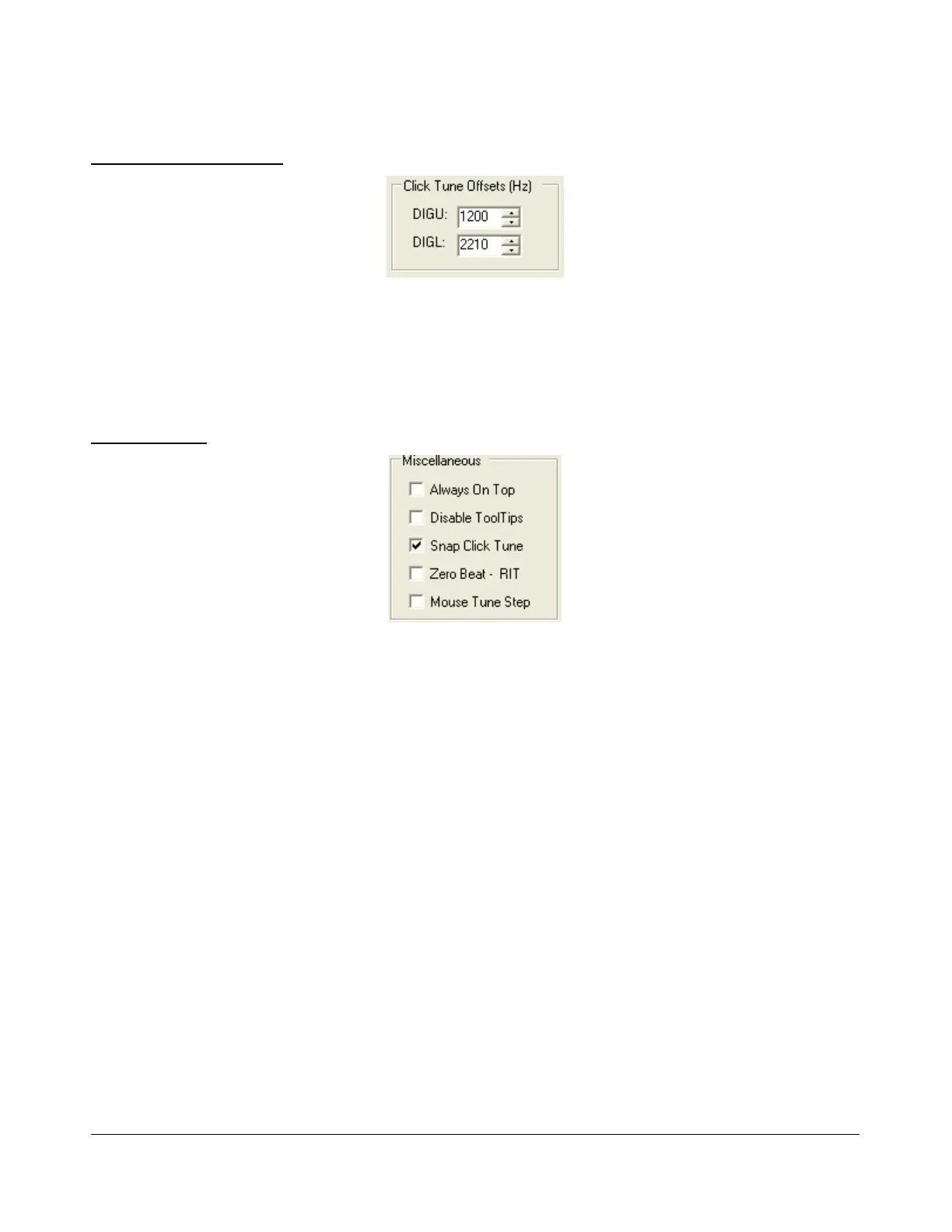
ClickTune Offsets (Hz)
Figure 69: Digital ClickTune Offsets
DIGU: Sets the offset in Hz to use when click tuning in DIGU mode. Defaulted to 1200 for
SSTV.
DIGL: Sets the offset in Hz to use when click tuning in DIGL mode. Defaulted to 2210 for RTTY.
Miscellaneous
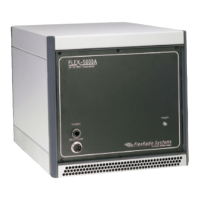
Figure 70: Always On Top
Always On Top: Check to paint the Front Console on top of any other windows (even an active
window).
Disable ToolTips: Check to avoid seeing the explanatory tool tips that appear when you hover
with your mouse over a control.
Snap ClickTune: When checked, clicking (with the yellow or red cross hairs) on a signal in
either the Panadapter or Waterfall will tune the VFO to the nearest multiple of the Tune Step
(see page 52). E.g. if Tune Step is set to 1 kHz, the VFO will jump to the nearest kHz.
Zero Beat – RIT: When checked and with RIT activated, the 0 Beat button on the Front
Console will offset the peak of a signal by the RIT frequency, such that VFO = actual peak
frequency – RIT frequency. This can be useful if you want to zero beat the receive frequency
without changing the transmit frequency.
Mouse Tune Step: When checked, clicking the mouse button (middle click) will cycle through
the tune steps.
[The rest of this page has been left blank intentionally]
85 2003-2008 FlexRadio Systems


 To Next Page