EasyManua.ls Logo

FLIR DNR700 Series - User Manual

FLIR DNR700 Series
194 pages
Print Icon
To Next Page IconTo Next Page
Loading...
Instruction Manual
DNR700 SERIES

Table of Contents

Questions and Answers

  • C
    Christopher RiceAug 13, 2025
    How to turn off beeping during motion detection on FLIR DNR700 DVR?
    • S
      Scott LewisAug 13, 2025
      If your FLIR DVR system beeps during motion detection, it means that motion detection is enabled and the alarm buzzer is activated. To stop the beeping, open the Main Menu and click Event>Motion>Motion Detect. Uncheck Buzzer for each channel and click Apply.
  • J
    Jamie WareAug 17, 2025
    What to do if there is no picture on monitor/TV after connecting it to FLIR DNR700?
    • M
      mariadurhamAug 17, 2025
      If your monitor or TV displays no picture after connecting it to the FLIR DVR system, the issue might be that the monitor/TV is not detected. Try powering off both the monitor/TV and the DVR system. Then, power on the monitor/TV first, followed by the DVR system. Also, ensure that you have selected the correct input channel on your monitor/TV to which the DVR system is connected. Finally, check the video cable connection to ensure it is securely connected to both the DVR and the monitor/TV.
  • J
    Joshua TylerAug 20, 2025
    Why is my FLIR DNR700 DVR system not receiving power?
    • F
      Felicia FlemingAug 21, 2025
      If your FLIR DVR system isn't receiving power or won't power up, first, check that the cable from the power adapter is securely connected to the back of the unit and to the power outlet. If it's connected to a power bar or surge protector, try plugging it directly into the wall outlet. Also, make sure the power switch is in the ON (I) position. Finally, confirm that the outlet has power by testing it with another device.
  • P
    paulnashAug 25, 2025
    How to fix hard drive full (0%) and the unit is no longer recording on FLIR DVR?
    • J
      Jeffrey TaylorAug 25, 2025
      If the hard drive in your FLIR DVR is full (0%) and the unit has stopped recording, it's likely that the overwrite function is not enabled. To resolve this, go to the Main Menu, then select Setting>General>General. Under HDD Full, select Overwrite and click OK.
  • C
    Christopher GrayAug 28, 2025
    What to do if mouse is not detected by FLIR DNR700 system?
    • L
      Linda WellsAug 28, 2025
      If your FLIR DVR system isn't detecting the mouse, first ensure that the mouse cable is firmly connected to one of the USB ports on the system. If that doesn't work, power off the system by disconnecting the power cable, then firmly connect the USB mouse to a USB port, and reconnect the power cable to the DC 12V port on the rear panel to reset the system.
  • D
    David NelsonAug 31, 2025
    How to fix hard drive if it is not detected by FLIR DVR?
    • M
      Melissa TuckerSep 1, 2025
      If your FLIR DVR system isn't detecting the hard drive, start by removing the housing and checking that the hard drive cables are firmly connected. If there is no hard drive, open the housing and install a compatible hard drive. After installing, make sure to format the drive.
  • M
    Mikayla PattersonSep 5, 2025
    Why am I not receiving email notifications from my FLIR DNR700 DVR?
    • A
      Aaron HowellSep 5, 2025
      If you are not receiving email notifications from your FLIR DVR, first ensure you have configured email notification. Also, make sure that Send Email is enabled for any events you want to be notified of.
  • B
    bonnie18Sep 8, 2025
    What to do if there is no picture on selected channels on FLIR DNR700?
    • R
      Randy AndersonSep 9, 2025
      If you are not seeing a picture on selected channels or a camera picture is not being displayed on your FLIR DVR, check the camera video cable and connections. Disconnect and reconnect the cable at both the system and the camera. You might also try moving the camera to another channel or using a different cable.

Summary

Important Safeguards

General Precautions

Safety guidelines for product operation, cleaning, and environment.

Installation and Servicing

Instructions for proper installation, handling service conditions, and replacement parts.

Product Usage Safety

Guidelines for safe product use, cleaning, avoiding hazards like liquids and lightning.

Getting Started and System Overview

DNR700 Series Components

Lists the essential components included with the DNR700 series NVR system.

Front Panel Overview

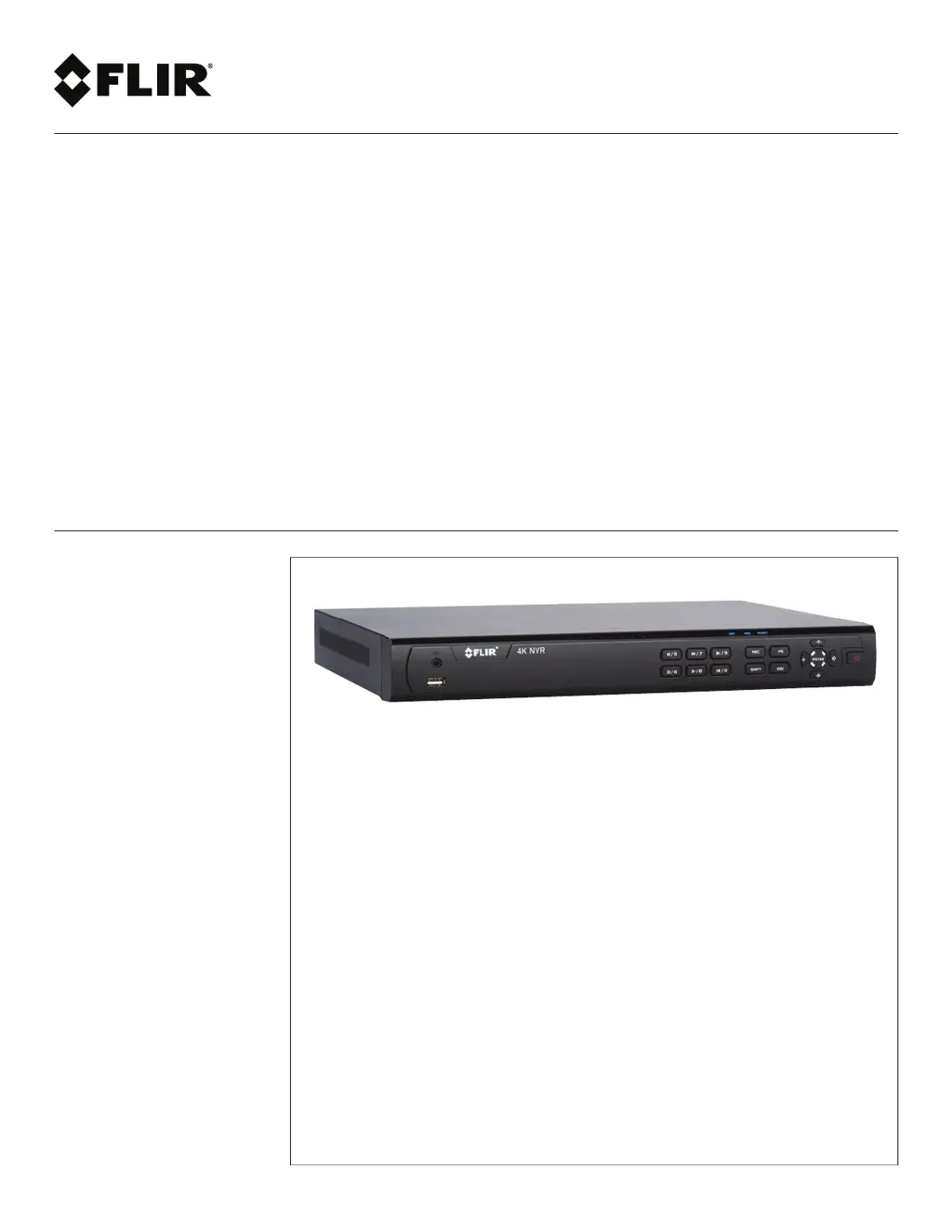
Identifies and describes the functions of the NVR's front panel buttons and ports.

Rear Panel Connections

Details the various ports and connectors available on the NVR's rear panel.

Basic Setup and System Operation

Initial NVR Setup Steps

Step-by-step guide for connecting cameras, mouse, network, and monitor for initial system setup.

Mouse and Remote Control

Explains the operation and functions of the mouse and remote control for system navigation.

System Interface Navigation

Guide to navigating the on-screen display, quick menu, and camera settings.

Recording and Storage Management

Settings for video recording types, streams, schedules, and hard drive overwrite.

Video Search, Playback, and Backup

How to search for recorded video, playback controls, and using smart search and backup.

User and Password Management

Managing system passwords, adding, modifying, and deleting user accounts and groups.

Main Menu and Settings Configuration

Overview of the main menu for accessing system functions and configuring settings.

Network and Event Settings

Configuring network parameters, IP addresses, system ports, DDNS, and event/warning settings.

System Defaults and Updates

Resetting to factory defaults and upgrading firmware via USB.

Remote Access and Advanced Features

Internet Connectivity Setup

Guide to connecting the system to the internet via PC or Mac using FLIR Cloud.

FLIR Cloud Client Software Usage

Instructions for using the FLIR Cloud client software for system management and viewing.

Mobile App Connectivity

Connecting and using the FLIR Cloud app on iPhone, iPad, and Android devices.

Remote Viewing via Internet Explorer

Instructions for accessing the system remotely using Internet Explorer with DDNS.

DDNS Setup for Remote Access

Steps to set up Dynamic DNS for remote system access.

PTZ Camera Connection and Control

How to connect and control PTZ cameras via Ethernet or RS485.

Hard Drive Management

Procedures for installing, removing, and formatting hard drives for the NVR.

Troubleshooting Common Issues

Solutions for common problems like power, connection, recording, and system behavior.

System Specifications

Detailed technical specifications for the DNR700 Series NVR.

Notices

Regulatory compliance information, including FCC Class A notice.

FLIR DNR700 Series Specifications

General IconGeneral
Video OutputHDMI, VGA
Operating SystemEmbedded Linux
Alarm Input/OutputYes
WeightVaries by model
Recording ResolutionUp to 4K
CompressionH.264, H.265
Network InterfaceRJ-45
Operating Temperature-10°C to 55°C
DimensionsVaries by model

Related product manuals