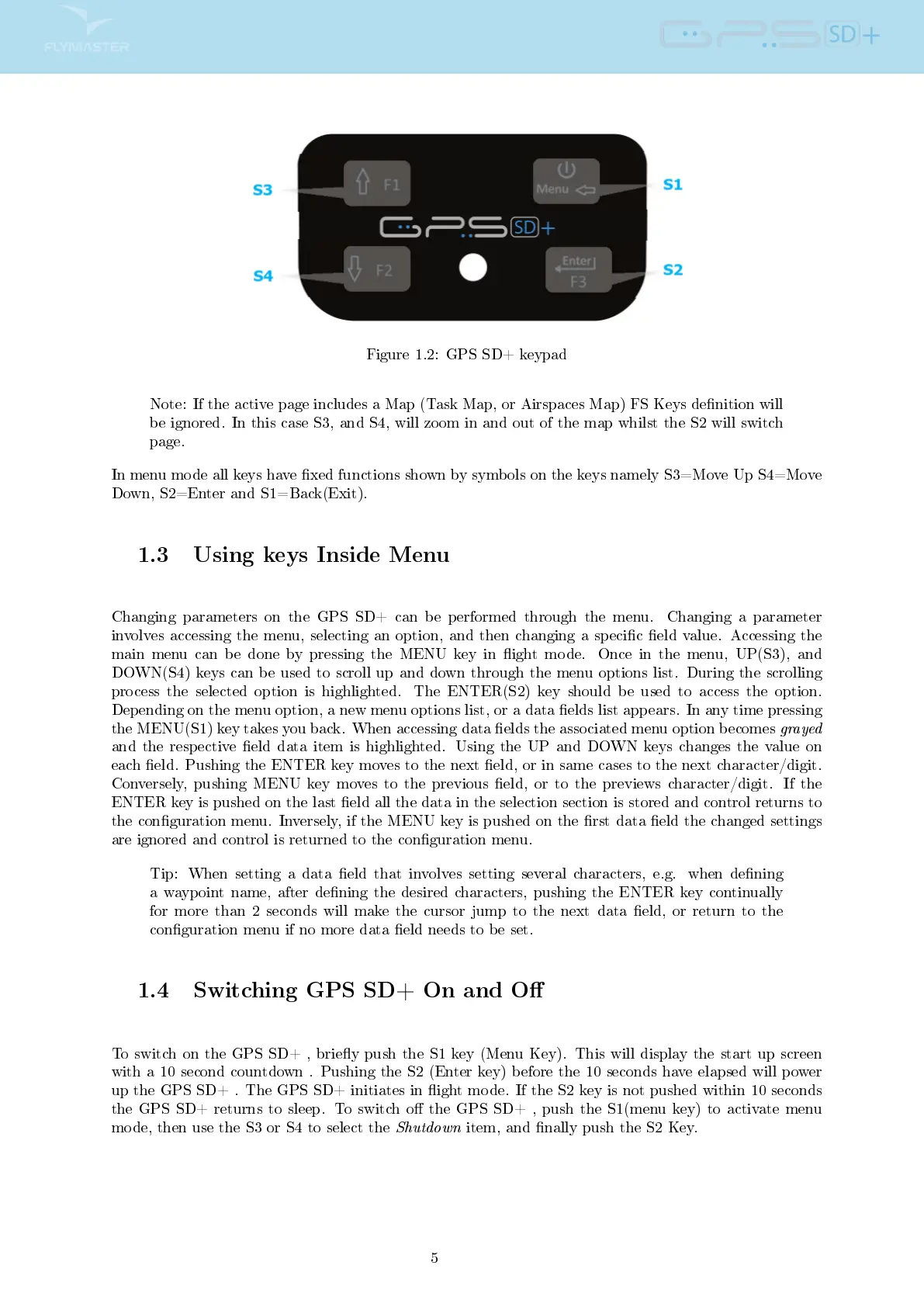
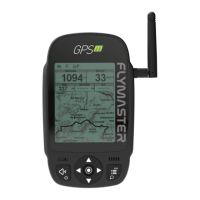
Figure 1.2: GPS SD+ keypad
Note: If the active page includes a Map (Task Map, or Airspaces Map) FS Keys denition will
be ignored. In this case S3, and S4, will zoom in and out of the map whilst the S2 will switch
page.
In menu mode all keys have xed functions shown by symbols on the keys namely S3=Move Up S4=Move
Down, S2=Enter and S1=Back(Exit).
1.3 Using keys Inside Menu
Changing parameters on the GPS SD+ can be performed through the menu. Changing a parameter
involves accessing the menu, selecting an option, and then changing a specic eld value. Accessing the
main menu can be done by pressing the MENU key in ight mode. Once in the menu, UP(S3), and
DOWN(S4) keys can be used to scroll up and down through the menu options list. During the scrolling
process the selected option is highlighted. The ENTER(S2) key should be used to access the option.
Depending on the menu option, a new menu options list, or a data elds list appears. In any time pressing
the MENU(S1) key takes you back. When accessing data elds the associated menu option becomes
grayed
and the respective eld data item is highlighted. Using the UP and DOWN keys changes the value on
each eld. Pushing the ENTER key moves to the next eld, or in same cases to the next character/digit.
Conversely, pushing MENU key moves to the previous eld, or to the previews character/digit. If the
ENTER key is pushed on the last eld all the data in the selection section is stored and control returns to
the conguration menu. Inversely, if the MENU key is pushed on the rst data eld the changed settings
are ignored and control is returned to the conguration menu.
Tip: When setting a data eld that involves setting several characters, e.g. when dening
a waypoint name, after dening the desired characters, pushing the ENTER key continually
for more than 2 seconds will make the cursor jump to the next data eld, or return to the
conguration menu if no more data eld needs to be set.
1.4 Switching GPS SD+ On and O
To switch on the GPS SD+ , briey push the S1 key (Menu Key). This will display the start up screen
with a 10 second countdown . Pushing the S2 (Enter key) before the 10 seconds have elapsed will power
up the GPS SD+ . The GPS SD+ initiates in ight mode. If the S2 key is not pushed within 10 seconds
the GPS SD+ returns to sleep. To switch o the GPS SD+ , push the S1(menu key) to activate menu
mode, then use the S3 or S4 to select the
Shutdown
item, and nally push the S2 Key.
5



 To Next Page