2 Flight Mode
The Flymaster GPS SD+ has two main working modes, namely Flight mode, and Menu mode. Flight
mode is used during ight, and this allows the user to see information such as Altitude, Speed, or Vario.
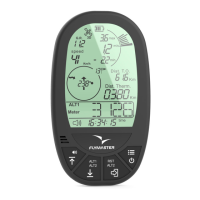
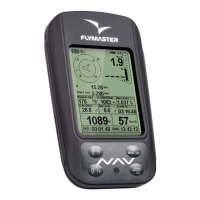
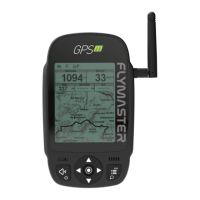
The GPS SD+ can have up to 16 dierent pages (see Figure 2.1) in memory. Each page corresponds to a
dierent screen, which can be completely congured by the user. A set of 16 pages is called a Layout. Once
a Layout containing multiple pages has been dened, the user can congure one function key to switch
page (see Section 4.7.12 for some page examples) in
Flight Mode
. Pages can also be switched automatically
using triggers (see Section 4.7.6 ).
Note: If the active page includes a Map (Task Map, or Airspaces Map) S2 key will switch page.
Figure 2.1: Page examples
Screen layout can be congured by the user using a free application, called
Flymaster Designer
which can
be downloaded from the Flymaster website (www.ymaster.net). This intuitive tool allows the user to
create an unlimited number of layouts, which can be saved to the computer, uploaded to the instrument,
and even shared with other Flymaster users. See the Designer user manual, available on the website for
more information about the Designer tool.
Designing a Layout consists of inserting a set of objects, called
Elements
, in the desired position, and with
the desired dimensions, in each of the available 16 pages. The Designer works by
what you see is what
you get
. This means that when you insert a element in a page, and after uploading the layout to the
instrument, you will see exactly the same thing on the GPS SD+ screen.
Note: If a Layout is uploaded to the GPS SD+ the previews layout is deleted (all pages are
deleted).
There are several elements available for the GPS SD+ which are presented in the following section.
7



 To Next Page