9
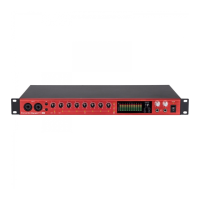
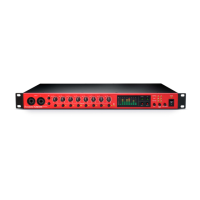
Connecting your Clarett 8Pre
IMPORTANT: Before you connect the Clarett 8Pre to your computer, please complete the
software installation according to the instructions on page 5.
This will ensure the hardware uses the correct drivers, and will
prevent unexpected behaviour.
The Clarett 8Pre should be connected to AC mains with the supplied AC power cable. Plug the IEC
connector into the rear panel IEC port and turn the unit on with the front panel power switch.
The Clarett 8Pre has a Thunderbolt™ port (on the rear panel). Once the software installation is
complete, connect the Clarett 8Pre to your computer using a Thunderbolt™ cable.
Computer audio setup
Your OS should automatically select the Clarett 8Pre as the default audio device. You can check this
selection has been made correctly, if you wish. Details of how to do this on various operating systems
can be found at focusrite.com/clarett8Pre-getstarted.
Audio Setup in your DAW
After installing the drivers and connecting the hardware, you can start using the Clarett 8Pre with
the DAW of your choice.
Please note - your DAW may not automatically select the Clarett 8Pre as its default I/O device. In
this case, you must manually select the driver on your DAW’s Audio Setup* page, and select the
Focusrite Thunderbolt driver. Please refer to your DAW’s documentation (or Help les) if you are
unsure where to select the Clarett 8Pre as your audio device.
* Typical name – page names may vary with DAW



 To Next Page