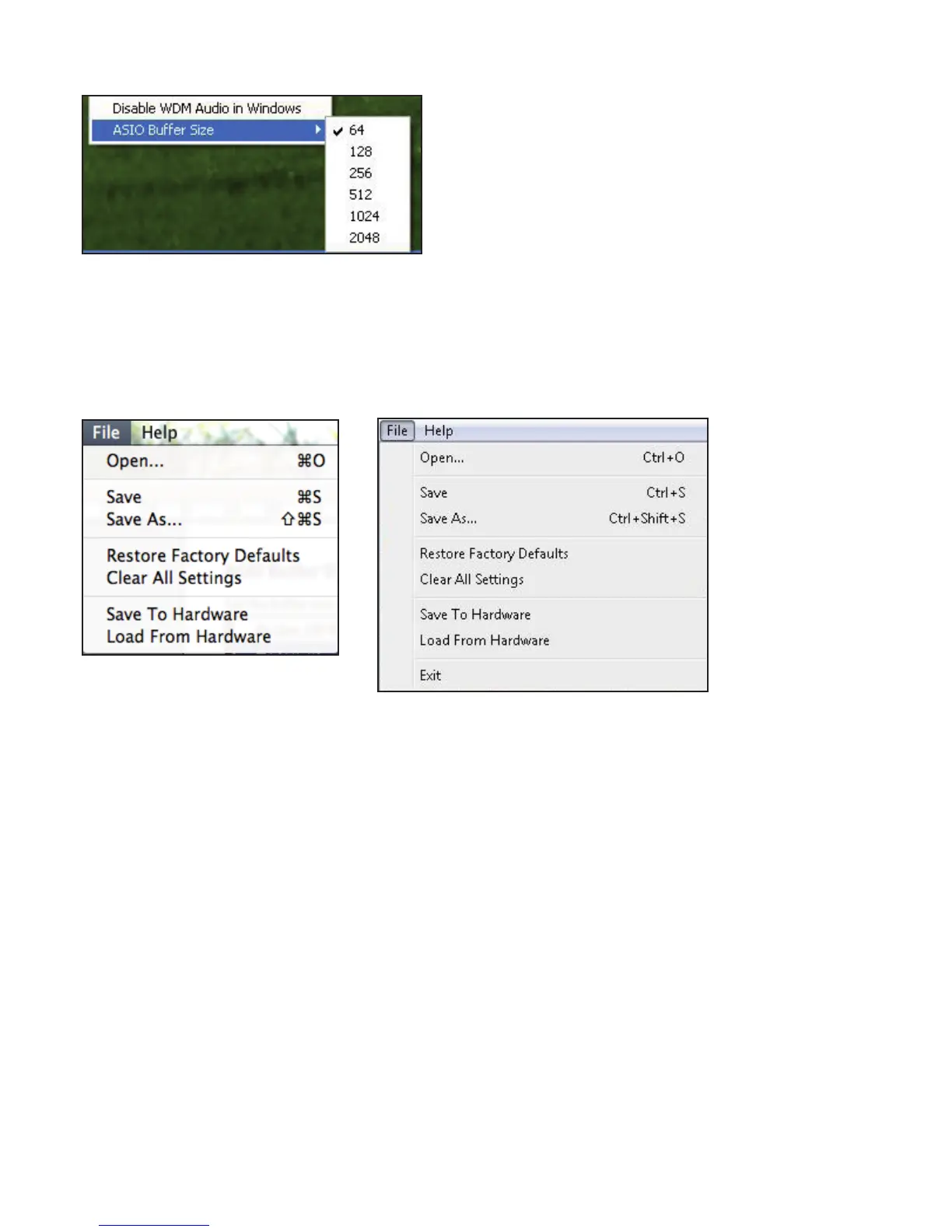
ASIO Buffer Size (Windows Only)
Set the buffer size of your ASIO driver here.
A small buffer size will in result in lower latency at the expense of increased CPU usage. A high buffer size will result in a higher
latency but with lower CPU usage. If you are using lots of virtual instruments and effects processing in your DAW project, and the
CPU usage is high, then increase the buffer size to permit lower CPU usage.
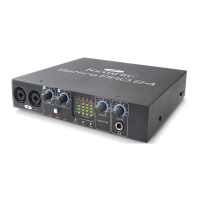
File Menu
Mac Windows
Open - opens a File open dialog allowing selection of any pre-saved Safre MixControl set-ups.
Save - opens a File save dialog allowing selection of a location into which your Safre MixControl set-up can be saved.
Subsequent saves overwrite the original le.
Save As - opens a File save dialog allowing selection of a location into which your Safre MixControl set-up can be saved. Use this
option if you want to keep your original saved set-up and create a new one with a different name.
Restore Factory Default - Causes the Safre PRO 24 DSP to revert to the original default state in which it left the factory. This can
be used to globally reset all mixer, routing, and monitor settings, allowing creation of a new set-up from scratch.
Clear all Settings - Causes the Safre PRO 24 DSP to reset all settings.
Save to Hardware - This saves the current Safre MixControl set-up to the Safre PRO 24 DSP hardware. If you are moving
the Safre PRO 24 DSP from one computer to another and want to retain the set-up, then choose this option. Note that Safre
MixControl does not automatically load from hardware (as this would overwrite a current set-up); it must be loaded manually.
Load from Hardware - This loads the saved set-up from the Safre PRO 24 DSP hardware into the Safre MixControl software.
As you can see from the above screen shots, ‘Open’, ‘Save’ and ‘Save as’ all have keyboard shortcuts. These are standard shortcuts
for their respective functions, so if you are regularly changing settings for your various sessions, then the shortcuts will reduce
your set-up time.




 To Next Page