System Requirements
Macintosh
• OS: Mac OS X 10.4.11 or later
• Computer: Apple Macintosh with FireWire port
• CPU/Clock: PowerPC G4/1 GHz or higher (Intel/Dual 1 GHz or better recommended)
• Memory (RAM): 512 MB (1 GB or more recommended)
• Screen Resolution: 1024x768 (1280x1024 or more recommended)
Windows
• OS: Windows Vista (All Versions) or Windows XP SP2 or higher (All Versions)
• Computer: Windows compatible computer with FireWire port.
• CPU/Clock: Pentium or AMD with 1 GHz or higher (Dual 1 GHz or better recommended)
• Memory (RAM): 512 MB (1 GB or more recommended)
• Screen Resolution: 1024x768 (1280x1024 or more recommended)
Installation
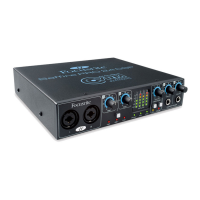
We aim to ensure that the latest installation software will be on the disk included with your Safre PRO 24 DSP. However we strongly
recommend that you check for the latest version of software on our website; www.focusrite.com before starting to work with your
Safre PRO 24 DSP unit.
PLEASE ENSURE THAT YOU RUN THE INSTALLER BEFORE CONNECTING THE Safre PRO 24 DSP TO YOUR COMPUTER
Windows
Insert your installer disk into your computer’s CD-ROM drive. 1.
You should see a window pop up showing the following installer icon: 2.
‘Safre MixControl-1.4.exe’
Double click on the installer icon to begin the installation process.3.
Follow on screen instructions to complete the installation process.4.
Note that the included VST plug-in suite installer will run after driver installation. 5.
Restart your computer.6.
Connect the Safre PRO 24 DSP to your computer.7.
Once the installation has been completed, your Computer OS should automatically switch its default audio outputs to be the
Safre PRO 24 DSP. To make sure this is the case:
On Windows Vista, go to Start > Control Panel > Hardware and Sound > Sound > Manage Audio Devices > Set Default
‘Playback’ and ‘Recording’ to ‘Safre Audio’.
On Windows XP, go to Start > Control Panel > Sounds, Speech and Audio Devices > Sounds and Audio Devices > Audio tab > Set
Sound playback and recording to Safre Pro Audio’.




 To Next Page