Mac OS
Insert your installer disk into your computer’s CD-ROM drive. 1.
You should see a window pop up showing the following installer icons: 2.
‘Install Safre MixControl.pkg’
Double click on the installer icon to begin the installation process.3.
Follow on screen instructions to complete the installation process. 4.
Restart your computer.5.
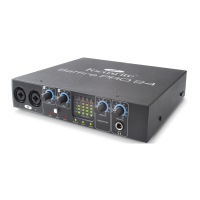
6. Connect the Safre PRO 24 DSP to your computer.
Once the installation has been completed, your Computer OS should automatically switch its default audio outputs to be the
Safre PRO 24 DSP. To make sure this is the case:
Go to System Preferences > Sound > Set the input and output to ‘Safre’.
For more detailed setup options on a Mac, go to Applications > Utilities > Audio Midi Set-up.
Note that the included VST and AU plug-in suite can be installed by running ‘Focusrite Plug-in Suite.pkg’ from the same installer
disk.
Audio Set-up in your DAW
The Safre PRO 24 DSP is compatible with any DAW that uses ASIO drivers on Windows, and any DAW that uses Core Audio on Mac.
Your DAW software may not automatically switch the device it uses to input and output audio.
You must ensure that you select ‘Safre’ as the ASIO driver (Windows) or Core Audio driver (Mac) in your DAW’s audio set-up page.
Please refer to your DAW’s documentation if you are unsure where to select the ASIO / Core Audio driver.




 To Next Page