6
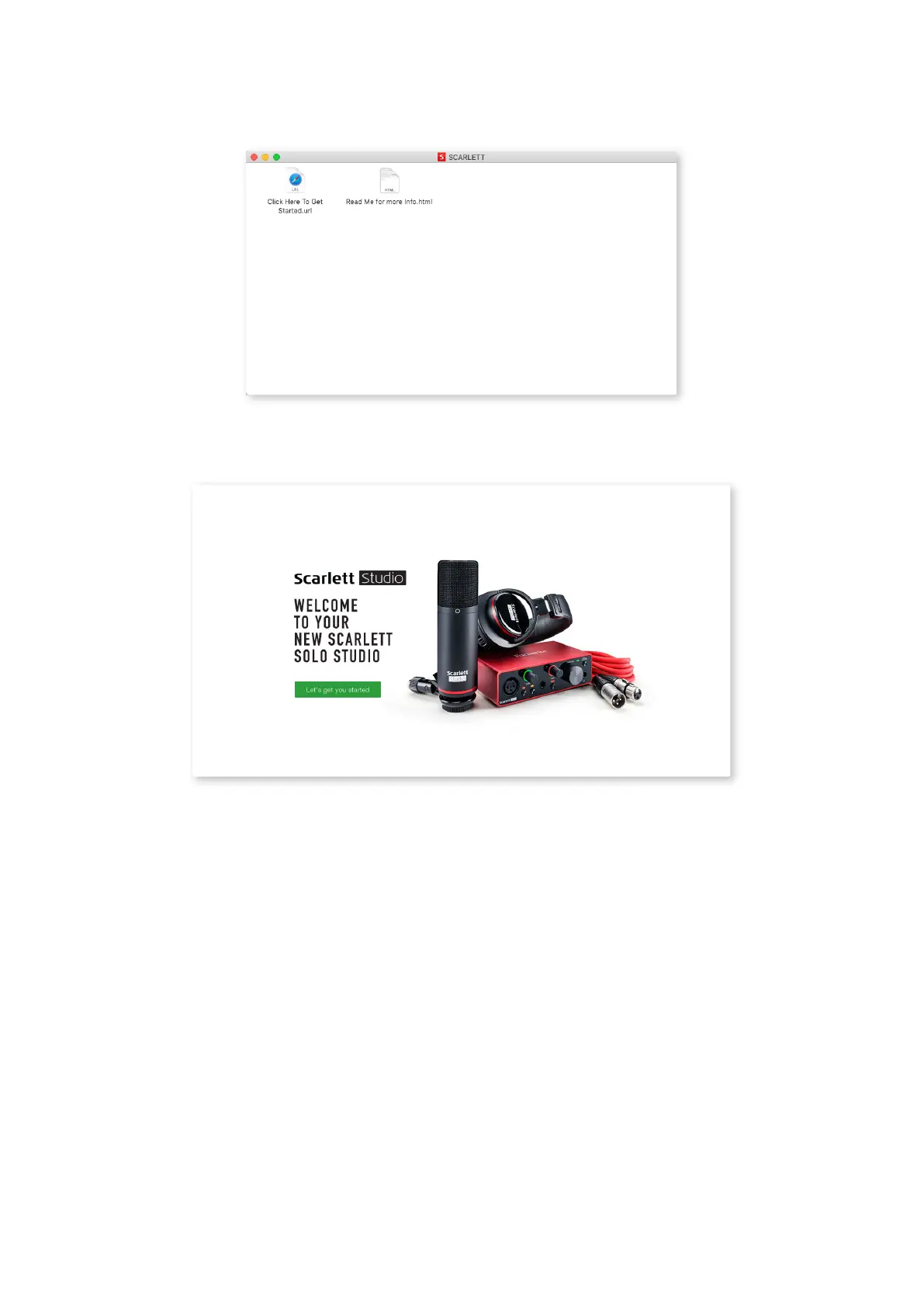
Double-click on the icon to open the Finder window shown below:
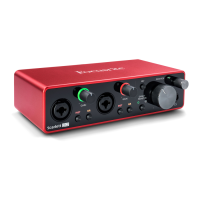
Double-click on the “Click Here to Get Started.url” icon. This will redirect you to the Focusrite website,
where we recommend you register your device:
Click on “Let’s get you started”, and you’ll see a form which will be partly prelled for you automatically.
When you submit the form, you’ll see options to go straight to the downloads to get the software for
your Scarlett, or to follow a step by step setup guide based on how you want to use your Scarlett.
Once you have installed the Focusrite Control software to set up and congure your interface, the
Scarlett will be switched out of Easy Start mode so it no longer appears as a Mass Storage Device
when connected to your computer.
Your OS should switch the computer’s default audio inputs and outputs to the Scarlett. To verify this,
go to System Preferences > Sound, and ensure the input and output are set to Scarlett Solo.
For detailed setup options on a Mac, open Applications > Utilities > Audio MIDI Setup.





 To Next Page