FoMaKo Focus Your Streaming www.fomako.net
1.
Hot Key
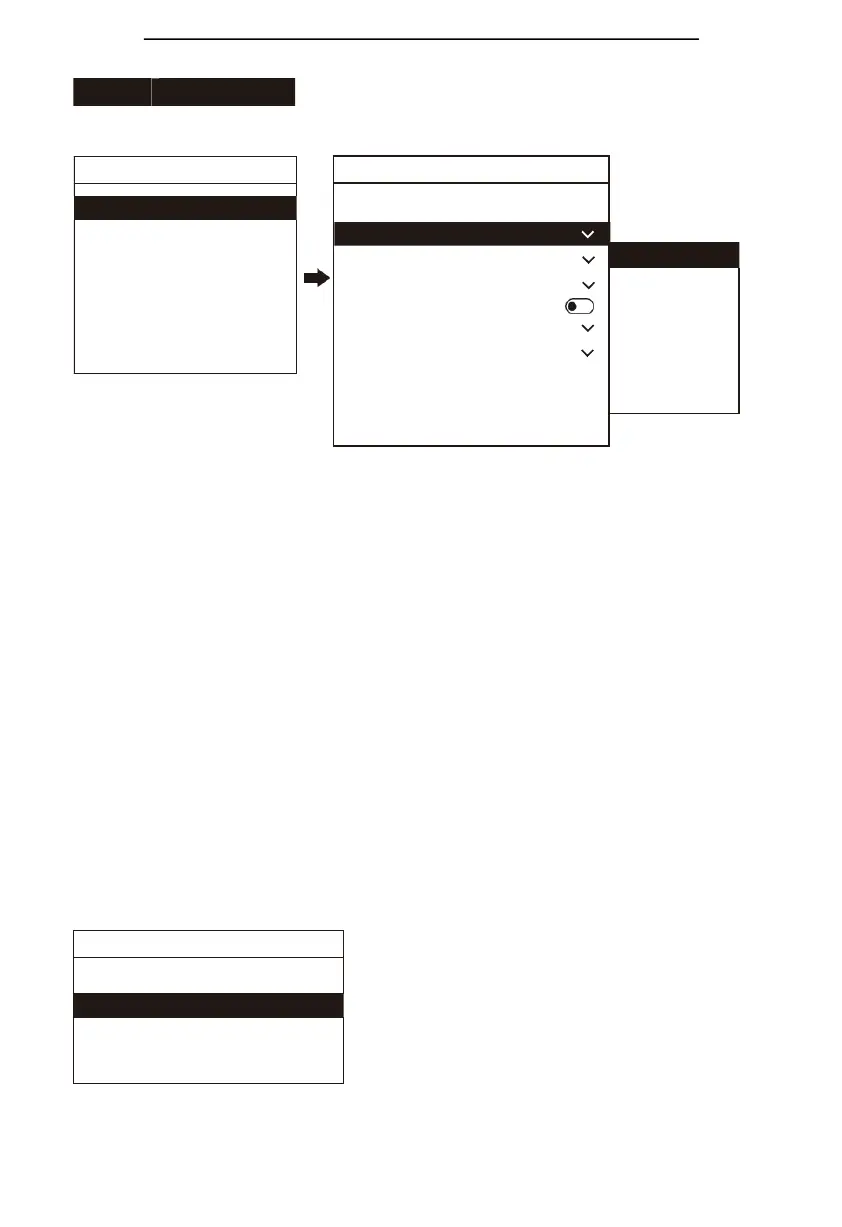
Device Name: Modify the device name which is displayed on the home page;
Protocol: Select a protocol based on your needs, "VISCA", "PELCO D", "PELCO P", "VISCA Over IP",
"VISCA TCP" can be manually input, "ONVIF" and "NDI" cannot be manually selected, needs to be
selected from the device list;
Address: match the camera address;
Baudrate: match the camera baud rate;
RS-485: When using the RS-485 connection mode to connect to the camera, turn on this option to
obtain the device information status;
Compatible mode: When it has problem to use the standard mode to work with the camera, pls try
to use other modes;
Video stream: A protocol that supports video streaming over a network;
Stream URL: Enter the camera stream address to pull the video signal of the camera; Reset
Camera address: When cascading multiple cameras and using the VISCA protocol, this function
can assign corresponding addresses to the cameras according to the connection sequence ( only
valid under the VISCA protocol );
Select from list: You can select a device from the "device list" for quick control.
2.
Device Management
Device list: You can delete the device that has been added
to the keyboard or modify the device information that has been
added to the keyboard;
Add a new device: Manually add devices to the keyboard;
Ignoreddevicelist: block specifieddevices in the search
list;
Add an ignored device: Manually add devices that
need to be blocked in the search list.
√.CAM2 >
√.CAM3 >
√.CAM4 >
√.CAM5 >
√.CAM6 >
√.CAM7 >
√. Compatible Mode Normal
Ignored Device List Add
an Ignored Device


 To Next Page