Step 02) Press the WPS button on your router within 60 seconds. The WPS button is usually
on the back or side of your router. On some routers, you may need to log in to the web interface
and click on an on-screen button to activate the WPS feature. If you are not sure where the WPS
buttons is on your router, please refer to your router’s User Manual.
The camera will automatically create a secure wireless connection to your router. If you have
plugged in the network cable, please plug it out. While connecting, the green network light will
blink quickly and the wireless settings will take effect. The IP Camera Tool will search the
camera’s LAN IP. Make sure the PC and the camera share the same subnet.
NOTE:
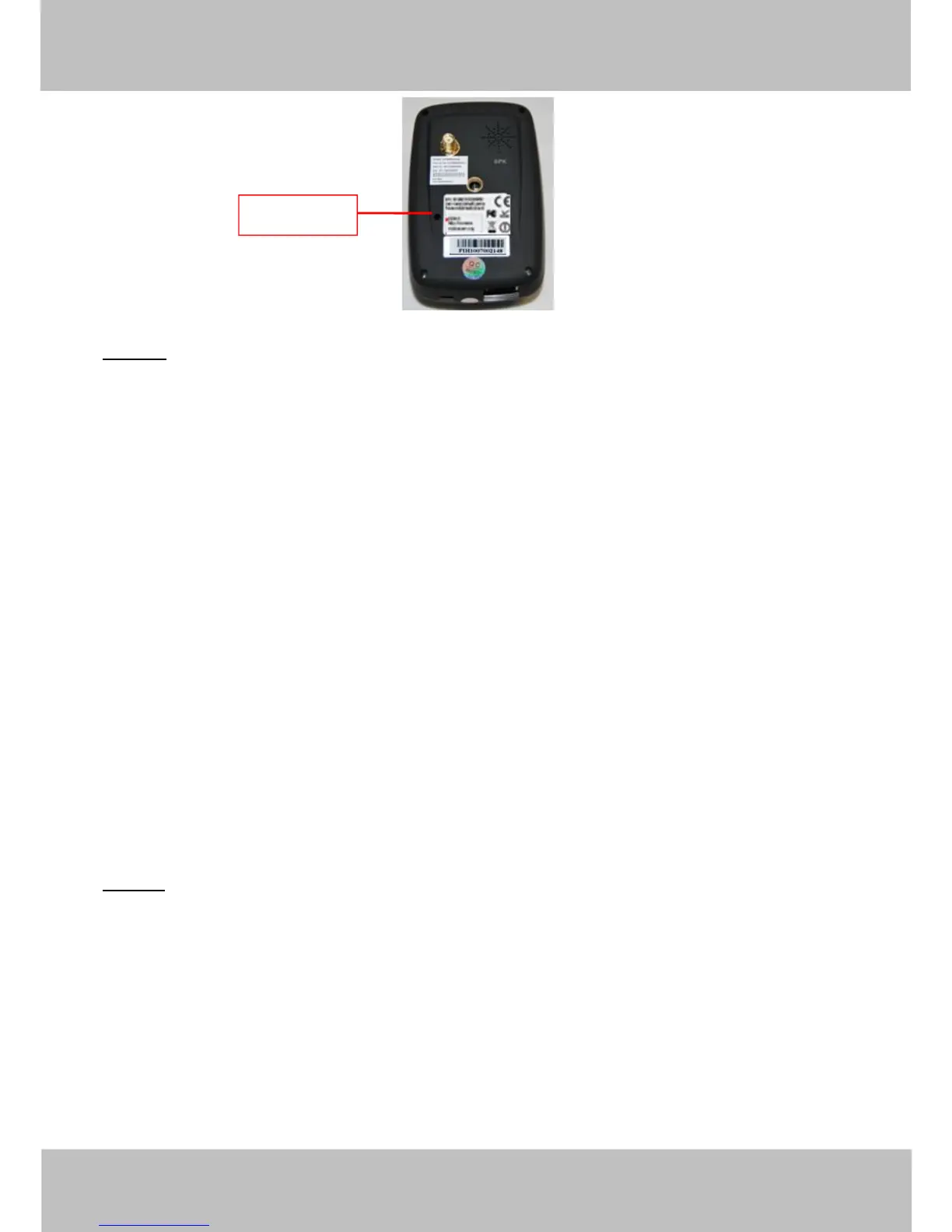
1 During the WPS Settings, you must press the Reset button only for four seconds, or else, the
camera may be reset back to factory default settings if you press and hold on the reset button
above 10 seconds.
2 The security mode of router cannot be WEP, or else the WPS settings may be failed.
3.7.3 Adhoc Mode
Under this mode, the IPCAM will directly connect to a host in a peer_to_peer environment.
Make sure the PC has plugged in the wireless network card.
Step 01) Enable wireless and choose Adhoc mode.
Fill in a SSID to identify the IPCAM and then set the security mode, you can choose none or
others. Click Apply.



 To Next Page