Figure 3.26
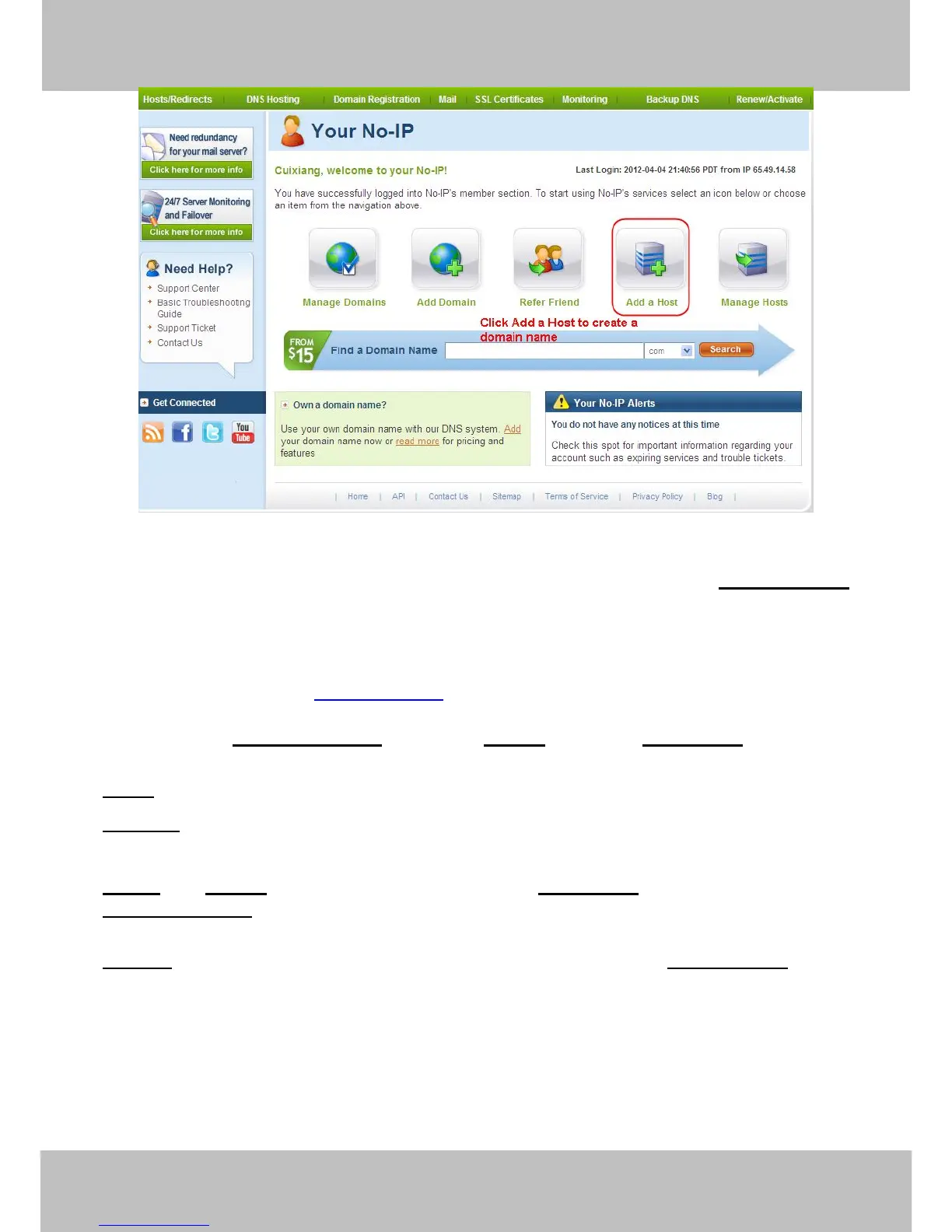
Please create the domain name step by step according to instructions on www.no-ip.com
Step 2, DO DDNS Service Settings within the Camera
Please set DDNS Service Settings within the camera by hostname, a user name and
password you’ve got from www.no-ip.com
Take hostname ycxgwp.no-ip.info, user name foscam, password foscam2012 for example.
Firstly, goes to option of DDNS Service Settings on the administrator panel.
Secondly, disable the Manufacturer’s domain name and select No-Ip as a server in the Third
Party DDNS.
Thirdly, fill foscam as DDNS user, fill password foscam2012 as DDNS password, fill
ycxgwp.no-ip.info as DDNS domain and server URL, Then click save to make effect. The
camera will restart and to take the DDNS settings effective.
Fourthly, after the restart, login the camera, and go to option of Device Status on the
administrator panel, and check if the DDNS status is successful.
If failed, please double check if you have input the correct hostname, user name, and
password, and try to redo the settings.
NOTE:
The Third Party DDNS and the Manufacturer’s Domain Name cannot work at the same time.
If you have set Third Party DDNS and meanwhile you enabled the Foscam Domain Name, the



 To Next Page