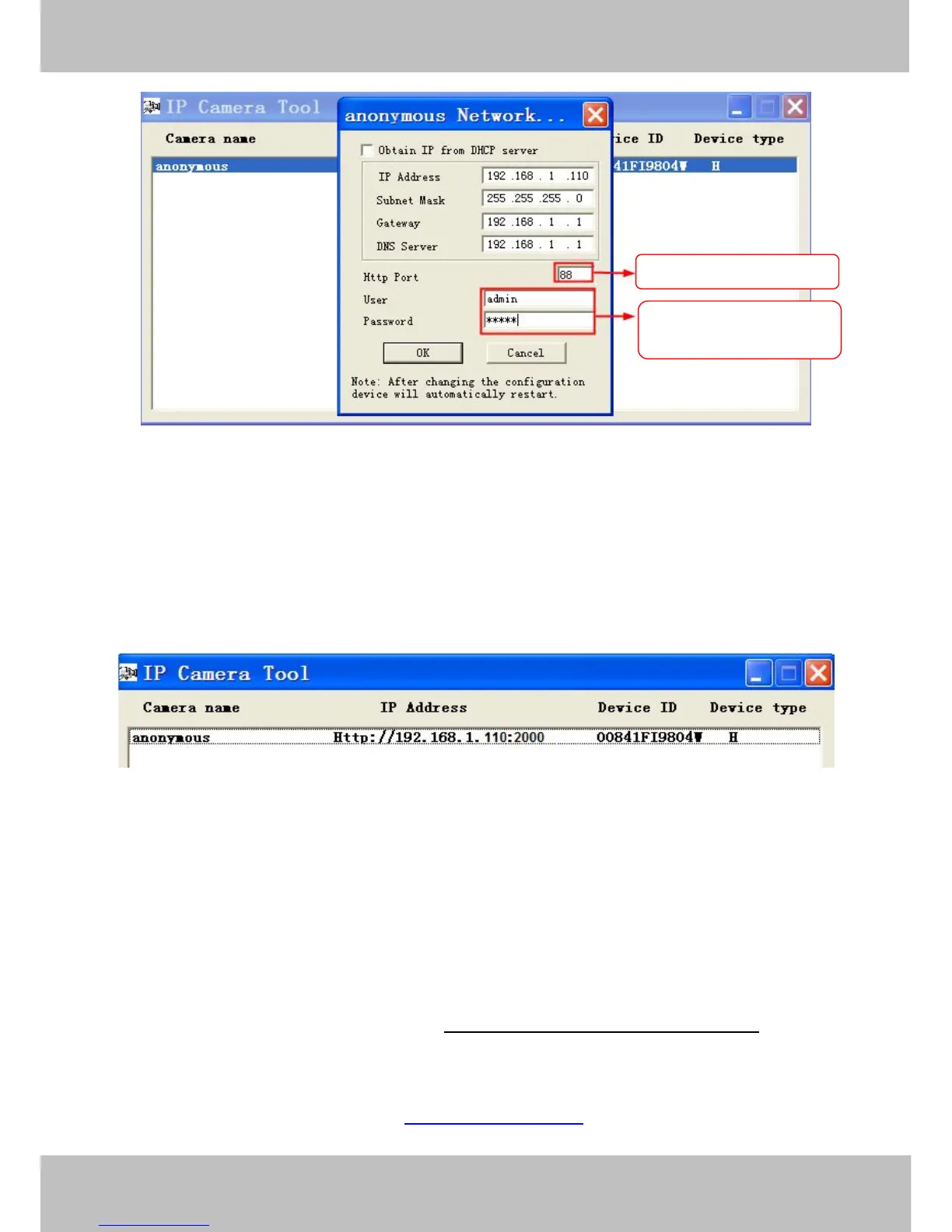
Figure 2.5
Step 2: Modify the Http Port and enter the username and password of the Administrator , and click “OK” to
apply changes.
Step 3: Wait around 10 seconds, you’ll see that the camera’s LAN IP address has changed. Also, the LAN
IP address is now fixed at a static IP address of http://192.168.1.110:2000. This IP address will not change
even if the camera is powered off and back on, the camera will remain on this LAN IP address. This is very
important that a static LAN IP address is set, or you may have problems later with remote access and seeing
the camera remotely if the camera loses power and reconnects on a different LAN IP address. Make sure you
set a static LAN IP address!
Figure 2.6
What is Port forwarding?
If you have never done port forwarding before, you can open and view the following link to understand the
basic concept. Port forwarding allows for outside connections to access a specific device on your network from
anywhere in the world. Every router automatically blocks any incoming connections for safety purposes. Using
port forwarding, you are telling your router to allow a connection through a certain port (you can think of it as a
gateway) into your router. You set this port to a specific device, in our case an IP Camera, so it can be
accessed from anywhere in the world.
Click this link to learn more about port forwarding: http://portforward.com/help/portforwarding.htm
How do we configure Port Forwarding?
For this section, we will be using an example:
Let’s say the camera’s LAN IP address is http://192.168.1.110:2000


 To Next Page