DRAFT v0.3 English, 01 Mar 2012
- 6 -
5 Entering Proxy Server Settings
If your network uses a proxy server, you will need to
enter its details into the wizard. Before you can do
this, you will need to obtain the needed information.
You will need the following:
• The IP address of the proxy server and the port
number to use
• Whether authentication is to be used, and if
so,
the corresponding user name and password.
Either contact your network administrator, or follow the instructions in section 7.
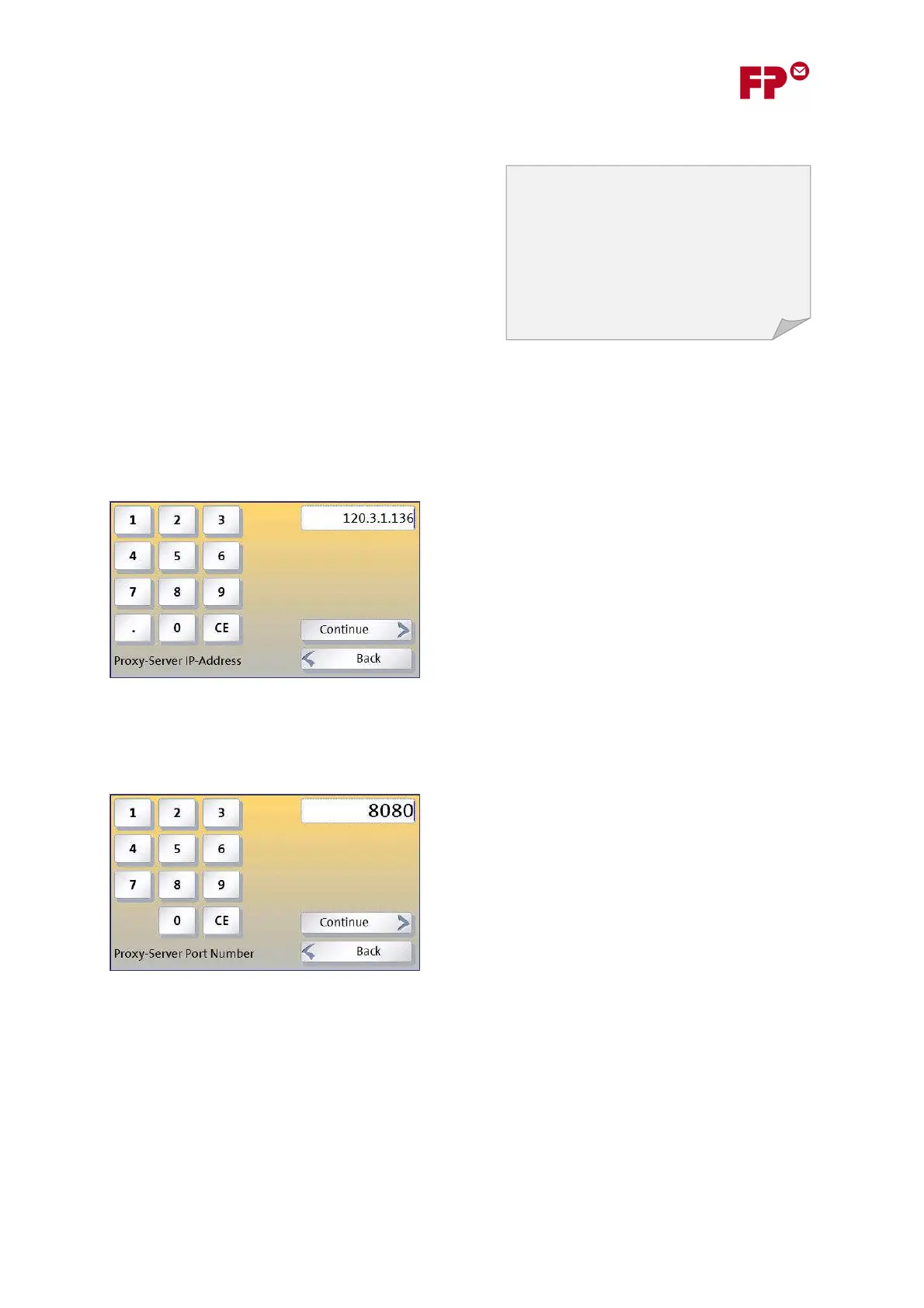
1) Enter the IP address of the proxy server
A keyboard will appear on the display in which you can
enter the IP address.
Each of the 4 sets of numbers must be in the range 0 to
255 and they must be separated by full stops (bottom
left key).
You can use the CE (bottom right key) to successively
correct the last entries.
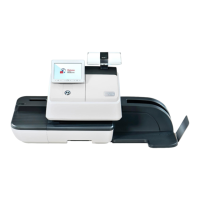
2) Enter the Port Number
The ‘port number’ must be entered next. This will
normally have the value “8080”.
Occasionally another value might be needed, for
example “80”.
See section 7 to confirm the value for your network, or
contact you network administrator.
Every computer or device that communicates
over the Internet must have an IP (Internet
Protocol) address. This also applies to most of
today’s large networks within companies.
Common IP addresses are written as 4 groups
of 3 digits, separated by full stops e.g.
123.987.567.543.


 To Next Page