11
4 LAYOUTS & SWITCHES
4 LAYOUTS & SWITCHES
The FC is organized around Layouts. A layout is a set of up to 12 , each of which
includes one Tap and one Hold function. You can change layouts on the fly to access different “pages”
of switches
1
. For example, one layout might be used to select Presets or Scenes, while a different
layout operates the Looper. Any layout can be completely customized to serve your own needs. Layouts
even have their own names to make navigating easier. The Axe-Fx III provides eight layouts.
1 FC Layouts are not called “pages” to avoid confusion with pages in the Axe-Fx III.
THE MASTER LAYOUT MENU
Switching from one layout to another is the key to the versatility of the FC. There are many ways to
do this, but the built-in Master Layout Menu (“MLM” for short) will probably be the most popular.
The Master Layout Menu grants instant access to other layouts, one per footswitch.
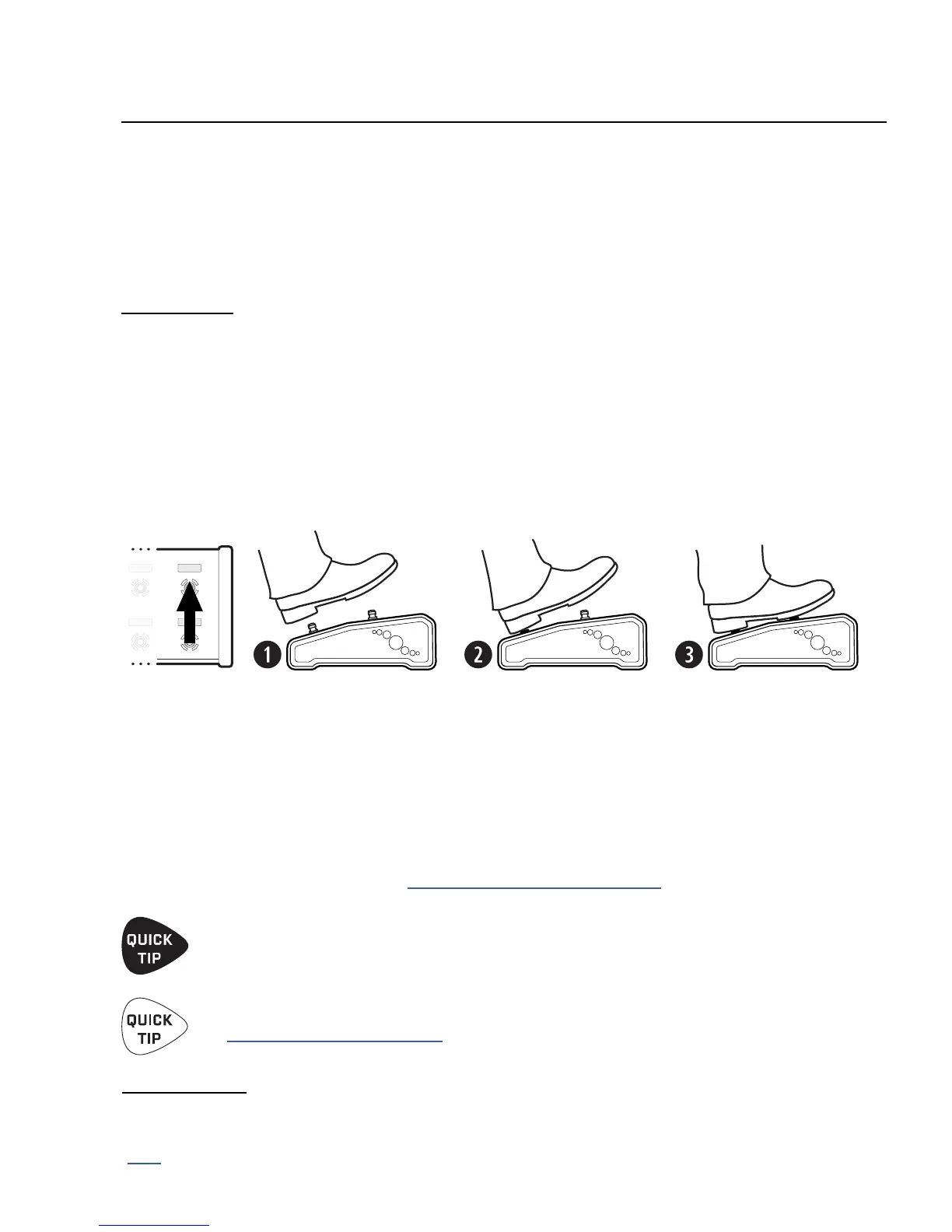
To show the Master Layout Menu, rock your foot from heel to toe over both of the two right-most
footswitches on your FC, as shown in the following illustration of the “MLM Switch Combo”.
The Master Layout menu automatically assigns different layouts to different footswitches in order.
Footswitch 1 loads layout 1, Footswitch 2 loads layout 2, and so on. If your layouts have names, these will
be shown in the Mini-Displays. When you activate any switch to select a layout, it is loaded immediately.
The currently selected layout will be shown with a bright LED ring, while other options are dimmed. To exit
the MLM without changing the current layout, just select the bright switch for the current layout again.
If the lower right switch has a Tap function, it will not be activated by the MLM Switch Combo.
If the lower right switch has a Hold function, you can still easily execute the MLM Switch
Combo quickly, before the Hold function res. If the Hold function should re, the Master Layout
Menu will still be displayed. Learn more in “The Rules of Switch Timing” on p. 12.
When you design your own layouts, consider that the best Hold function for the lower right switch is
probably one that doesn’t change your sound if you accidentally re it while activating the MLM.
A good example would be “Reveal Hold Functions”, present in some of the default layouts.
A layout can also include Tap or Hold switches that change to other layouts without the MLM.
See Section 5: Footswitch Functions for more information on this and other switch functions.
MLM PAGING
Since there are eight layouts and the FC-6 has only 6 footswitches, the Master Layout Menu is split
into two pages. Just perform the “MLM Switch Combo” again — or use the MLM utlity function
(p. 32) — and the FC-6 will toggle between the two pages of the Master Layout Menu.


 To Next Page