20
4 LAYOUTS & SWITCHES
EDIT A LAYOUT
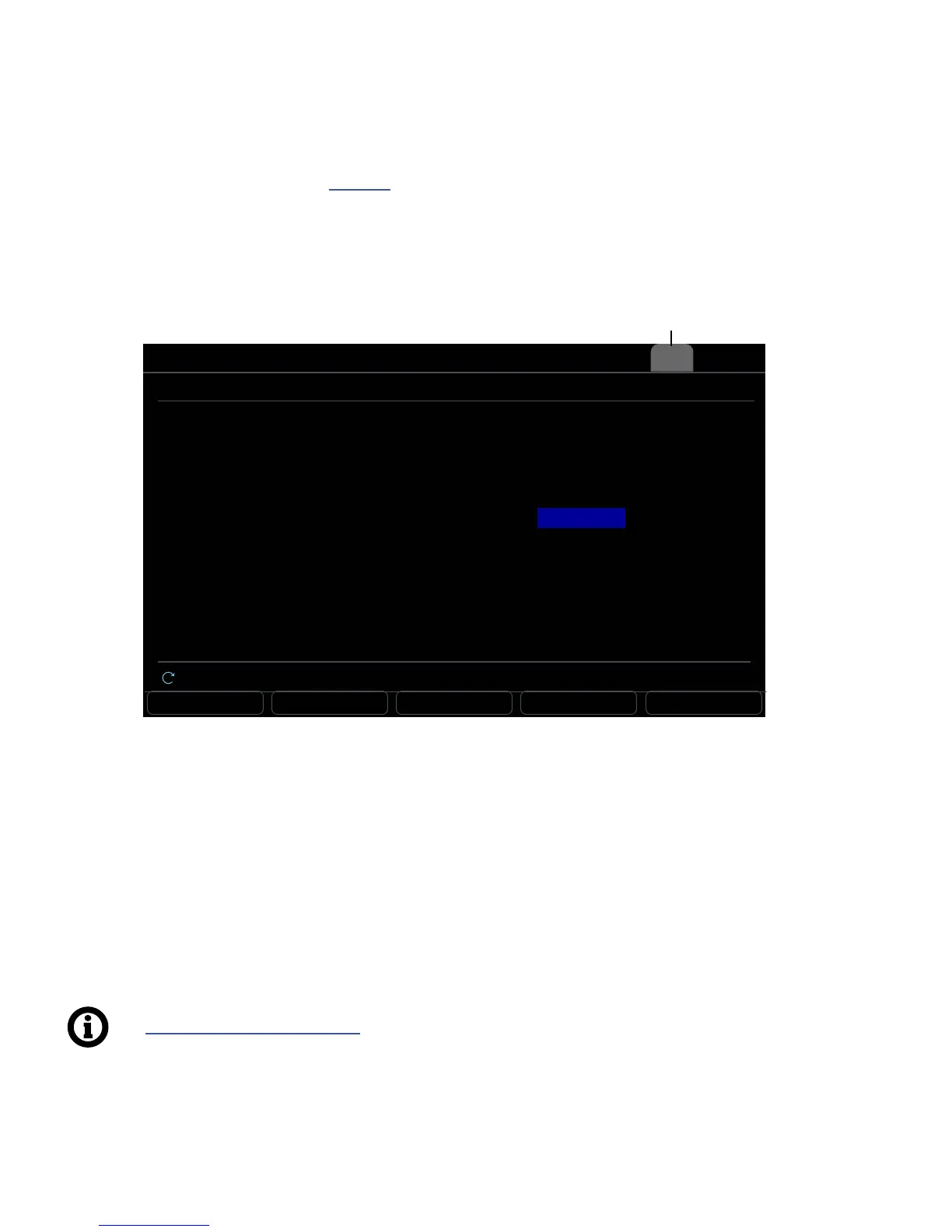
Select any layout on the Layouts page (see p.20) and press EDIT LAYOUT
or ENTER to open the selected layout for deeper editing.
The Edit Layout view has two pages: one for the Tap function and one for the Hold function. Each shows the
Category and the Function for all 12 switches, plus values for the rst two parameters of the current function.
Use the A, B, C, D, and E knobs, or the NAV buttons and VALUE knob to make changes.
The push-knobs offer additional functions:
RESET LAYOUT sets all switches in the current layout to “Unassigned” and clears all customization.
(A conrmation screen requires you to press ENTER rst.)
EDIT SWITCH opens a single switch for deeper editing.
COPY LAYOUT and PASTE LAYOUT provide a means to replicate a layout to a new location.
Select any switch and press ENTER or the EDIT SWITCH button (push-
knob B) to open that switch for deeper editing.
RESET LAYOUT EDIT SWITCH RESET SWITCH COPY SWITCH PASTE SWITCH
Edit Layout 1: PRESETS
1 Tap
2 Tap
3 Tap
4 Tap
5 Tap
6 Tap
7 Tap
8 Tap
9 Tap
10 Tap
11 Tap
12 Tap
Preset
Preset
Preset
Preset
Preset
Bank
Preset
Preset
Prese
Preset
Preset
Bank
Select in Bank
Select in Bank
Select in Bank
Select in Bank
Select in Bank
Inc / Dec
Select in Bank
Select in Bank
Select in Bank
Select in Bank
Select in Bank
Inc / Dec
1
2
3
4
5
-1
6
7
8
9
10
+1
--
--
--
--
--
Wrap
--
--
--
--
--
Wrap
CATEGORY FUNCTION VALUE 1 VALUE 2
Nav Category Function Value 1 Value 1
Tap HoldTap
See Section 5: Footswitch Functions for information on all categories, functions, and parameters.


 To Next Page