Frama F-Link
12
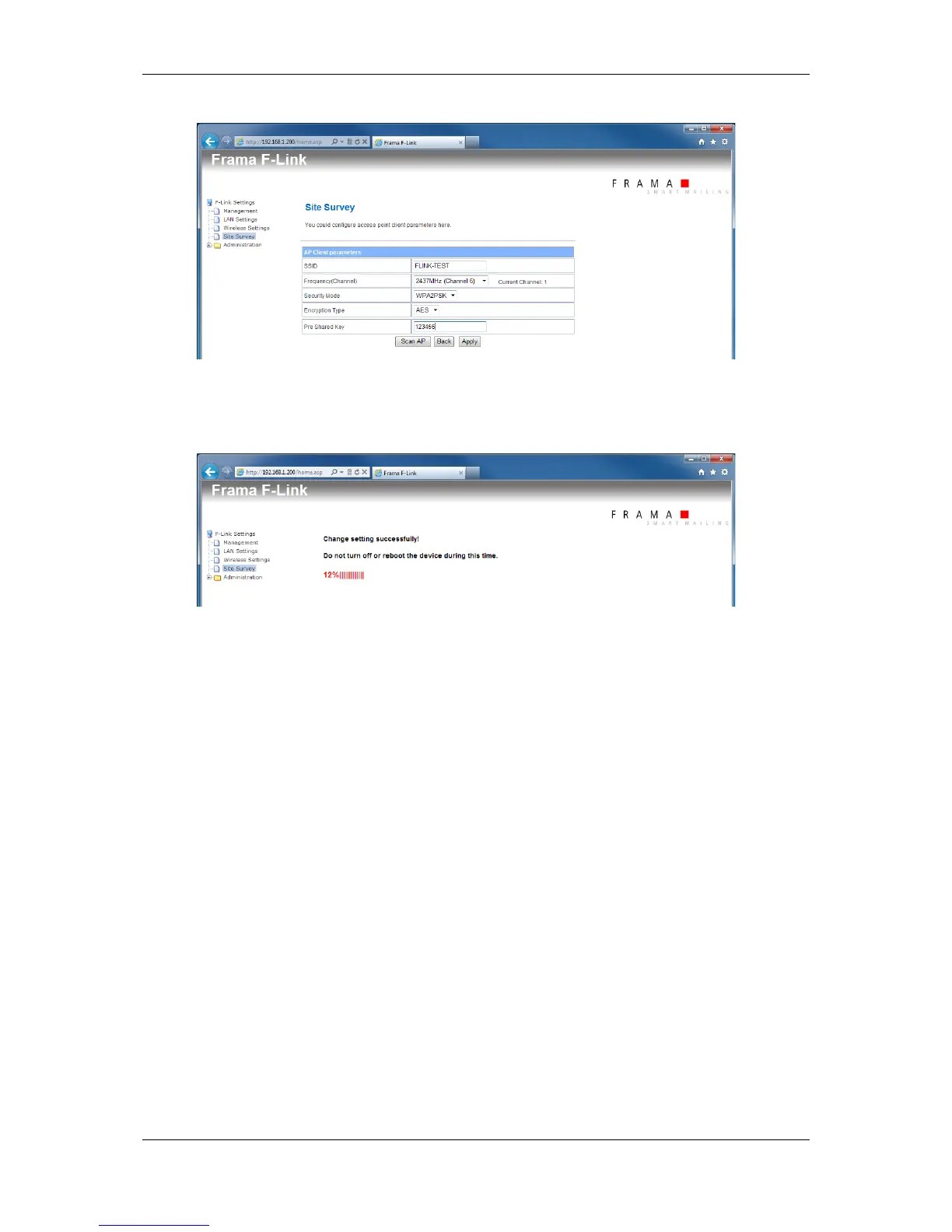
12. Press button “Apply”. -> Please wait. The wireless network will be connected.
(The execution of the command may need to be confirmed in the internet web browser)
13. Wait until Ready LED of the F-Link is switched on again.
14. When F-Link is able to build-up a wireless connection to your access point, the connection
over the LAN port (cable) will be closed. The F-Link configuration page can therefore not be
opened again by default IP 192.168.1.200 and a direct LAN cable connection.
If the configuration page was reloaded in your internet web browser with the default IP
192.168.1.200 the F-Link has no access to your wireless network.
Check the wireless signal strength at the F-Link position and the wireless settings of F-Link
(SSID, pass phrase, key, channel, …)
15. Disconnect direct LAN network cable between F-Link and PC.
16. Set the LAN network settings of the PC back to the previous values.
17. Execute business processes on the franking system.
Access to F-Link configuration page under wireless operation mode:
1. The F-Link configuration page can now only opened by an access via wireless network and the
assigned DHCP IP address for F-Link. For identifying the DHCP IP address of the F-Link see
chapter 4.1.3.
2. Open internet web browser on a PC that is also connected to the same wireless network as the
F-Link. Enter the DHCP IP address of F-Link into the address field of the internet web browser.



 To Next Page