13
The Weather Underground and Weathercloud websites are subject
to change without notice.
SETTING UP A WI-FI CONNECTION
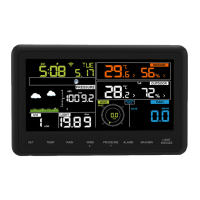
1. When you turn on the console for the first time, the console
LCD flashes "AP" to indicate that it has entered AP (Access
Point) mode and is in Wlan search mode. The user can also
press and hold the [ SENSOR / WI-FI ] key for 6 seconds to
display the AP mode manually.
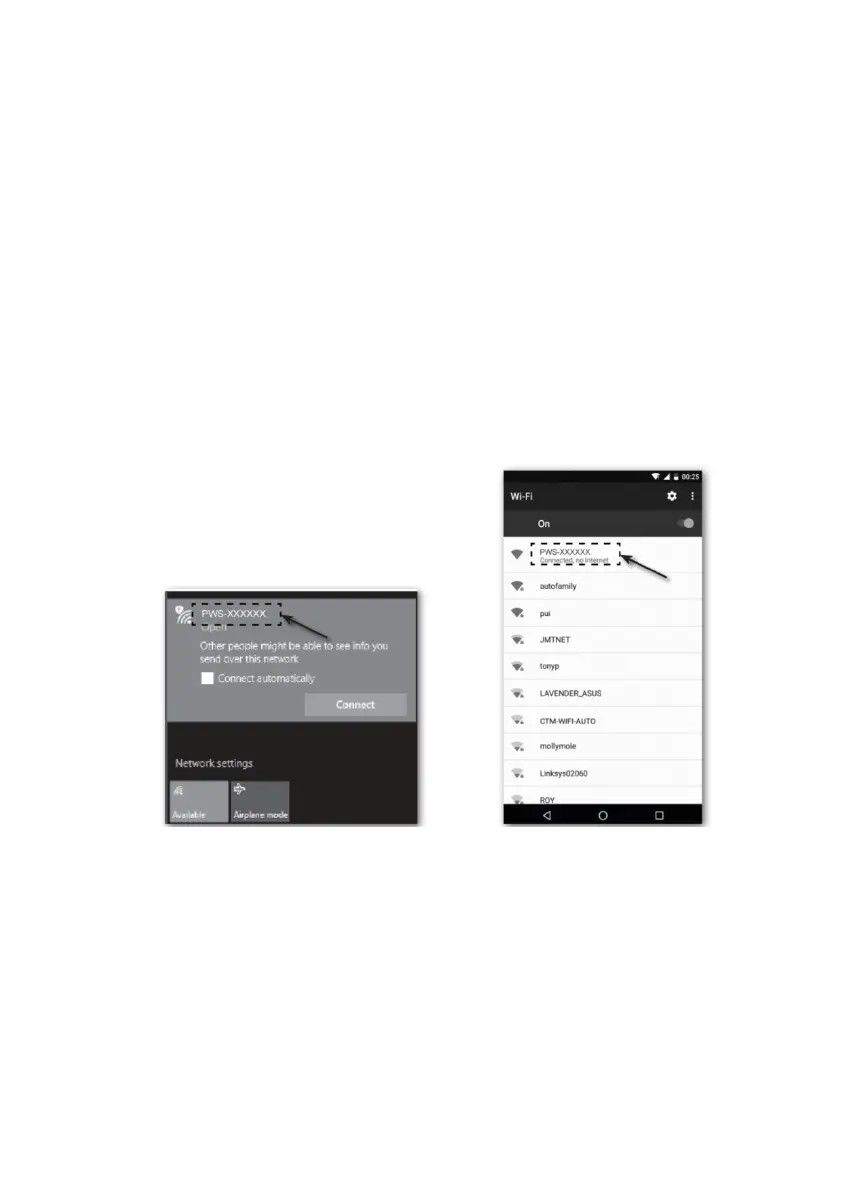
2. Use the smartphone, tablet or computer to connect the
console via WI-FI.
3. Select the WiFi network settings for PC/Mac or the WI-FI
setting for Android/iOS, select the console SSID: PWS-
XXXXXXXX in the list and it will take a few seconds to
connect.
4. Once connected, enter the following IP address in the
address bar of your Internet browser to access the console
Web Interface:
http://192.168.1.1
NOTE:
- Some browsers treat 192.168.1.1 as a search, so make sure you
include the http:// header.
- Recommended browsers, such as the latest version of Chrome,
Safari, Edge, Firefox or Opera.


 To Next Page