335
Home > Network > Additional Methods of Configuring Your Fuji Xerox Machine for a Wireless Network > Use
Wi-Fi Direct
®
> Configure Your Wi-Fi Direct Network > Configure Your Wi-Fi Direct Network Using the PIN
Method of Wi-Fi Protected Setup
™
(WPS)
Configure Your Wi-Fi Direct Network Using the PIN Method of Wi-Fi
Protected Setup
™
(WPS)
If your mobile device supports the PIN Method of Wi-Fi Protected Setup
™
(WPS), follow these steps to configure a
Wi-Fi Direct network.
When the machine receives the Wi-Fi Direct request from your mobile device, the message [Wi-Fi
Direct connection request received. Press [OK] to connect.] will appear on the LCD.
Press [OK] to connect.
1.
Press [] [Settings] > [All Settings] > [Network] > [Wi-Fi Direct] > [Group Owner].
2.
Press [On].
3.
Swipe up or down or press
▲
or
▼
to select the [PIN Code] option. Press [PIN Code].
4.
When [Activate Wi-Fi Direct on other device. Then Press [OK].] appears, activate your
mobile device's WPS PIN configuration method (see your mobile device's user's guide for instructions) and
then press [OK] on your Fuji Xerox machine.
This will start the Wi-Fi Direct setup. To cancel, press .
5.
The machine will wait for a connection request from your mobile device. When [PIN Code] appears, enter
the PIN displayed on your mobile device in to the machine. Press [OK].
6.
If your mobile device connects successfully, the machine's LCD displays [Connected]. You have completed
the Wi-Fi Direct network setup.
• Configure Your Wi-Fi Direct Network
Related Topics
• Wi-Fi Direct Network Configuration Overview
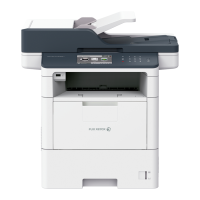
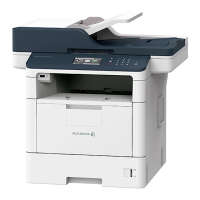
Related Models: DocuPrint M385 z/DocuPrint M375 z


 To Next Page
 Loading...