EasyManua.ls Logo

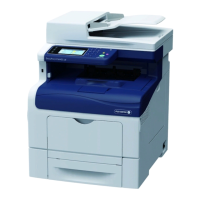
Fuji Xerox DocuPrint CM405 df - User Manual

Fuji Xerox DocuPrint CM405 df
488 pages
Print Icon
To Next Page IconTo Next Page
Loading...
DocuPrint CM405 df
User Guide

Table of Contents

Questions and Answers

  • C
    christian63Sep 9, 2025
    How to fix print media misfeeds in the standard tray of Fuji Xerox DocuPrint CM405 df All in One Printer?
    • J
      James StevensSep 9, 2025
      If your Fuji Xerox All in One Printer is experiencing print media misfeeds from the standard 550 sheet tray or the optional 550 sheet feeder, ensure that the tray or feeder is properly inserted. Verify that you are using the correct print media recommended for the printer and that the print media is not curled or damp. If damp, turn over the print media. If the problem persists, fan the print media. You can also wipe the feed roller with a cloth moistened with water. Replacing the drum cartridges with spares may also help.
  • F
    Felicia HuntAug 22, 2025
    Why is the output too light on my Fuji Xerox Printer?
    • T
      turnercindyAug 23, 2025
      If the output from your Fuji Xerox Printer is too light, the toner cartridges may be low or need replacement. Check the toner level in the Status Monitor window. You may also need to replace the toner cartridges. Disabling Toner Saver in the print driver or changing the Paper Type setting might help. Make sure you are using the correct print media. Clean inside the printer by using the cleaning rod. You can also try replacing the drum cartridges.
  • M
    Marcus SandersAug 25, 2025
    Why does my Fuji Xerox Printer have streaks on the output?
    • J
      Jeremy WilsonAug 25, 2025
      Streaks on the output of your Fuji Xerox Printer could be due to low or depleted toner cartridges. Check the toner level in the Status Monitor window and replace the toner cartridges if necessary. Replacing the drum cartridges may also resolve the issue.
  • S
    Steven HenryAug 27, 2025
    Why is my Fuji Xerox Printer smearing toner or the print is coming off?
    • G
      Gail RodriguezAug 27, 2025
      If the toner smears or the print comes off of your Fuji Xerox Printer, the print media surface may be uneven. Try changing the Paper Type setting in the print driver. Verify that the correct print media is being used. You can also try replacing the drum cartridges, the fusing unit, or the 2nd BTR, the belt unit, and the retard roller.
  • M
    Michael SmithAug 27, 2025
    How to fix print media misfeeds in the standard tray of my Fuji Xerox Printer?
    • M
      Melanie BlackAug 27, 2025
      To fix print media misfeeds in the standard 550 sheet tray or the optional 550 sheet feeder of your Fuji Xerox Printer, ensure that the tray or feeder is properly inserted. Verify that you are using the correct print media and that it is not curled or damp. If damp, turn over the print media. If not damp, fan the print media. Wipe the feed roller with a cloth moistened with water. Replacing the drum cartridges may also help.
  • J
    Janet SteeleAug 29, 2025
    How to resolve print media multiple feeds in Fuji Xerox Printer standard tray?
    • S
      sharon12Aug 29, 2025
      To resolve print media multiple feeds in the standard 550 sheet tray or optional 550 sheet feeder of your Fuji Xerox Printer, ensure that the tray or feeder is properly inserted. If using coated paper, load it one sheet at a time. If using other types of print media, make sure it is not damp. Fan the print media and wipe the feed roller with a cloth moistened with water.
  • L
    Leslie GonzalezSep 17, 2025
    Why is the output from my Fuji Xerox DocuPrint CM405 df All in One Printer all black?
    • B
      berrysamuelSep 18, 2025
      If part or the entire output from your Fuji Xerox All in One Printer is black, ensure that the drum cartridges are installed correctly. Also, verify that Output Color is set to Color in the print driver. If the problem persists, try replacing the drum cartridges with spare ones.
  • L
    Laurie AdamsSep 18, 2025
    What to do for Exit jam on Fuji Xerox All in One Printer?
    • K
      kimberlyhamiltonSep 22, 2025
      If an Exit jam (Exit Sensor Off JAM) occurs on your Fuji Xerox All in One Printer, ensure that the fusing unit is installed correctly. If the issue persists, replace the fusing unit.
  • G
    guzmanbrittanySep 7, 2025
    Why is the output too light on my Fuji Xerox DocuPrint CM405 df?
    • T
      Timothy AllenSep 7, 2025
      If the output from your Fuji Xerox All in One Printer is too light, it could be due to several reasons. First, confirm the amount of toner in each toner cartridge, as the toner cartridges may be low or need to be replaced. You can also try disabling Toner Saver in the print driver or changing the Paper Type setting. Verify that the correct print media is being used. Cleaning inside the printer using the cleaning rod, or replacing the drum cartridges if you have spare cartridges, may also resolve the issue.
  • P
    phillipsmarkSep 4, 2025
    What is Regi jam (Exit Sensor On JAM) on Fuji Xerox Printer and how to fix it?
    • M
      Michael ScottSep 4, 2025
      A Regi jam (Exit Sensor On JAM) on your Fuji Xerox Printer may be resolved by ensuring that the drum cartridges, fusing unit, and belt unit are installed correctly. If problems continue, replace the drum cartridges, the fusing unit, or the belt unit, the 2nd BTR, and the retard roller.

Summary

Safety Notes

Understanding Warning Symbols

Explains the meaning of danger, warning, caution, and other hazard symbols.

Prohibited Actions and Items

Lists items that are prohibited and symbols for prohibited actions.

Essential Tasks Symbols

Lists symbols for essential tasks that must be performed.

Electrical Safety Precautions

Connecting to Protective Earth Circuit

Details connecting the product to a protective earth circuit for electric shock prevention.

Power Cord Safety Guidelines

Provides instructions on handling the power cord to prevent electric shock and fire.

Machine Installation

Operational Safety

Warning: Maintenance Procedures

Warns against performing maintenance not described in the documentation.

Hazard Areas and Protective Covers

Advises not to remove covers/protectors to prevent electric shock and injuries.

Conditions Requiring Immediate Shutdown

Lists conditions like smoke, heat, or damage that require immediate shutdown.

Laser Safety Precautions

Provides information on Class 1 Laser Equipment compliance and safety.

Consumable Safety Precautions

Toner Storage and Handling

Provides safety guidelines for storing and handling toner cartridges and waste toner.

Toner Spill First Aid

Gives instructions for skin, eye, or inhalation exposure to toner particles.

Warning and Caution Labels

High Voltage and Temperature Areas

Caution against touching areas marked with 'High Temperature' or 'High Voltage' symbols.

Printer Specifications

Basic Operation Guide

Installing Optional Accessories

Describes how to install optional accessories like memory, feeders, and hard disk units.

Main Printer Components

Operator Panel Overview

Describes the LCD panel, LEDs, and buttons on the operator panel.

Installing Optional Accessories

Installing the Optional 512 MB Memory Module

Provides step-by-step instructions for installing the 512MB memory module.

Installing the Optional 550 Sheet Feeder and Cabinet

Guides through the installation process for the 550 sheet feeder and its cabinet.

Installing the Optional 550 Sheet Feeder (Without Cabinet)

Provides instructions for installing the 550 sheet feeder without the cabinet.

Installing the Optional Wireless Printer Adapter

Details the installation of the wireless printer adapter for network connectivity.

Installing the Optional Hard Disk Unit

Describes the procedure for installing the optional hard disk unit.

Printer Connection and Software Installation

Setting the IP Address

Explains TCP/IP and IP address configuration methods (DHCP, AutoIP, Manual).

Installing Print Driver on Windows Computers

Provides detailed steps for installing print drivers on various Windows OS versions.

Installing Print Driver on Mac OS X Computers

Provides instructions for installing print drivers on Mac OS X.

Installing Print Driver on Linux (CUPS) Computers

Guides installation of print drivers on Linux systems using CUPS.

Configuring Wireless Settings (Windows & Mac OS X)

Details the process for configuring wireless network settings for the printer.

Copying Procedures

Scanning Procedures

Installing the Scan Driver

Guides on installing scan drivers for Windows and Mac OS X.

Faxing Features and Setup

Connecting the Telephone Line

Instructions for connecting the printer to the telephone line and external devices.

Configuring Fax Initial Settings

Guides through initial fax setup via Easy Install Navi or Operator Panel.

Using the Operator Panel Menus and Keypad

Panel Lock Function

Describes how to enable or disable the panel lock feature for security.

Limiting Access to Copy, Fax, Scan, and Print from USB

Explains how to restrict access to functions via passcode.

Troubleshooting Printer Issues

Clearing Paper Jams

Provides instructions for clearing paper jams from various locations in the printer.

Basic Printer Problems

Offers solutions for common issues like no power, no display, or incorrect connections.

Printing Problems

Covers issues like jobs not printing, incorrect characters, or misfeeds.

Print Quality Problems

Troubleshoots issues like light output, toner smears, streaks, or skewed images.

Copying Problems

Troubleshoots issues related to copying, such as DADF jams or output streaks.

Copy Quality Problems

Addresses issues like lines/streaks on copies or washed-out colors.

Faxing Problems

Covers issues like printer not working, no dial tone, or poor fax quality.

Scanning Problems

Addresses issues like scanner not working, slow scans, or skewed images.

Understanding Printer Messages

Explains printer LCD panel messages, error codes, and how to clear them.

Contacting Service

Provides guidance on what information to prepare when calling for printer service.

Printer Maintenance

Cleaning the Printer

Describes how to clean the scanner, DADF feed roller, and inside the printer.

Replacing Consumables

Details how to replace toner cartridges, drum cartridges, fusing unit, belt unit, and waste toner box.

Cleaning the Printer

Cleaning the Scanner

Provides instructions for cleaning the scanner glass and document cover.

Cleaning the DADF Feed Roller

Details how to clean the DADF feed roller to ensure best possible copies.

Cleaning Inside the Printer

Covers cleaning the CTD sensor and waste toner box.

Replacing Consumables

Replacing Toner Cartridges

Provides an overview and instructions for replacing toner cartridges.

Replacing Drum Cartridges

Describes how to replace the drum cartridges for all colors.

Replacing the Fusing Unit

Details the procedure for replacing the fusing unit.

Replacing the Belt Unit, 2 nd BTR, and Retard Roller

Explains how to replace the belt unit, 2nd BTR, and retard roller.

Replacing the Waste Toner Box

Provides instructions for replacing the waste toner box.

Contacting Fuji Xerox Support

Technical Support

Recommends utilizing support materials and notifying Fuji Xerox for warranty service.

Fuji Xerox DocuPrint CM405 df Specifications

General IconGeneral
Print TechnologyLaser
FunctionsPrint, Copy, Scan, Fax
Print Resolution1200 x 2400 dpi
Standard Paper Capacity550 sheets
Automatic Document FeederYes
ConnectivityUSB, Ethernet, Wi-Fi
Operating System CompatibilityWindows, macOS, Linux
Memory (Standard)512 MB
Mobile PrintingApple AirPrint, Google Cloud Print, Mopria
Scanner TypeFlatbed, ADF
Scan Resolution600 x 600 dpi
Fax Speed33.6 Kbps
Paper SizeA4, Letter, Legal
Bypass TrayYes

Related product manuals