3. INSTALLATION
10
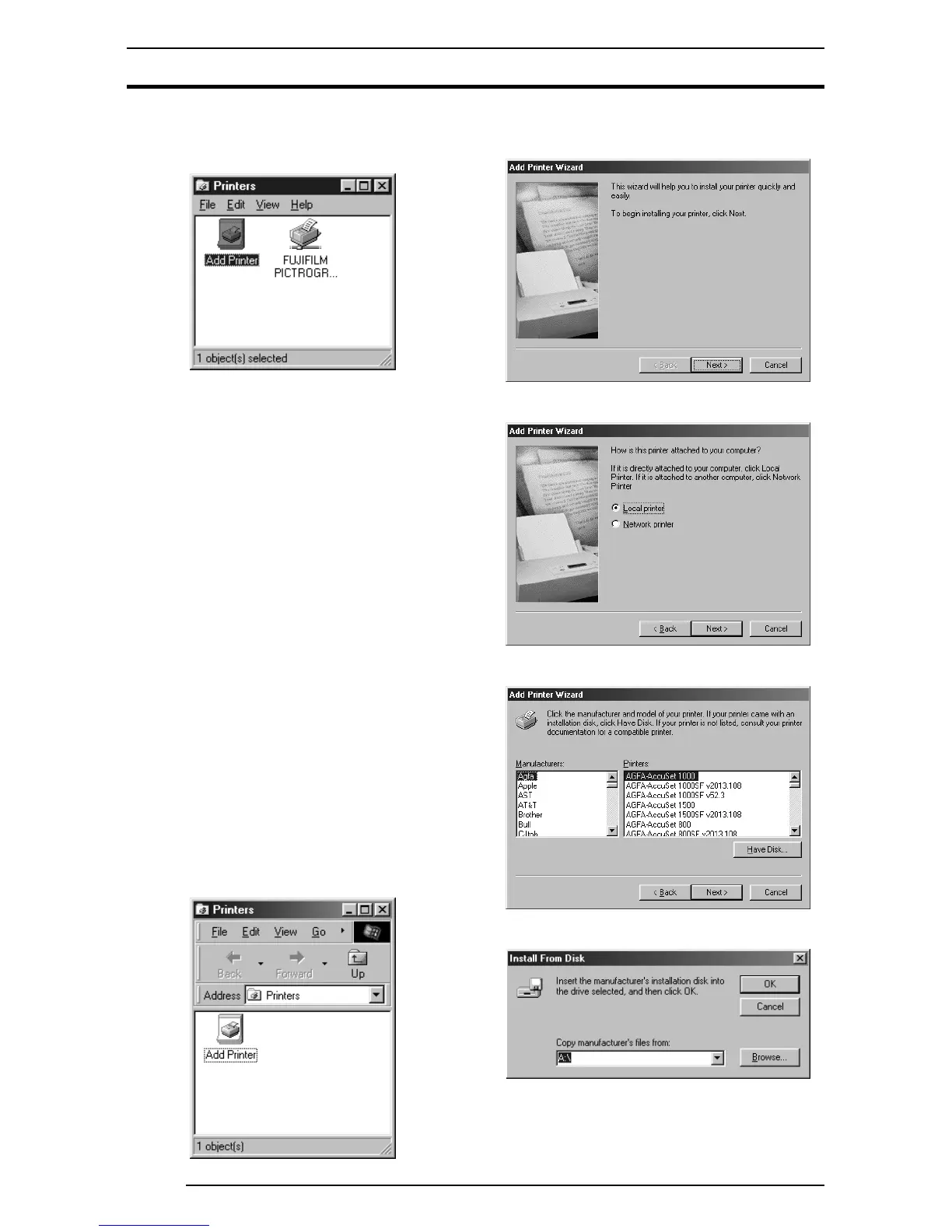
12. If installation of the printer driver is complete, the icon for the
new printer will appear in the [Printers] folder window, as shown
below:
13. Restart the computer.
3.1.3 Uninstall
The printer driver uninstall procedure is described below:
1. Select [Setting] > [Printer] from the [Start] menu. The [Printers]
folder window appears.
2. Click the [FUJIFILM PICTROGRAPHY3500 (4000
22
22
2 or
4500) TCP] icon, then click [Delete] from the [File] menu.
You will be prompted to confirm the delete. Click the [Yes]
button.
3. You may also be prompted as follows: "These files are no longer
needed. Delete?" If so, click the [Yes] button.
This completes the uninstall.
3.2 Windows 98
3.2.1 For local printing:
To enable local printing, install the printer driver as follows.
1. Insert the [PICTROGRAPHY 3500/4000
22
22
2/4500 Network
Adapter Printer Driver] CD-ROM into the PC. If the [USER
SOFTWARE] window automatically opens, click [EXIT] to
close it.
2. Select [Setting] > [Printer] from the [Start] menu.
The [Printers] folder window appears.
3. Double-click the [Add Printer] icon.
The [Add Printer Wizard] dialog box is displayed.
4. Click the [Next] button.
The following appears:
5. Select [Local printer] and click the [Next] button.
The following appears:
6. Click the [Have Disk] button.
The [Install From Disk] dialog box is displayed.




 To Next Page