3. INSTALLATION
6
3.1 Windows 95
3.1.1 For local printing:
To enable local printing, install the printer driver as follows.
1. Insert the [PICTROGRAPHY 3500/4000
22
22
2/4500 Network
Adapter Printer Driver] CD-ROM into the PC. If the [USER
SOFTWARE] window automatically opens, click [EXIT] to
close it.
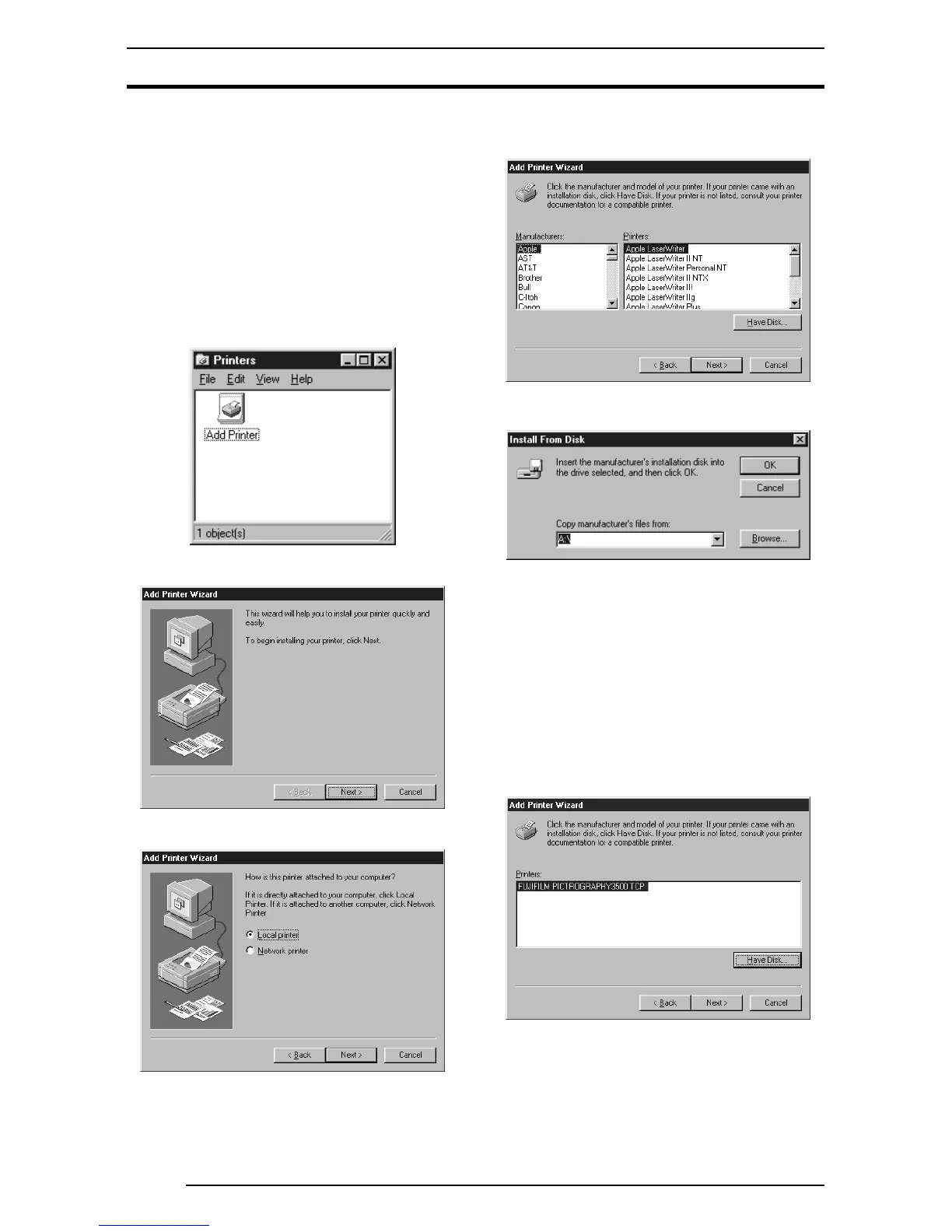
2. Select [Setting] > [Printer] from the [Start] menu.
The [Printers] folder window appears.
3. Double-click the [Add Printer] icon.
The [Add Printer Wizard] dialog box is displayed.
4. Click the [Next] button.
The following appears:
5. Select [Local printer] and click the [Next] button.
The following appears:
6. Click the [Have Disk] button.
The [Install From Disk] screen appears.
7. Enter the following location in the [Copy manufacturer’s files
from:] field.
For the CE type, enter:
E:\Driver\PG3500\Win95_98\English\CE (for 3500)
E:\Driver\PG4K2_4500\Win95_98\English\CE (for 4000
2/
4500)
(* if your CD-ROM drive is E: drive)
For the UC type, enter:
E:\Driver\PG3500\Win95_98\English\UC (for 3500)
E:\Driver\PG4K2_4500\Win95_98\English\UC (for 4000
2/
4500)
(* if your CD-ROM drive is E: drive)
8. Click the [OK] button.
The following appears:
3. INSTALLATION






 To Next Page