3. INSTALLATION
32
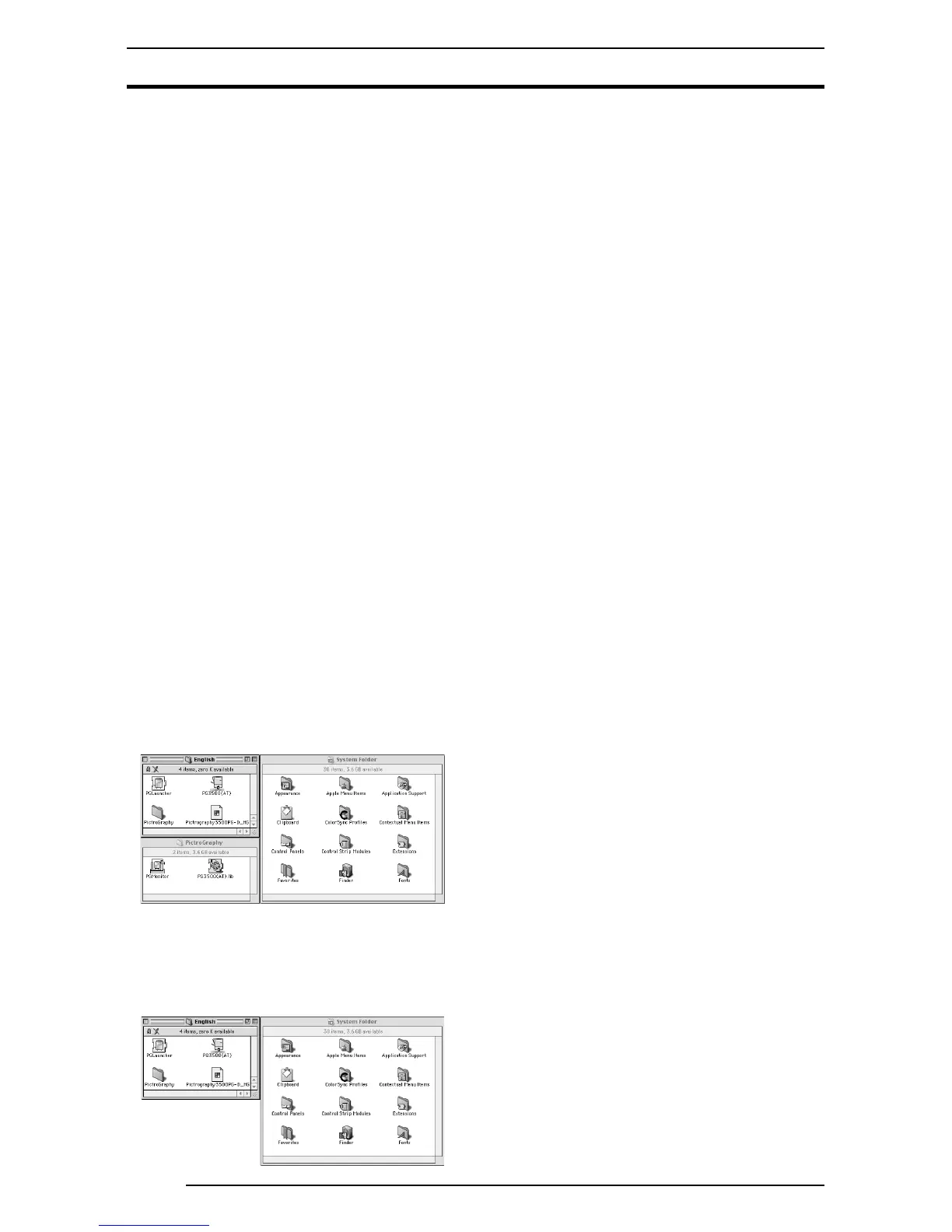
5. Check to confirm that the files were copied to the following
locations:
PG3500(AT) (for 3500)
→ System Folder: Extensions
PG4000
2/4500(AT) (for 40002/4500)
→ System Folder: Extensions
PGLauncher
→ System Folder: Extensions
PictroGraphy folder
→ System Folder: Extensions
PG3500(AT).lib (for 3500)
→ System Folder: Extensions: PictroGraphy
PG4000
2/4500(AT).lib (for 40002/4500)
→ System Folder: Extensions: PictroGraphy
PGMonitor
→ System Folder: Extensions: PictroGraphy
Pictrography 3500 PG-D_ER (for 3500)
→ System Folder: Extensions: ColorSync Profiles
Pictrography 4000
2PG-D_ER V2.5 (for 40002)
→ System Folder: Extensions: ColorSync Profiles
Pictrography 4500 PG-D_ER (for 4500)
→ System Folder: Extensions: ColorSync Profiles
6. Restart the computer.
3.6.2 Uninstall
1. Drag the following files previously installed in the [Extensions]
folder in the Macintosh System Folder to the Trash box on the
desktop.
PG3500(AT) (for 3500)
PG4000
2/4500(AT) (for 40002/4500)
PGLauncher
PictroGraphy folder (with all files found in the folder)
2. Restart the computer.
3.6 Macintosh
3.6.1 Installation
Install the printer driver by performing the following procedure:
1. Insert the [PICTROGRAPHY 3500/4000
22
22
2/ 4500 Network
Adapter Printer Driver] CD-ROM into the PC.
2. Sequentially open the [Driver]>[PG3500]>[Mac]> [English]
[Driver]>[PG4K2_4500]>[Mac]>
[English]
folders on the CD-ROM. The [English] folder contains the
following files:
1) PG3500(AT) (for 3500)
PG4000
2/4500(AT) (for 40002/4500)
2) PGLauncher
3) PictroGraphy folder (containing PG3500(AT).lib and
PGMonitor) (for 3500)
PictroGraphy folder (containing 4000
2/4500(AT).lib and
PGMonitor) (for 4000
2/4500)
4) Pictrography 3500 PG-D_ER (for 3500)
Pictrography 4000
2PG-D_ER V2.5 (for 40002)
Pictrography 4500 PG-D_ER (for 4500)
3. Copy files 1) through 3) to the [Extensions] folder within the
[System Folder]. Copy the [PictroGraphy] folder including
all of its files.
[CAUTION]
If the SCSI version of the PICTROGRAPHY 3500/4000
2/4500
printer driver is installed on the computer (Macintosh), the
[PictroGraphy] folder already exists in the [Extensions] folder.
Copying the [PictroGraphy] folder (containing all of its files)
on the CD-ROM in such a situation deletes the existing files in
the copy destination [PictroGraphy] folder. To avoid such a
problem, ensure that only the files within the folder on the CD-
ROM are copied.
The [PGLauncher] and [PGMonitor] files are commonly
applicable to the SCSI version of the PICTROGRAPHY 3500/
4000
2/4500 printer driver. When you use the SCSI version as
well, install the later versions of the files (PGMonitor: Version
1.0.2 or later).
4. Copy the file 4) above to the [ColorSync Profiles] folder in the
System Folder.
PICTROGRAPHY 3500: Pictrography 3500 PG-D_ER
PICTROGRAPHY 4000
2: Pictrography 40002 PG-D_ER V2.5
PICTROGRAPHY 4500: Pictrography 4500 PG-D_ER
* Since the printer driver supports ColorSync Version 2.5 or later,
it may be used with Mac OS 8.5 and later versions.




 To Next Page