EasyManua.ls Logo

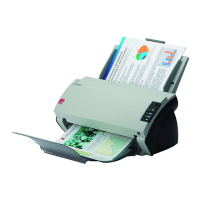
Fujitsu fi-5110C - User Manual

Fujitsu fi-5110C
27 pages
Print Icon
To Next Page IconTo Next Page
Loading...
Getting Started
fi-5110C Image Scanner
P3PC-1072-03EN
Getting Started
fi-5110C Image Scanner

Questions and Answers

  • C
    christianmaryAug 15, 2025
    What to do if scanning does not commence on my Fujitsu fi-5110C?
    • W
      William BrownAug 15, 2025
      To resolve scanning issues with your Fujitsu Scanner: * Realign and reload the documents on the ADF paper chute. * Ensure the ADF is completely closed. * Check the cable connection (and the USB hub's power if one is in use). * If an alarm or error is indicated, consult "Chapter 6 TROUBLESHOOTING" in the fi-5110C Operator’s Guide. * Try turning the power off and on again.
  • J
    John PriceAug 18, 2025
    How to turn on a Fujitsu fi-5110C Scanner?
    • J
      Jake SanchezAug 18, 2025
      First, make sure to push the power button to turn the Fujitsu Scanner on. Then, verify that the AC cable and adapter are correctly connected. If it still doesn't power on, disconnect and reconnect the AC cable and adapter. Finally, ensure you are using the AC adapter and cable supplied by the manufacturer for your scanner.
  • S
    Scott PalmerAug 21, 2025
    What to do if my Fujitsu fi-5110C Scanner frequently multi feeds paper?
    • A
      Anthony RoseAug 21, 2025
      To resolve paper multi-feeding issues with your Fujitsu Scanner: * Ensure your documents meet the quality standards specified in the fi-5110C Operator’s Guide, specifically regarding "Document Quality" and "Multi Feed Detection Conditions" in chapter 7. * Fan the documents before loading them. * Correctly align the document stack on the ADF paper chute. * Reduce the stack thickness to 5 mm or less. * Clean or replace the Pad ASSY.
  • N
    nicholas72Aug 25, 2025
    What to do if the paper does not feed in my Fujitsu Scanner?
    • K
      Karen HartmanAug 26, 2025
      To address a Fujitsu scanner that isn't feeding paper correctly: * Ensure your documents meet the quality standards specified in the fi-5110C Operator’s Guide, specifically regarding "Document Quality" and the "Multi Feed Detection Conditions" in chapter 7. * Clean the pick roller. * Consider changing the Pick roller. * Remove any dirt or dust from the document feed path.
  • A
    Angel BrownAug 28, 2025
    Why is the quality of the scanned image from my Fujitsu fi-5110C Scanner not satisfactory?
    • L
      latasha47Aug 28, 2025
      If the quality of the scanned image from your Fujitsu Scanner is unsatisfactory, clean the glass and any other dirty locations around the glass and ADF.
  • B
    Brenda ButlerAug 31, 2025
    Why do vertical lines appear in the printed image from my Fujitsu fi-5110C Scanner?
    • J
      Janet SantanaAug 31, 2025
      If vertical lines appear in the printed image from your Fujitsu Scanner, clean the glass as instructed in the Operator's Guide "4. Daily Care".
  • C
    Christopher HammondSep 4, 2025
    What to do if the scanned printed image from my Fujitsu Scanner appears shifted or distorted?
    • A
      Aaron CookSep 4, 2025
      If the scanned image from your Fujitsu Scanner appears shifted or distorted, reload the documents correctly.
  • K
    Kenneth GarciaSep 7, 2025
    Why are the scanned images elongated on my Fujitsu fi-5110C Scanner?
    • R
      Rachel VelasquezSep 7, 2025
      To correct elongated scanned images on your Fujitsu Scanner: * Clean the Feed rollers. * Adjust the scale by selecting "Scanners and Cameras" in the control panel and then clicking the [Device Set] tab.
  • J
    justin41Sep 12, 2025
    Why is there a shadow on the top or bottom edge of the scanned image from my Fujitsu fi-5110C?
    • A
      Amanda HessSep 12, 2025
      To remove a shadow on the top or bottom edge of a scanned image from your Fujitsu Scanner: * Clean the Feed rollers. * Adjust the [Sub-scan Setting] in the control panel under [Scanners and Cameras] if the shadow is on the top edge, or adjust the [Bottom] setting if the shadow is on the bottom edge.

Fujitsu fi-5110C Specifications

General IconGeneral
Scanner TypeDocument Scanner
Optical Resolution600 dpi
Maximum Paper SizeA4
Scanning Speed (Monochrome, A4)15 ppm
InterfaceUSB 2.0
Automatic Document Feeder Capacity50 sheets
Duplex ScanningYes
Color Depth24-bit
Grayscale Depth8-bit
Monochrome Depth1-bit
Weight2.5 kg
Scanning TechnologyContact Image Sensor (CIS)
Scanning Speed (Color, A4)15 ppm
Supported Paper SizesA4, A5, B5, Letter, Legal, Custom
Power Consumption15 W
Operating System CompatibilityWindows

Related product manuals