EasyManua.ls Logo

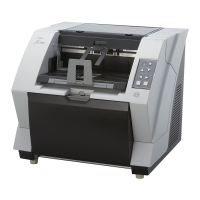
Fujitsu fi-5900C - User Manual

Fujitsu fi-5900C
257 pages
Print Icon
To Next Page IconTo Next Page
Loading...
Operator's Guide
fi-5900C Image Scanner
P3PC-1432-08ENZ0
S
end t
o
Scan
P
o
w
er
T
hick
nes
s
Hopper Heig
ht
F
unctio
n
Thi c
k
Thin

Table of Contents

Other manuals for Fujitsu fi-5900C

Questions and Answers

  • J
    Jamie ReyesAug 16, 2025
    What to do if my Fujitsu fi-5900C does not turn on?
    • R
      Robert ThomasAug 16, 2025
      If your Fujitsu Scanner does not turn on, try the following: * Push the power button. * Push the Main power switch, and then the power button. * Ensure the AC power cable is correctly connected to the scanner adapter. * Disconnect and reconnect the AC power cable. If it still doesn't power on, contact your retailer or an authorized FUJITSU service provider.
  • S
    Sharon SimmonsAug 18, 2025
    What to do if Fujitsu fi-5900C scanning does not start?
    • S
      ssheaAug 19, 2025
      If scanning does not start on your Fujitsu Scanner, ensure the following: * Load documents correctly on the hopper. * Make sure the ADF is completely closed. * Verify the cable is correctly connected (and check the hub's power supply if using a USB hub). * Set the SCSI ID correctly using the SCSI ID switch on the rear of the scanner. * Turn the power off and on again. If the issue persists, it's recommended to contact the store where you purchased the scanner or an authorized FUJITSU scanner service provider.
  • M
    Micheal RileyAug 22, 2025
    What to do if paper is not fed in Fujitsu Scanner?
    • M
      markbrownAug 22, 2025
      If paper is not being fed correctly into your Fujitsu Scanner, and you're experiencing frequent pick errors or the document stops midway, try the following: * Ensure the documents meet the specified 'Document Quality' and 'Multifeed Detection Conditions'. * Remove any debris from the document feed path. * Set the document thickness thinner.
  • M
    michellejohnsonAug 25, 2025
    How to fix vertical lines appearing in scanned images on Fujitsu fi-5900C?
    • J
      Jose BarberAug 26, 2025
      If vertical lines appear in the scanned image of your Fujitsu Scanner, clean the glass following the instructions in the Operator's Guide '4. Daily Care'.
  • A
    April GoodAug 28, 2025
    Why is my Fujitsu fi-5900C not starting to scan?
    • J
      Jon BrockAug 28, 2025
      If your Fujitsu Scanner is not starting to scan, consider the following: * Ensure documents are loaded correctly on the hopper. * Make sure the ADF is completely closed. * Verify the cable is correctly connected, paying attention to the hub's power supply if one is in use. * Correctly set the SCSI ID via the SCSI ID switch on the rear of the scanner. * Turn the power off and on again. If the issue persists, contact your retailer or an authorized FUJITSU service provider.
  • V
    Vicki AdamsAug 31, 2025
    What to do if paper is not fed on Fujitsu fi-5900C?
    • C
      Cassidy WardAug 31, 2025
      If paper is not being fed into your Fujitsu Scanner (pick error occurs frequently, or document stops midway): * Remove any debris from the document feed path. * Set the document thickness thinner.
  • C
    Christine ThompsonSep 3, 2025
    Why is the scanned image shifted or distorted on Fujitsu fi-5900C?
    • R
      Ryan SmithSep 3, 2025
      If the scanned image from your Fujitsu Scanner shifts or is distorted, make sure you load the documents correctly.
  • D
    Dawn BowmanSep 6, 2025
    Why are the generated images elongated on Fujitsu fi-5900C?
    • T
      Todd MaySep 6, 2025
      If the generated images from your Fujitsu Scanner are elongated, you should clean the Feed rollers or the Pinch rollers.
  • R
    rodriguezbrittanySep 9, 2025
    How to remove shadow on the leading edge of the generated image on Fujitsu Scanner?
    • M
      micheal98Sep 9, 2025
      For Fujitsu Scanner, adjust the [Sub-scan Setting] on [Scanners and Cameras] in the control panel to resolve the issue of a shadow on the leading edge of the generated image.
  • J
    Jacqueline BaileySep 12, 2025
    What to do if multifeed frequently occurs on Fujitsu Scanner?
    • R
      Robert GutierrezSep 12, 2025
      If multifeed frequently occurs on your Fujitsu Scanner: * Reduce the number of sheets in the document stack to 50 mm (2 inch) thick or less. * Set the document thickness thicker.

Fujitsu fi-5900C Specifications

General IconGeneral
Scanner TypeDocument Scanner
Optical Resolution600 dpi
Maximum Resolution600 dpi
Duplex ScanningYes
Color Depth24-bit
Grayscale Depth8-bit
Monochrome Depth1-bit
InterfaceUSB 2.0
Supported Document SizesA4, A5, A6, B5, B6, Letter, Legal
Operating System CompatibilityWindows

Related product manuals