Chapter 5 Various Documents
75
Index
Appendix
Introduction
Glossary
Contents
TOP
Loading
Documents
How to Use
ScandAll PRO
Scan Pa-
rameters
Various
Documents
Daily Care
Trouble-
shooting
Operational
Settings
Consumables
Scanner
Overview
Scanning Both Sides of A Document
(fi-6670/fi-6670A/fi-6770/fi-6770A Only)
1 Load a target document on the ADF Paper Chute.
For how to load documents on the ADF Paper Chute, refer to "2.1
Loading Documents on the ADF" (on page 39).
2 Start up ScandAll PRO, and then open the [TWAIN Driver
(32)] dialog box.
For how to open the [TWAIN Driver (32)] dialog box, refer to "Chapter
3 How to Use ScandAll PRO" (on page 51).
3 Select [ADF (Duplex)] under [Scan Type].
4 Specify a desired paper size from [Paper Size], etc.
5 Click the [OK] button.
⇒ The changes made are applied.
6 From ScandAll PRO, perform a scan.
For how to perform a scan, refer to "Chapter 3 How to Use ScandAll
PRO" (on page 51).
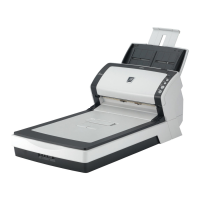
Scanning A Large-Size Document or Book
(Flatbed Type Only)
1 Holding the handle, lift up the Document Cover.
2 Place a target document page on the Document Bed face
down and the top left corner aligned to the reference
point.
3 Start up ScandAll PRO, and then open the [TWAIN Driver
(32)] dialog box.
For how to open the [TWAIN Driver (32)] dialog box, refer to "Chapter
3 How to Use ScandAll PRO" (on page 51).
5.2 Scanning Documents of Different Types or Sizes












 To Next Page

