Chapter 5 Various Documents
96
Index
Appendix
Introduction
Glossary
Contents
TOP
Loading
Documents
How to Use
ScandAll PRO
Scan Pa-
rameters
Various
Documents
Daily Care
Trouble-
shooting
Operational
Settings
Consumables
Scanner
Overview
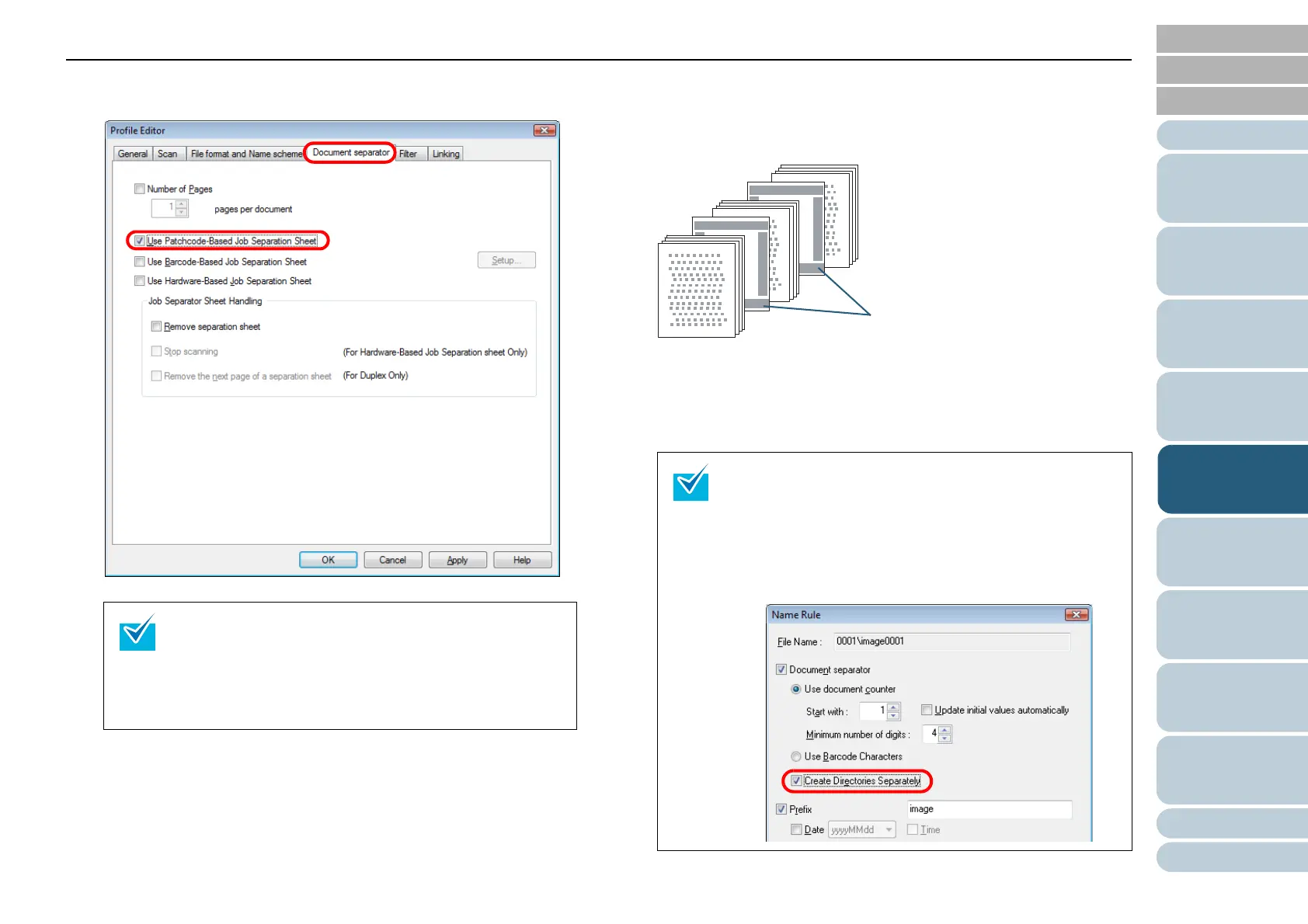
3 Select the [Document separator] tab, and then select the
[Use Patchcode-Based Job Separation Sheet] checkbox.
4 Insert the patch code sheets wherever you want the file/
folder to separate.
Load the document with the patchcode-printed sheets face down on
the ADF Paper Chute.
5 Using the batch profile you created above, perform a
batch scan.
For how to perform a batch scan, refer to "3.8 Scanning with [Batch
Scan]" (on page 61).
• To suppress the scanning of patch code sheet images,
check the [Remove separation sheet] checkbox.
• In Duplex Scan mode, you can disable the scanning of
the back side of patch code sheet by selecting the
[Remove the next page of a separation sheet] check-
box.
The following is the procedure for saving the scanned
document images, which are divided by patch code
sheets, in separate folders.
1 Click the [Name Rule] button on the [File format and
Name scheme] tab in the [Profile Editor] dialog box.
⇒ The [Name Rule] dialog box appears.
2 Select the [Create Directories Separately] checkbox.
Patch code printed sheet












 To Next Page