EasyManua.ls Logo

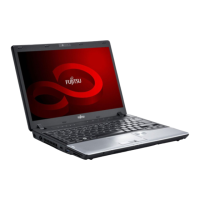
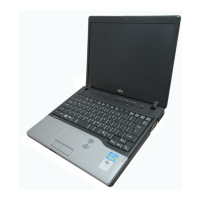
Fujitsu Lifebook P701 - User Manual

Fujitsu Lifebook P701
360 pages
Print Icon
To Next Page IconTo Next Page
Loading...
Users Guide
Learn how to use your Fujitsu
LIFEBOOK
®
P701 Notebook
Mode d’emploi
Découvrez comment utiliser
votre ordinateur portable Fujitsu
LIFEBOOK P701

Table of Contents

Other manuals for Fujitsu Lifebook P701

Questions and Answers

  • J
    Jacqueline LittleAug 6, 2025
    What to do if Fujitsu Laptop does not turn on?
    • D
      Daniel ThompsonAug 6, 2025
      If your Fujitsu LIFEBOOK notebook does not turn on, check the Status Indicator Panel to determine the presence and condition of the battery. Install a charged battery or a Power adapter. If the battery indicates a short, remove it and operate from another power source or replace that battery. Also, verify that your adapter is connected correctly.
  • Z
    Zachary Austin DVMAug 10, 2025
    What to do if Fujitsu Laptop doesn't turn on in Port Replicator?
    • J
      James DawsonAug 10, 2025
      If the system does not turn on when installed in optional Port Replicator, provide power to the Port Replicator and remove and re-dock your Fujitsu notebook.
  • M
    Michael KingAug 14, 2025
    How to unlock keyboard on Fujitsu Laptop?
    • M
      Melissa CarpenterAug 14, 2025
      If the built-in keyboard of your Fujitsu Laptop does not seem to work, push the Power/Suspend/Resume button to exit Sleep mode. If your application has locked out your keyboard, try to use your integrated pointing device to restart your system. Ensure the NumLock key is not activated; if it is, press the NumLock key to toggle it off.
  • C
    christineedwardsAug 19, 2025
    How to fix small screen display on Fujitsu Lifebook P701?
    • M
      Margaret HubbardAug 19, 2025
      If the application display uses only a portion of your screen and is surrounded by a dark frame, it may be that you are running an application that does not support the system’s native resolution and display compression is enabled. Display compression gives a clearer but smaller display for applications that do not support the system’s native pixel resolution. You can fill the screen but have less resolution by changing display compression settings in the Intel GMA control panel.
  • C
    Craig MuellerAug 27, 2025
    Why my Fujitsu Lifebook P701 doesn't recognize USB device?
    • N
      Nicole ValdezAug 27, 2025
      If your Fujitsu notebook does not recognize the USB device, remove and reinstall the device. If the device was installed while an application was running, close the application and restart your notebook. Also, ensure your device has the correct software driver active by checking your software documentation.
  • C
    Charles AndersonAug 31, 2025
    Why can't I access hard drive on Fujitsu Laptop?
    • C
      Caroline MillerSep 1, 2025
      If you cannot access your hard drive on Fujitsu Laptop, verify the drive designator used by the application is in use by the operating system. When the operating system is booted from a CD, drive designations are automatically adjusted. Also, verify your password and security settings.
  • D
    Donald CunninghamNov 22, 2025
    How to fix no sound on Fujitsu Lifebook P701 Laptop?
    • M
      Michelle WagnerNov 22, 2025
      If there is no sound coming from the built-in speaker of your Fujitsu Laptop, first, adjust the volume control on your notebook and operating system, using the [Fn+F9] key combination on your keyboard to increase the volume. Also, manually adjusting the volume (i.e., keyboard "hot keys") should dynamically adjust the volume of the operating system. If that doesn’t work, adjust the sound volume control settings in your software or application. If headphones are plugged in, remove them, as this disables the built-in speakers. Check the Volume icon in the system tray to ensure the speakers haven't been muted; if the Mute icon has a red circle, click it to unselect it, or press [F3] while holding [Fn] to toggle the audio. If the issue persists, the audio driver may not be configured correctly ...

Summary

Chapter 2 Getting Started with Your LIFEBOOK

Power Sources

Information on using AC adapter, auto/airline adapter, and battery power.

Starting Your LIFEBOOK Notebook

Procedures for powering on, boot sequence, and initial system setup.

Chapter 3 User-Installable Features

Lithium ion Battery

Details on battery care, charging, replacing, and managing battery life.

Chapter 4 Troubleshooting Your LIFEBOOK

Troubleshooting Overview

General steps to identify and resolve setup or operating problems.

Specific Problems and Solutions

Guidance on resolving specific hardware and software issues.

Error Messages and Software Restoration

Interpreting POST messages and restoring pre-installed software.

Appendix A WLAN User’s Guide

Troubleshooting and Specifications

Common WLAN issues, solutions, and technical specifications.

Appendix B Fingerprint Sensor Device

Installing and Managing OmniPass

Guide to installing, configuring, and managing the OmniPass software.

Troubleshooting OmniPass

Common issues and solutions related to OmniPass functionality.

Fujitsu Lifebook P701 Specifications

General IconGeneral
RAM4GB DDR3
Storage320GB HDD
GraphicsIntel HD Graphics 3000
Operating SystemWindows 7 Professional
WirelessWi-Fi 802.11 a/b/g/n
BluetoothBluetooth 3.0
Display12.1-inch, 1280 x 800 pixels
Weight1.4 kg
Battery6-cell
Ports3 x USB 2.0, VGA, Ethernet, SD card reader

Related product manuals