7. BASIC PLAYBACK
7.1. Playing Back a Disc
1. Insert a disc (refer to “How to Insert a Disc” on page 18).
• For Blu-ray Disc™ / DVD / audio CD or a disc containing only one type of file, playback will start automatically. If
not, press [(PLAY)].
• Some discs may show a Title or a Disc Menu. In this case, refer to “Using the Title / Disc / Pop Menu” on page 21.
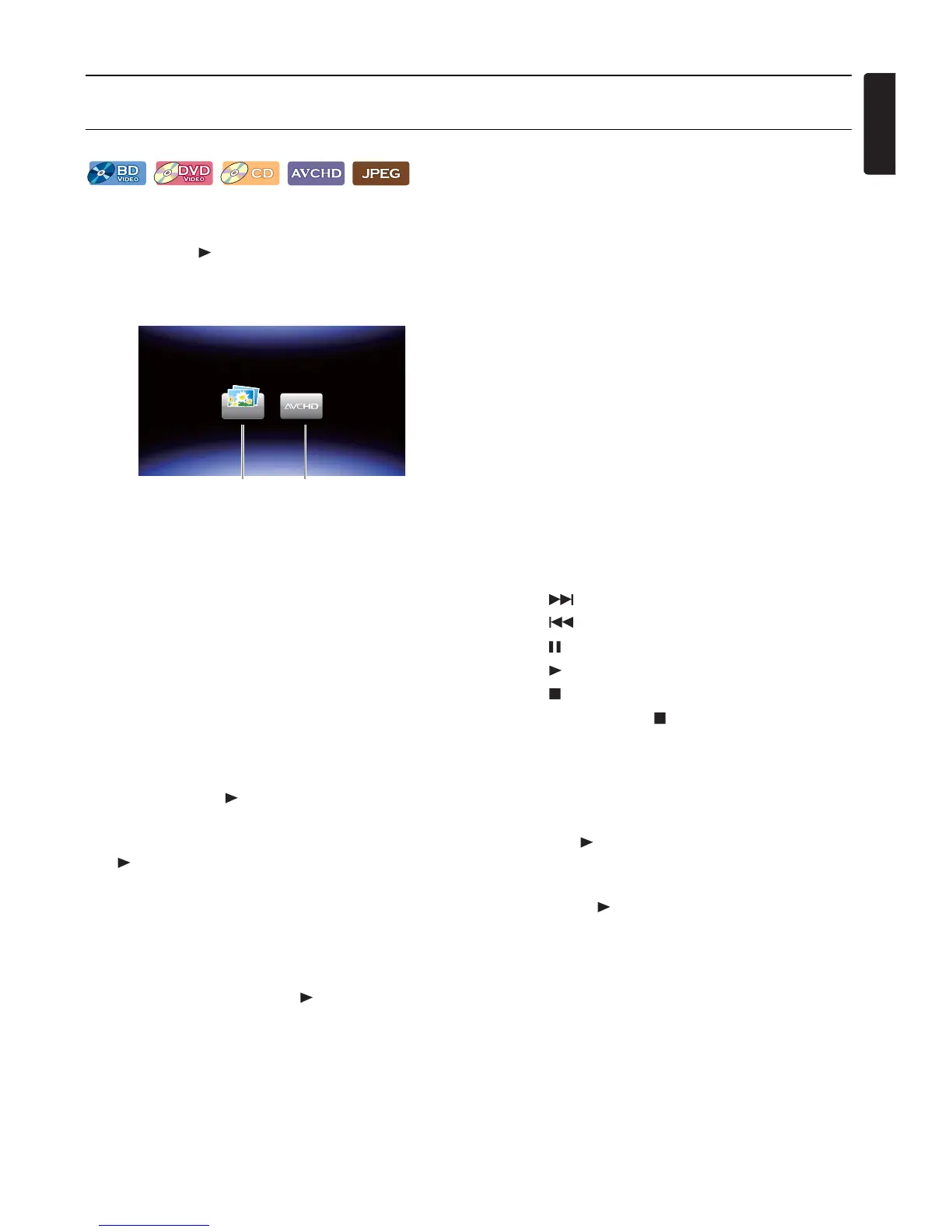
2. Select the type of the file you want to play back, then press [OK].
a. For “Photo”, thumbnail screen will appear.
• Refer to “Picture File List” on page 18 and “How to Navigate through the File List” on page 18.
b. For “AVCHD”, playback will start automatically.
Playback will be in Resume-On-Stop mode. To clear the resume information, press [(STOP)] again.
Resume-On-Stop Mode
Blu-ray Disc™ / DVD / AVCHD
When you press [(PLAY)] next time, the playback will start from the point where it has been stopped.
Audio CD
Playback will start from the point where it is stopped next time you press [(PLAY)]. If you press [OK] instead of
[(PLAY)], playback will start from the beginning of the Track / File instead of resuming from the stop point.
JPEG / KODAK Picture CD
Playback will start from the beginning of the current file next time you press [(PLAY)] or [OK].
D Note
• Playback will also Stop and the Home Menu will appear when you press [HOME].
• For BD-Java application, the Resume-On-Stop may not be available.
• If you press [OK] instead of [(PLAY)], playback can be started from the beginning of the disc even if it was in the
Resume-On-Stop mode.
• Resume-On-Stop mode remains in effect even after Power is Turned Off, but will be cancelled once the disc is ejected.
• With regard to the multi-border BD-RE/-R, additionally recorded sections cannot be recognized.
• With regard to the multi-border DVD-RW/-R, additionally recorded sections may not be recognized.


 To Next Page