EasyManua.ls Logo

FUNAI NB500FX4 - User Manual

FUNAI NB500FX4
53 pages
Print Icon
To Next Page IconTo Next Page
Loading...
NB500FX4
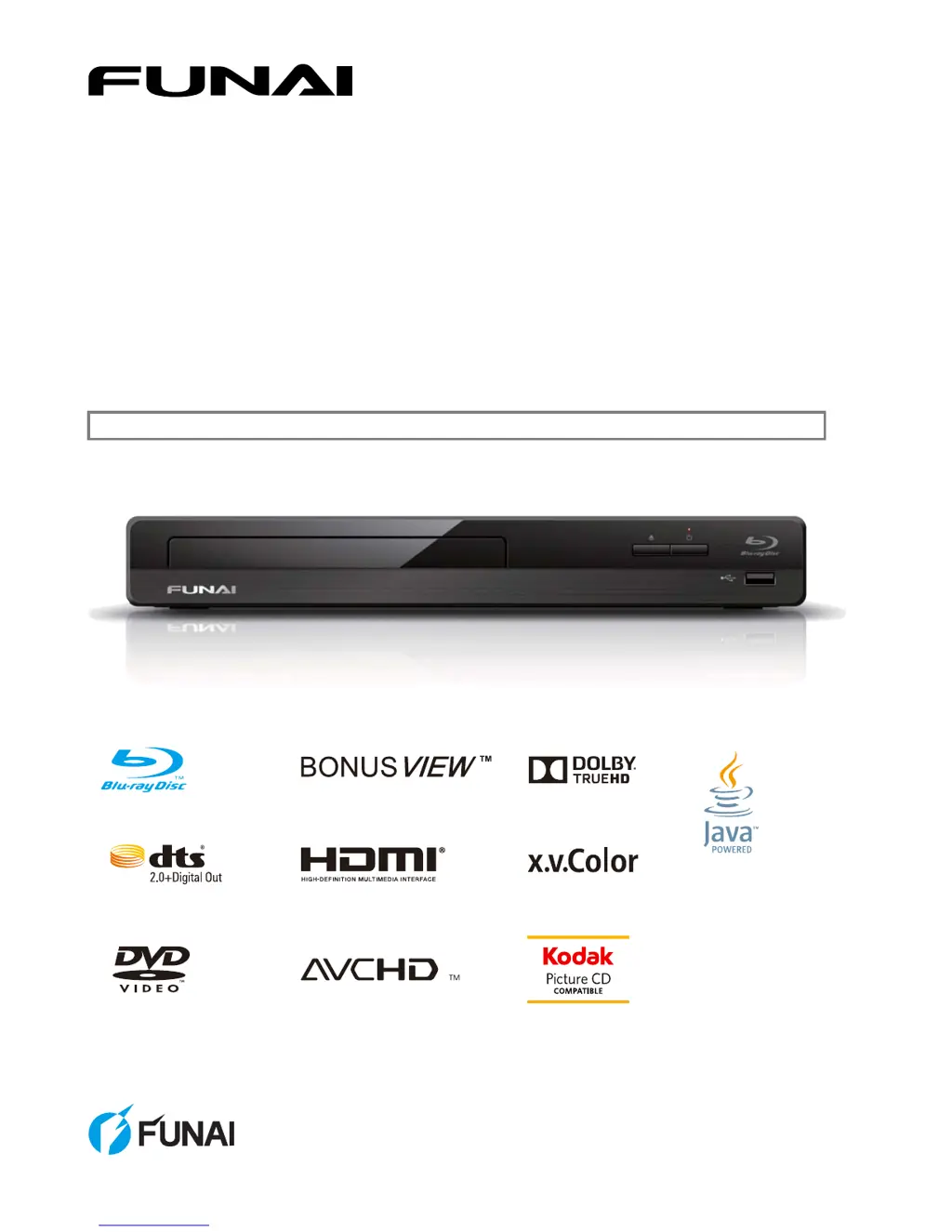
Blu-ray Disc™ / DVD Player
© 2014 Funai Electric Co., Ltd.
Owner's Manual
INSTRUCCIONES EN ESPAÑOL INCLUIDAS.

Questions and Answers

  • D
    Dr. Mary HuntAug 17, 2025
    What to do if FUNAI NB500FX4 remote control not working?
    • P
      Paige CookAug 17, 2025
      If your FUNAI Blu-ray Player isn't responding to the remote control, try these steps: * Reduce the distance between the remote and the infrared sensor window on the player. * Ensure the player’s AC power cord is plugged into a working power outlet. * Check the batteries in the remote, making sure they are inserted correctly (+/- symbols). * Aim the remote directly at the unit’s remote receiver and press any arrow key to see if the Power-On indicator dims and blinks. This confirms the remote is sending an IR signal.
  • K
    Katelyn TaylorAug 20, 2025
    How to fix FUNAI NB500FX4 with no power?
    • J
      Jeremy HolmesAug 20, 2025
      If your FUNAI Blu-ray Player isn't turning on, there are a few things you can check: * Ensure the AC power cord is properly connected. * Try plugging the player into a different power outlet. * Unplug the AC power cord, wait 5-10 seconds, and then plug it back in before attempting to power on the unit.
  • T
    Theresa WilliamsAug 22, 2025
    Why no sound or picture from FUNAI NB500FX4?
    • J
      jameslisaAug 22, 2025
      If you're not getting any sound or picture from your FUNAI Blu-ray Player, here's what to check: * Make sure both the TV and Blu-ray Disc player are turned on. * Confirm the connections to the TV are correctly made. * Verify that the connected TV or device supports HDCP, as the unit won't output a video signal without HDCP support.
  • C
    Chris JohnsonAug 25, 2025
    Why no audio/video signal via HDMI on FUNAI NB500FX4?
    • K
      Karen LeeAug 26, 2025
      If you're not getting any audio or video signal on your display device via HDMI cable with your FUNAI Blu-ray Player: * If the unit is connected to a non-certified HDMI device, the Audio / Video signal will not output to that device. * Ensure the display device is set to the correct Input / Video source. * Try performing an HDMI hotplug: disconnect the HDMI cable from the display device, turn on both devices, and then reconnect the HDMI cable. * Check to see if the HDMI cable is a certified version.
  • G
    George BlakeAug 27, 2025
    Why FUNAI Blu-ray Player cannot play a disc?
    • A
      Alyssa ClarkAug 27, 2025
      If your FUNAI Blu-ray Player won't play a disc, consider the following: * Ensure the disc is compatible with the unit. * Check the disc's region code. This unit supports Blu-ray Disc™ region “A” and DVD region “ALL” or “1”. * If it's a DVD-RW/-R, make sure the disc has been finalized. * Clean the disc.
  • R
    Raymond BrandtAug 30, 2025
    What to do if FUNAI Blu-ray Player buttons not working?
    • X
      xsteeleAug 30, 2025
      If your FUNAI Blu-ray Player buttons aren't working or the unit stops responding, try this: * To soft reset the unit, press and hold the power-on button on the front panel for 10 seconds to shut down the unit or to hard reset the unit by unplugging the AC power cord from the AC outlet for 5-10 seconds.
  • K
    Kimberly CarrollSep 1, 2025
    Why FUNAI Blu-ray Player doesn't return to start-up screen?
    • M
      Michele PerezSep 2, 2025
      If your FUNAI Blu-ray Player does not return to the start-up screen when the disc is removed: * Soft reset this unit by turning it Off for 30 seconds, then On again. * To completely reset the unit, press and hold [ (POWER-ON)] on the front panel for 10 seconds to shut down the unit or unplug the AC power cord from the AC outlet for 5-10 seconds.
  • J
    Justin MillerSep 4, 2025
    How to eject disc from stuck FUNAI NB500FX4 Blu-ray Player?
    • J
      James MurphySep 4, 2025
      If your FUNAI Blu-ray Player cannot load a Blu-ray Disc™ and is stuck in “Loading…” mode, and you can't open the disc tray to eject the disc: * Unplug the unit from the AC outlet for 20 seconds. Plug it back in and press the [ (OPEN/CLOSE)] button on the unit to eject the disc.
  • C
    christopherschneiderSep 6, 2025
    Why FUNAI NB500FX4 cannot read USB Memory Stick?
    • K
      katrinasantosSep 6, 2025
      If your FUNAI Blu-ray Player can't read a USB Memory Stick: * The format of the USB Memory Stick is not compatible with this unit. Please try and format it on this unit (All data will be deleted).
  • W
    Willie MckenzieSep 9, 2025
    Why FUNAI NB500FX4 cannot play MPEG-2 from USB?
    • P
      Paul BradfordSep 9, 2025
      The FUNAI Blu-ray Player does not support MPEG-2 video and audio playback from a USB Memory Stick, as MPEG-2 is not compatible with this unit.

Summary

1. INTRODUCTION

1.1. Safety Instructions

Instructions to avoid hazards of electrical shock and fire, and guidance on location and handling.

1.2. Supplied Accessories

Lists the items included with the Blu-ray player, such as remote control and batteries.

2. FEATURES

2.1. Player Features Overview

Details various capabilities of the Blu-ray player, including disc format support and media playback features.

2.2. Product Information and Updates

Provides information on the unit's software version and how to download updates from the Funai website.

2.3. Media Type Symbols

Explains the symbols used in the manual to indicate applicable media types for functions.

3. FUNCTIONAL OVERVIEW

3.1. Front Panel Layout

Details the controls and indicators located on the front panel of the Blu-ray player.

3.2. Rear Panel Layout

Details the connection ports and power input located on the rear panel of the Blu-ray player.

3.3. Remote Control Operation

Explains the function of each button on the supplied remote control for operating the Blu-ray player, including usage guidelines.

3.4. On-Screen Display Guide

Explains how to navigate and interpret the on-screen menus for the Blu-ray player.

4. CONNECTIONS

4.1. Connecting to a TV

Provides instructions for connecting the Blu-ray player to a television using an HDMI cable.

4.2. Connecting to an Audio System

Details how to connect the Blu-ray player to an external audio system, primarily via HDMI.

4.3. HDMI Audio Output Settings

Explains the various HDMI audio output settings and format options available for different media types.

5. BEFORE YOU START

5.1. Finding Your TVs Video Source Input

Guides the user on how to select the correct video input source on their television for the player.

5.2. Initial Setup Procedure

Walks through the initial setup steps, including language selection and quick start mode configuration.

6. INFORMATION ON PLAYBACK

6.1. Playable Media and Files

Lists all compatible disc types and file formats that can be played back on the unit.

6.2. Unplayable Media and Files

Details the types of discs and files that the Blu-ray player cannot play back.

6.3. Region Codes Explained

Explains region code restrictions for Blu-ray and DVD discs and how they apply to this unit.

6.4. Disc Playback Hints

Illustrates how disc content is organized into titles, chapters, tracks, and folders for playback.

6.5. Navigating File Lists

Explains how to navigate and view lists of files on discs or USB memory sticks.

6.6. Inserting a Disc

Provides step-by-step instructions for correctly inserting discs into the player's disc tray.

7. BASIC PLAYBACK

7.1. Playing Back a Disc

Guides the user through the process of playing back discs, including automatic playback and menu navigation.

7.2. Playing Content from USB Memory Stick

Explains how to play back JPEG files and other content stored on a USB memory stick.

7.3. Using Title, Disc, and Pop Menus

Details how to access and use the Title, Disc, or Pop-up menus for navigation on compatible discs.

8. SPECIAL PLAYBACK

8.1. Fast Forward and Fast Reverse

Explains how to fast forward and fast reverse playback for various media types.

8.2. Slow Motion Playback

Details how to play back video in slow motion, including settings to improve picture clarity.

8.3. Step-by-Step Playback

Describes how to advance playback one step or frame at a time.

8.4. Repeat Playback Modes

Explains the different repeat playback modes available for various media, such as chapter, title, or track repeat.

8.5. JPEG Slide Show

Guides on how to view JPEG files as a slide show with timed transitions between images.

8.6. Picture-in-Picture (PiP) Setting

Explains how to use the Picture-in-Picture (PiP) function to display secondary video content during playback.

8.7. Title and Chapter Search

Details methods for searching and navigating directly to specific titles or chapters within a disc.

8.8. Track and File Search

Explains how to search for and play specific tracks on audio CDs or files on other media.

8.9. Time Search Function

Guides on how to jump to a specific point in time during playback using the search function.

8.10. Switching Subtitle Languages

Explains how to select and switch subtitle languages during playback for supported discs.

8.11. Switching Audio Tracks

Details how to select and switch between different audio tracks or languages during playback.

8.12. Switching Camera Angles

Explains how to switch between different camera angles available on some BD-videos and DVD-videos.

8.13. Noise Reduction Feature

Describes how to activate noise reduction feature to improve playback picture quality.

8.14. CLEAR+ Picture Enhancement

Explains the CLEAR+ feature for enhancing picture contrast and edge sharpness.

9. LIST OF SETTINGS

9.1. Video, Audio, and HDMI Settings

Details settings for video output, audio output, and HDMI configuration, including aspect ratio, sound, and CEC.

9.2. Playback and System Settings

Manages playback preferences, language, system updates, quick start mode, and initialization options.

10. SETUPS

10.1. fun-Link (HDMI CEC) Setup

Details the setup and functionality of fun-Link (HDMI CEC) for integrated system control over HDMI.

10.2. HDMI Video Resolution Setup

Explains how to set the HDMI video output resolution for optimal display on your TV.

10.3. PARENTAL CONTROL

10.3.1. BD Rating Level Management

Sets and manages parental control levels for Blu-ray discs based on age ratings.

10.3.2. DVD Rating Level and Password

Sets DVD rating levels, manages passwords, and explains rating categories for parental controls.

10.4. SOFTWARE UPDATE

10.5. RESTORE DEFAULT SETTINGS

11. TROUBLESHOOTING

12. LANGUAGE CODE LIST

13. SPECIFICATIONS

14. MAINTENANCE

14.1. Servicing and Support

Advises on servicing procedures, including when to contact support and what to do if the unit becomes inoperative.

14.2. Cleaning Procedures

Provides instructions on cleaning the exterior, discs, and disc lens safely.

14.3. Disc Handling and IR Signal Check

Offers advice on handling discs and how to test the remote control's infrared signal.

15. TRADEMARK INFORMATION

16. GLOSSARY

16.1. AVCHD Format Explanation

Defines AVCHD as a new format for high definition video camcorders.

16.2. Blu-ray Disc Technology

Defines Blu-ray Disc as a next-generation optical disc with large storage capacity.

16.3. HDMI Interface Explained

Defines HDMI as a digital interface for transmitting audio, video, and control signals.

16.4. JPEG File Compression

Defines JPEG as a method for compressing still picture files for playback.

16.5. Region Code System

Explains region codes that associate discs and players with specific geographical areas.

FUNAI LIMITED WARRANTY

FUNAI NB500FX4 Specifications

General IconGeneral
BrandFUNAI
ModelNB500FX4
CategoryBlu-ray Player
LanguageEnglish

Related product manuals