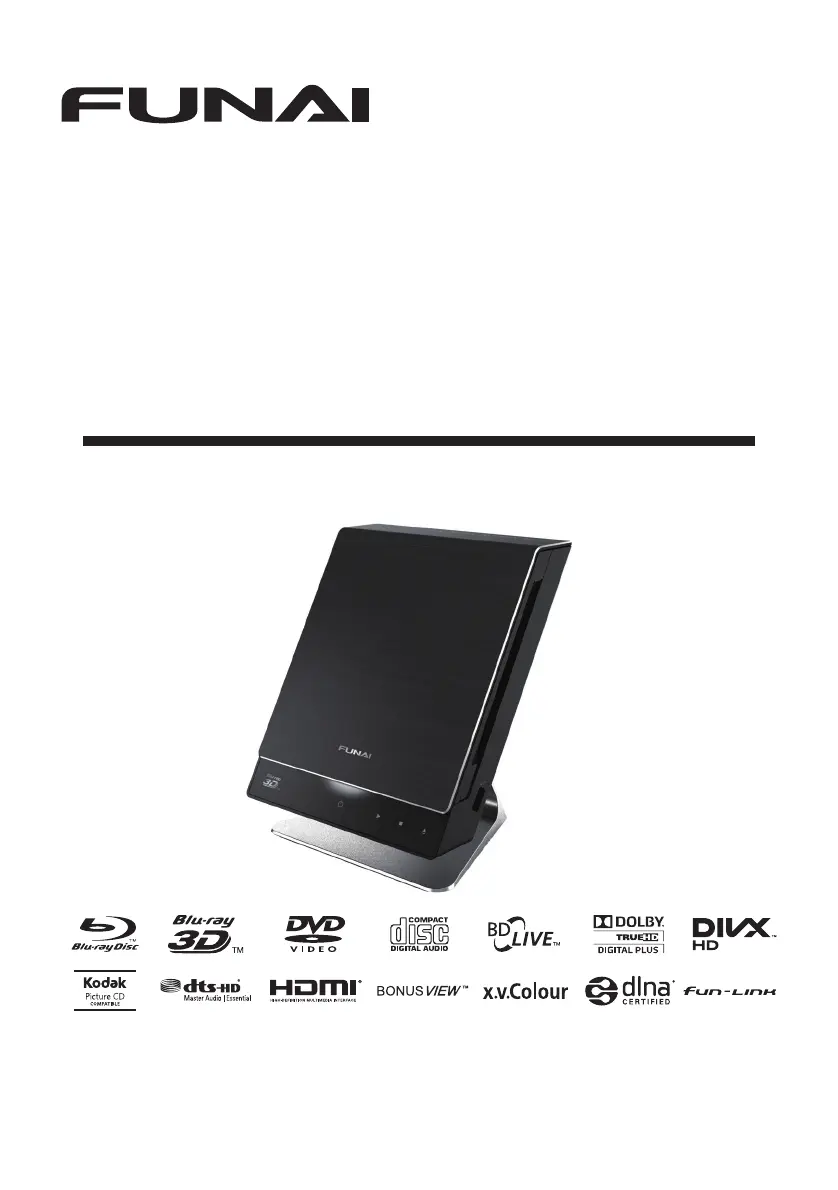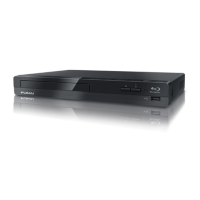
Why FUNAI B4-M500 Blu-ray Player cannot play back WMA files from a disc?
- AAnnette BakerSep 23, 2025
If your FUNAI Blu-ray Player cannot play back WMA files from a disc, ensure that the sample rate of the WMA files is 44.1 kHz or 48 kHz.
Why FUNAI B4-M500 Blu-ray Player cannot play back WMA files from a disc?
If your FUNAI Blu-ray Player cannot play back WMA files from a disc, ensure that the sample rate of the WMA files is 44.1 kHz or 48 kHz.
What to do if my FUNAI B4-M500 unit does not respond to the remote control?
If your FUNAI Blu-ray Player unit isn't responding to the remote control, aim the remote control directly at the infrared sensor window on the front panel. Reduce the distance to the infrared sensor window. Check the + / – polarity of the batteries and replace both batteries in the remote control if required.
What to do if my FUNAI Blu-ray Player has no power?
If your FUNAI Blu-ray Player isn't turning on, first, ensure the AC adapter is properly connected. If it is, try unplugging the adapter, waiting 5-10 seconds, and then plugging it back in.
Why my FUNAI B4-M500 Blu-ray Player has no sound or picture?
If your FUNAI Blu-ray Player isn't displaying any sound or picture, verify that the connected TV is powered on and the connections are secure and correct. Check if the connected TV or device supports HDCP, as the unit requires HDCP support to output a video signal. Also, ensure the unit's output format (HDMI FORMAT) matches the supported input format of the connected device. As a last resort, touch and hold [B (play)] on the front panel for 5 seconds to revert the settings to default.
What to do if my FUNAI Blu-ray Player cannot remove the disc?
If your FUNAI Blu-ray Player won't eject the disc, try pressing and holding [EJECT A] for more than 5 seconds. If that doesn't work, unplug the AC adapter, plug it back in, and then press [EJECT A] again.
Why FUNAI B4-M500 Blu-ray Player cannot read Blu-ray Disc™ / DVD/ CD?
If your FUNAI Blu-ray Player cannot read a Blu-ray Disc™ / DVD/ CD, check if the disc is compatible with this unit. Wipe dirt off the disc or replace the disc. Condensation can also be a factor, let sit 1 or 2 hours.
What to do if buttons do not work on FUNAI B4-M500 Blu-ray Player or the unit stops responding?
If the buttons on your FUNAI Blu-ray Player do not work or the unit stops responding, completely reset the unit. Touch and hold [Q (standby/on)] on the front panel for 10 seconds to shut down the unit or unplug the AC adapter from the AC outlet for 5 - 10 seconds.
Why FUNAI B4-M500 Blu-ray Player does not respond to some operating commands during playback?
If your FUNAI Blu-ray Player does not respond to some operating commands during playback, it may be because those operations are not permitted by the disc. Refer to the disc's instructions.
Why do I get completely distorted picture or black / white picture with FUNAI B4-M500?
If you're experiencing a completely distorted or black and white picture with your FUNAI Blu-ray Player, ensure that the disc is Region compatible or otherwise compatible with your unit.
Why there is no 3D video on the TV screen when playing with FUNAI B4-M500 Blu-ray Player?
If you're not seeing 3D video on your TV screen with your FUNAI Blu-ray Player, verify that your TV is 3D capable and use a 3D compatible HDMI cable. Also, check the battery levels of your glasses, ensure they are switched on and synced with your TV.
Covers warnings for electrical shock, laser safety, power supply, and general safety precautions.
Instructions for cleaning the player unit using a soft, moist cloth.
Guidelines for cleaning discs properly to avoid damage and ensure playback.
How to handle discs to prevent fingerprints and dust accumulation.
Advice on seeking professional service for unit issues, as there are no user-serviceable parts.
Instructions for cleaning the laser lens if playback issues persist.
How to check the remote control's infrared signal using a digital camera.
Details the controls, indicators, and ports on the front of the Blu-ray player.
Describes the disc loading slot and USB input located on the side of the player.
Identifies the various connection ports found on the rear of the player.
Step-by-step instructions for inserting batteries into the remote control correctly.
Explains the main menu options displayed on the TV screen.
Describes the structure and navigation of the player's setup menu.
Explains how to access and use the play menu during media playback.
How to connect the Blu-ray player to a TV using an HDMI cable for video and audio.
How to connect the player to a TV using standard AV cables for video and audio.
How to connect the player to an external audio system via digital or HDMI audio.
Steps for connecting the player to the internet for updates and online features.
Instructions for connecting the player's power adapter to the unit and AC outlet.
How to select the correct input source on your TV to display the player's output.
Guides through the initial setup process, including language and basic settings.
Details playable discs and file formats supported by the Blu-ray player.
Lists recommended specifications for AVCHD, DivX, MP3, WMA, and JPEG files.
Specifies limits for the number of folders and files on discs and USB drives.
Important cautions and notes regarding USB flash drive compatibility and usage.
Lists discs and file types that the unit cannot play back.
Explains region code restrictions for BD-video and DVD-video playback.
Provides tips on how disc content is organized for playback.
Explains the meaning of icons used in file lists for media playback.
Describes the format and navigation of the picture file list.
Explains the format and navigation of video and music file lists.
Provides instructions on navigating file lists using remote control buttons.
General steps for playing back various types of discs like BD, DVD, and CD.
Explains the feature that allows resuming playback from where it was stopped.
How to fast forward or reverse playback at different speeds for various media.
Instructions for performing slow-motion playback of media content.
How to advance playback frame by frame during pause mode.
Step-by-step instructions for setting up the network connection for internet features.
How to perform a network connection test to ensure connectivity.
How to check the current network connection status and settings.
How to set parental controls for Blu-ray discs based on age ratings.
How to set parental controls for DVD discs based on age ratings.
How to update the player's software using a disc or USB flash drive.
How to update the player's software automatically via the internet.
| Video Output | HDMI |
|---|---|
| Ethernet | Yes |
| USB Port | Yes |
| Resolution | 1080p |
| Playable Media | Blu-ray, DVD, CD |
Loading...