1-10-1 E3B40FW
FIRMWARE RENEWAL MODE
1. Update Contents
2. Update
Note: Update does not interrupt power during
firmware update process!
The unit will power off automatically when the
update is finished.
1. Turn the power on and remove the disc in the tray.
2. To switch the HDD & DVD into the HDD mode,
press [HDD] on the remote control unit.
3. To put the HDD & DVD into version up mode,
press [VARIABLE SKIP] and [6], [5], [4] buttons on
the remote control unit in that order within 3
seconds. The tray will open automatically.
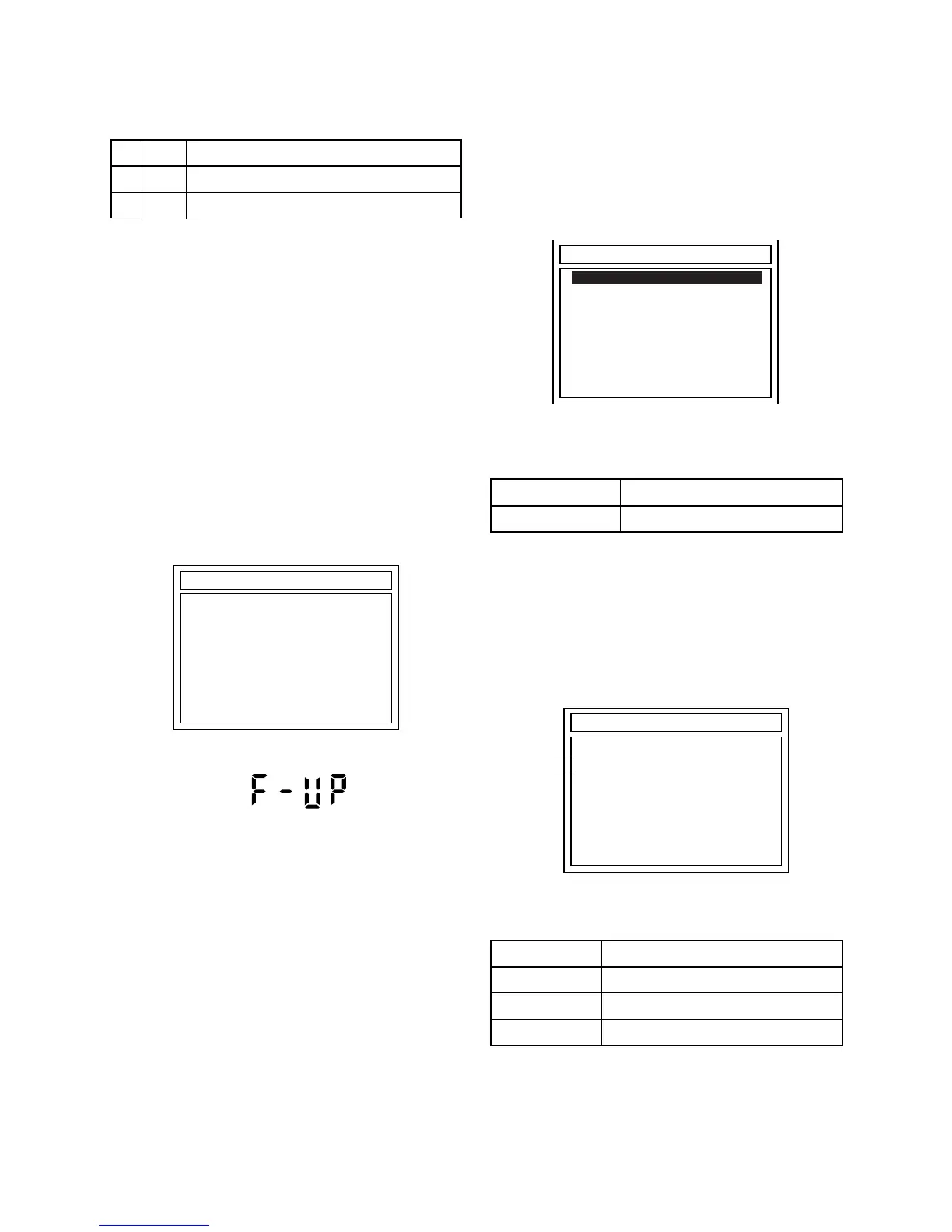
Fig. a appears on the TV screen and Fig. b
appears on the VFD.
Fig. a: Update Mode TV Screen
Fig. b: VFD Display in Update Mode
4. Load the update disc.
The TV screen will display Fig. c.
- If the update disc contains only a single file, the
update will initiate automatically when the disc is
inserted.
Fig. c: Update Disc TV Screen
Effective FIRMWARE update files will have the file
extensions shown below.
5. Select the desired FIRMWARE to be updated with
the arrow button and press the [ENTER] or [PLAY]
button.
The tray will open automatically; close the tray by
pressing [OPEN/CLOSE] button or by hand.
6. Fig. d appears on the TV screen and Fig. e
appears on the VFD, and the update will start.
Fig. d: TV Display during update
The status displayed in *1 is as shown below.
Item Status
1 B/E Update B/E FIRMWARE
2 F/E Update F/E FIRMWARE
DISC UPDATE
Please Insert F/W Disc
*FIRMWARE version will differ depending on the
model. Fig. a is an example.
File extension Status
MOT F/E FIRMWARE file
Display Status
B/E FIRMWARE B/E
F/E FIRMWARE F/E
UNKNOWN Not FIRMWARE B/E or F/E
DISC UPDATE
<DIR> BE
<DIR> FE
T3T00361B2S.MOT
*FIRMWARE version will differ depending on the
model. Fig. c is an example.
*1
*2
DISC UPDATE
DISC UPDATING
TARGET: B/E
STATUS: EXECUTING
*FIRMWARE version will differ depending on the
model. Fig. d is an example.


 To Next Page