3. PLOTTER OPERATION
3-20
3.6.3 Changing track color
Track can be displayed in red (default setting), yellow, green, light-blue, purple,
blue and white. It can be useful to change track color on a regular basis to
discriminate between previous day’s track, etc.
Own ship’s track
1. Press the [MENU] key followed by the CHART SETUP and TRACKS &
MARKS CONTROL soft keys to open the TRACK CONTROL menu.
2. Use the trackball to select OWN SHIP TRACK COLOR.
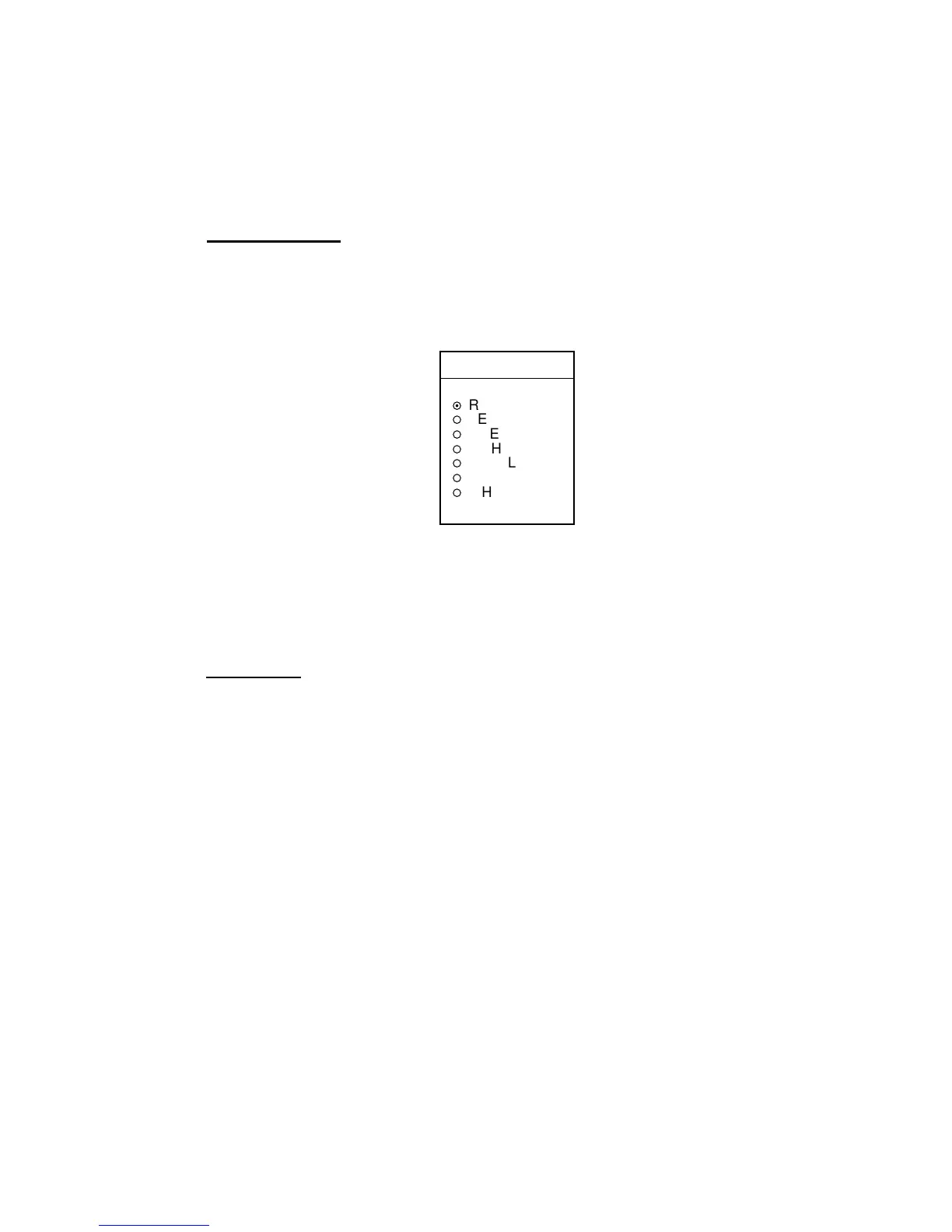
3. Press the EDIT soft key to display the track color window.
TRACK COLOR
▲
¤
RED
¡
YELLOW
¡
GREEN
¡
LIGHT BLUE
¡
PURPLE
¡
BLUE
¡
WHITE
▼
Own ship track color window
4. Use the trackball to select the color desired.
5. Press the ENTER soft key.
6. Press the [MENU] key to close the menu.
Target track
Like own ship’s track, target tracks can be displayed in red, yellow, green,
light-blue, purple, blue and white (default setting).
1. Press the [MENU] key followed by the CHART SETUP and TRACKS &
MARKS CONTROL soft keys to open the TRACK CONTROL menu.
2. Use the trackball to select TARGET TRACK COLOR.
3. Press the EDIT soft key to display the track color window.
4. Use the trackball to select the color desired.
5. Press the ENTER soft key.
6. Press the [MENU] key to close the menu.



 To Next Page
 Loading...