5. 3D MODE
5-33
5.17 How to Load 3D Setting Data
To load the 3D setting data saved at section 5.16, do as follows:
1. Open the menu.
2. Select [7 3D Functions], then left-click.
3. Select [0 Next], then left-click.
4. Select [1 Setting File], then left-click.
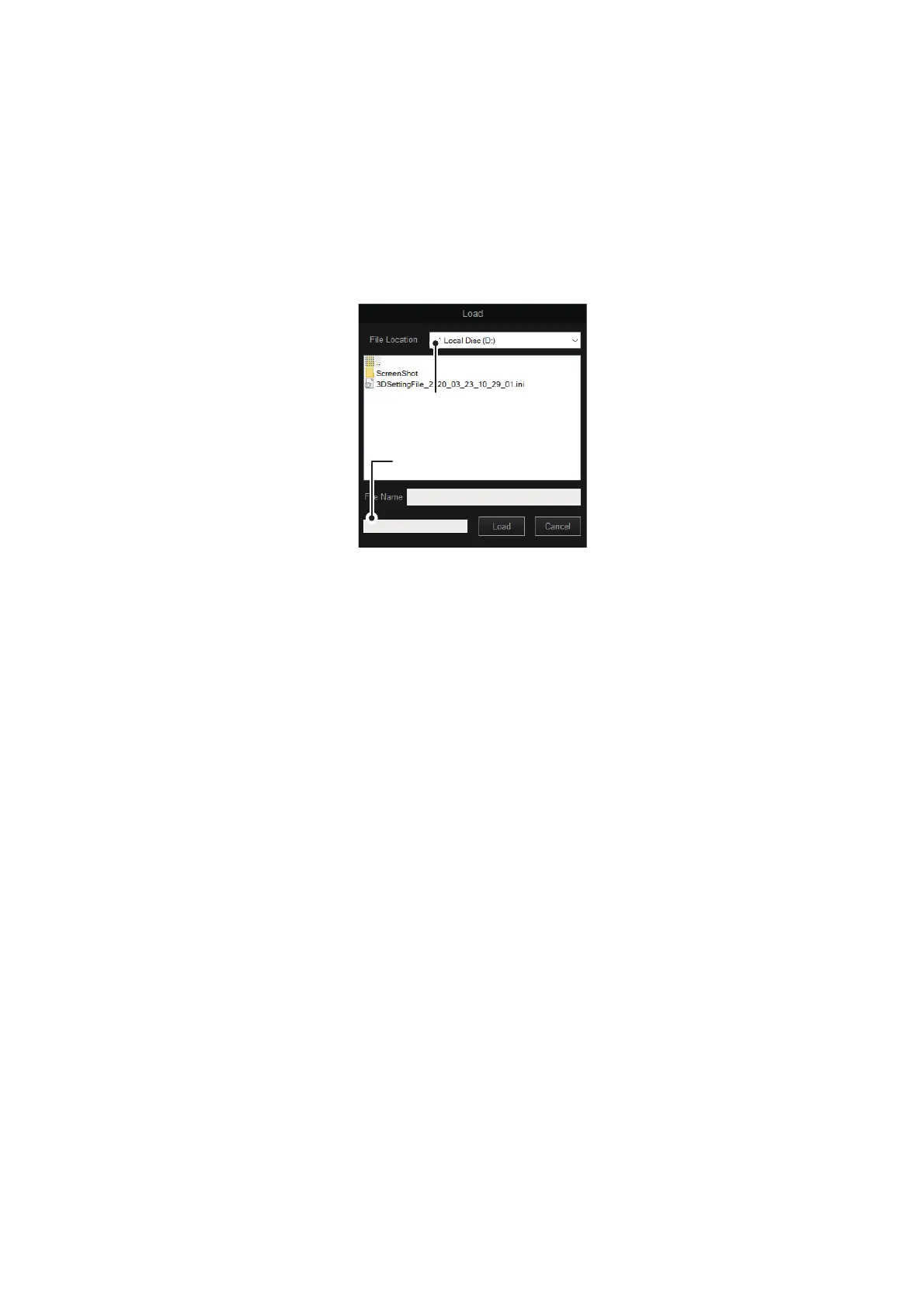
5. Select [2 Load], then left-click to open the [Load] window.
6. Select the file to load, from the destination list. The selected file appears in the
[File Name] box.
7. Left-click the [Load] button.
The progress bar shows the loading progress. The [Setting File] menu appears
when the loading is completed.
8. Close the menu.
Note: For the user custom view point (following menu item), the setting data is not ap-
plied after completing the loading. The setting is applied at the next time the 3D mode
is activated.
• Main menu → [7 3D Functions] → [9 Camera Setting] → [2 Custom View Point] →
[2 Save View Point]
Drop-down list of
destinations
Drop-down list of
destinations
Progress bar



 To Next Page