8.4. Search Your Camera and Link
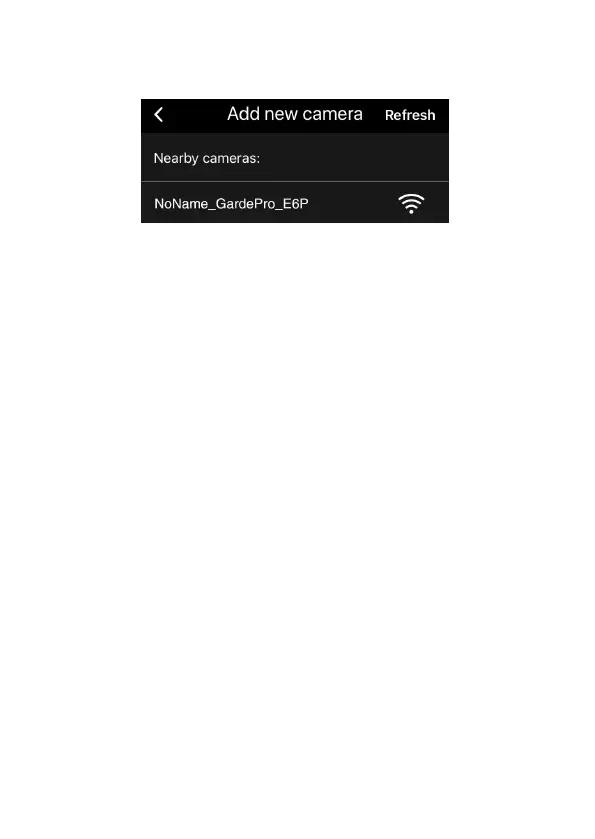
Figure 10: Select your camera
By default, in the list the camera will be indicated as ID
"NONAME_GardePro_E6P" (this manual uses the E6P
model as an example) if the camera name is not assigned. After
you set the camera name in settings, the camera ID will be
updated as "XXXX_GardePro_E6P" (XXXX is a 4-character
choice, you can set your camera name).
The app automatically searches for all Wi-Fi trail cameras
nearby, please make sure your camera is within the Wi-Fi
range. This process may take up to 15 seconds. If there is no
device shown in the list, please click the Refresh button on the
top-right corner.
Tap the one you want to add (Figure 10). The app starts
connecting to your camera. It might take up to 15 seconds to
build the Bluetooth and Wi-Fi connection between the app and
camera. There are 4 steps (Illustration omitted):
Step1 – Connecting through Bluetooth…
Step2 – Activating the camera…
Step3 – Searching Wi-Fi... The camera display will turn off
during Wi-Fi connecting.
Step4 – Connecting through Wi-Fi…


 To Next Page