6 nüvi 2505 Quick Start Manual
Adding a Stop
1
From the navigation screen, select >
Points of Interest.
2
Search for the extra stop.
3
Select the stop from the search results.
4
Select Go!.
5
Select Add to Active Route.
Your Route on the Map
Notice
The speed limit icon feature is for information
only and does not replace the driver’s
responsibility to abide by all posted speed limit
signs and to use safe driving judgment at all
times. Garmin will not be responsible for any
trafc nes or citations that you may receive for
failing to follow all applicable trafc laws and
signs.
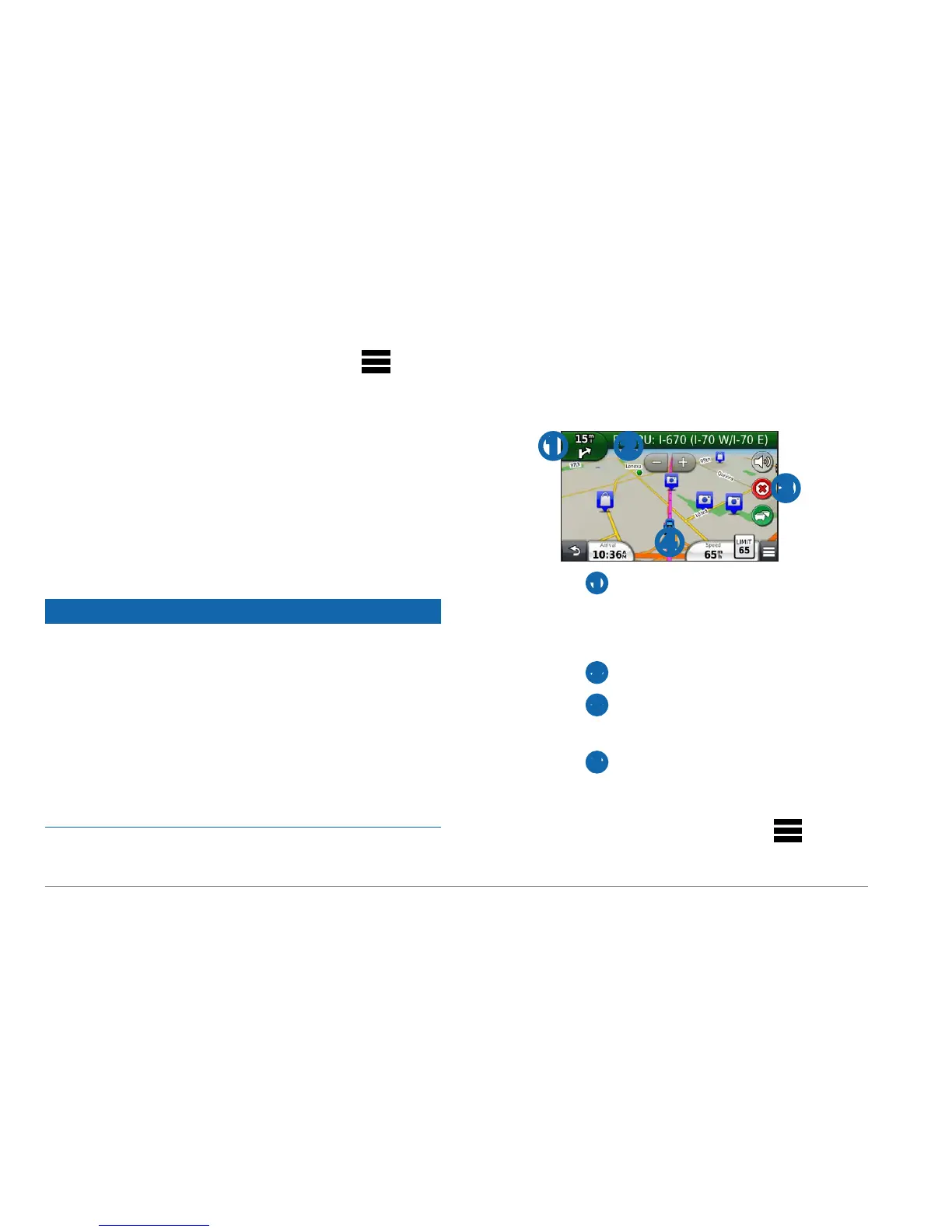
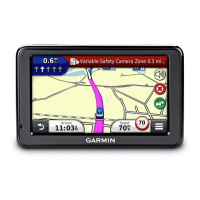
Your route is marked with a magenta line on the
map. If you depart from the original route, your
device recalculates the route. A speed limit icon
could appear as you travel on major roadways.
➍
➌
➊ ➋
• Select ➊ to view the next turn.
If a view of a junction exists, the junction
view appears.
• Select
➋ to view the turn list.
• Select
➌ to stop the route you are
currently navigating.
• Select
➍ to view the Where Am I? page.
Taking a Detour
From the navigation page, select >
Detour.


 To Next Page