12 Forerunner
®
301 Owner’s Manual
WORKOUTS > BASIC WORKOUTS
3. Press enter to open the Intensity Level menu.
Select a heart rate zone, or select Custom to specify
your own alert values.
4. Highlight Min HR Alert and press enter. Then select
On and press enter.
5. If you selected Custom in step 3, select the Alert At
field. Then use the and arrows and enter to set
a minimum heart rate.
NOTE: When entering custom heart rate values, you
must set your minimum and maximum alerts at least
five bpm apart.
6. Repeat steps 4 and 5 for Max HR Alert
.
7. Press mode repeatedly to exit.
Setting Auto Pause
You can set the Forerunner 301 to pause the timer
automatically during your workout when your pace/speed
drops below a certain value. This setting is especially
helpful if your course includes stop lights or other places
where you need to slow down or stop.
When you turn on Auto Pause, the Forerunner tracks and
displays any paused time as Rest Time on a new data page,
the Rest page. This page becomes part of the data page loop.
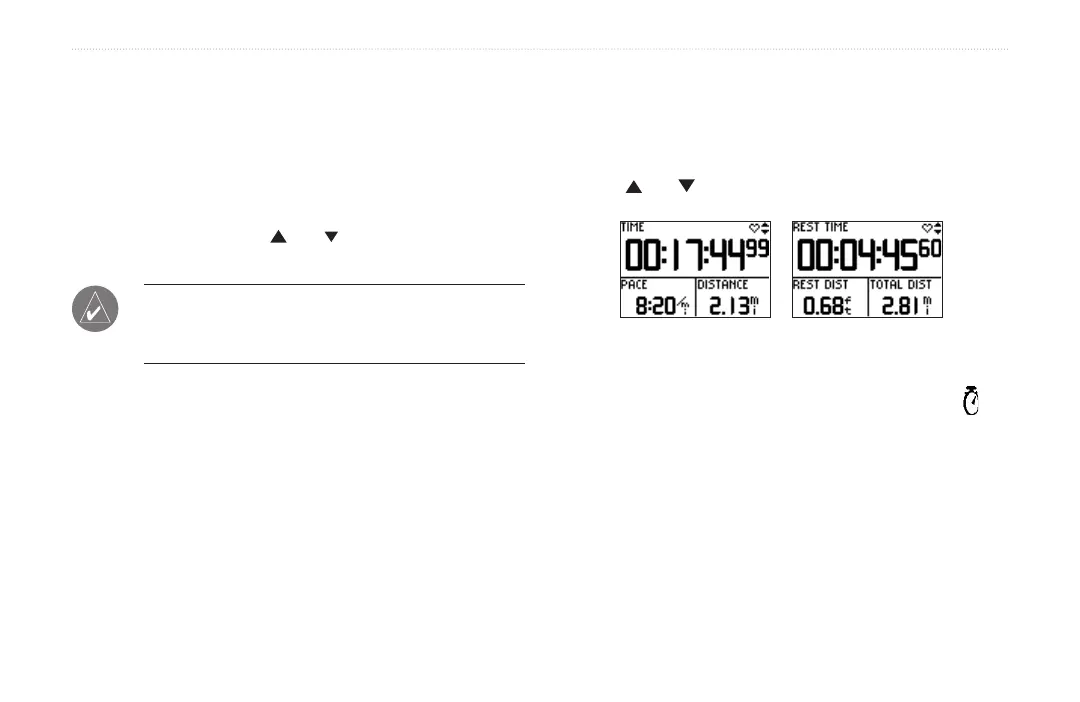
To view the Timer page and the Rest page in Timer mode,
press the and arrows.
When Auto Pause is enabled, the Rest page displays
all data collected while the timer is paused.
When the Forerunner pauses the timer, the Timer icon on
the Timer page flashes to indicate that the timer has stopped.


 To Next Page