37
Reference
Going to a Destination
Going to a Destination
Using the NAV key, the GPSMAP 182/182C/232 provides three ways to navigate to a destination:
Go To Point, Follow Route and Follow Track (TracBack). Once you are actively navigating, you will see
a straight line that always runs from your current location to the destination. The easiest method for
selecting a destination is the ‘Go To’ function, which lets you select a destination point and quickly sets
a direct course from your present position. If you have a point highlighted on a list or the map, ‘Go To
<point name>’ will appear in addition to ‘Go To Point’. The ‘Go To’ function can be accessed from any list
of points or graphically from the map display.
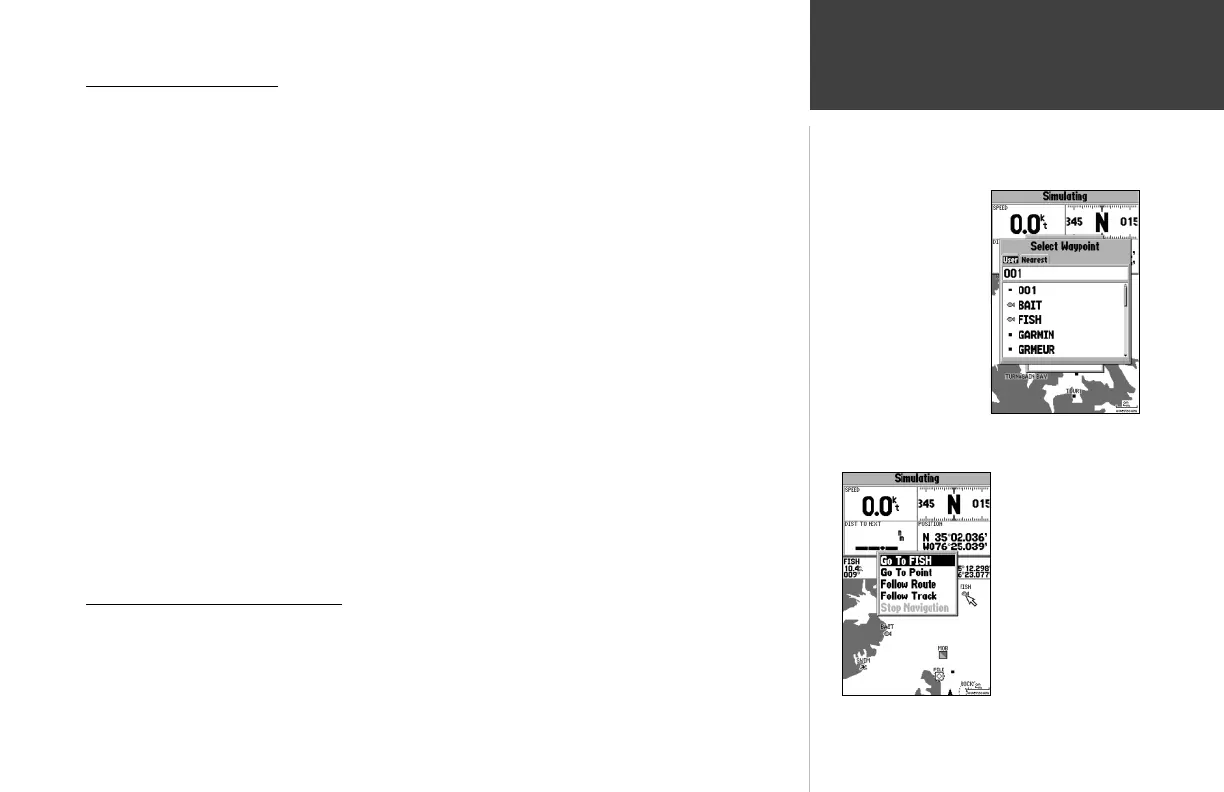
To activate a ‘Go To’ from a point list:
1. Press the NAV key.
2. Use the ARROW KEYPAD to highlight ‘Go To Point’ and press ENTER/MARK.
3. From the ‘Find’ menu, highlight ‘Waypoints’ and press ENTER/MARK. (You may also choose to go to
other points, such as Cities, Tide Stations, etc. from this list.)
4. To select a waypoint from the waypoint lists, use the ARROW KEYPAD to highlight either the ‘User’
or ‘Nearest’ tab, select a waypoint and press ENTER/MARK. To select a waypoint from the map,
highlight either the ‘User’ or ‘Nearest’ tab and press MENU. With ‘Select From Map’ highlighted,
press ENTER/MARK. Use the zoom IN and OUT buttons and the ARROW KEYPAD to select a
waypoint, then press ENTER/MARK.
5. You may also activate a ‘Go To’ for any point, on any list. With any list point highlighted, press the
NAV key. You will see
‘Go To <point name>’ appear
, then press ENTER/MARK.
Selecting a ‘Go To’ Graphically
A graphical ‘Go To’ may be used to select one of three items from the map display: an existing
waypoint, an on-screen map item (roads, rivers, cities, navaids, etc.), or a new map point (non-map
item). If you are selecting a map item as the ‘Go To’ destination, the GPSMAP 182/182C/232 will auto-
matically use the name of the map item, but the point will not be stored in the waypoint list. See page
Choose a waypoint from
either the ‘User’ or ‘Near-
est’ tab list.
The waypoint or map
item name will auto-
matically appear when
highlighted and NAV is
pressed.
182C Manual Part 2.indd 37 6/4/2003, 2:53:59 PM



 To Next Page